Clients struggling to share access to their
accounts? Get the access you need in minutes with a free trial of Leadsie.
14 day unlimited free trial
Extend until you onboard a client
No credit card required
Keep access to clients if you cancel


With easy one-link access requests for 13+ platforms your campaigns can go live in minutes, not days. Start free today.
Approved by Meta, Google & Tiktok
Keep access to clients' accounts if you cancel
Secure & 100% GDPR compliant


If you’re managing both Instagram and Facebook for your business or clients, linking the two accounts is one of the first things to set up. It lets you share posts more easily, manage messages in one inbox, and run ads across both platforms.
The process isn’t difficult, but the settings are buried in a few different places depending on how your Page is set up.
This guide will walk you through the exact steps to link your professional Instagram account to your Facebook Page, so you can get it done in a few minutes without digging through menus.
Prefer a video? 👇
There are four ways to connect your Instagram account to a Facebook Page, depending on how your accounts are set up:
Whether you’re managing your own brand or client accounts, connecting your Facebook Page to Instagram streamlines ad placement, centralizes messages, and lets you work with agencies or freelancers without sharing login details.
Here’s why it’s worth doing:
When your Facebook Page and Instagram account are connected, both platforms become available inside Meta’s Ads Manager. This lets you create one ad campaign and choose whether it runs on Facebook, Instagram, or both.
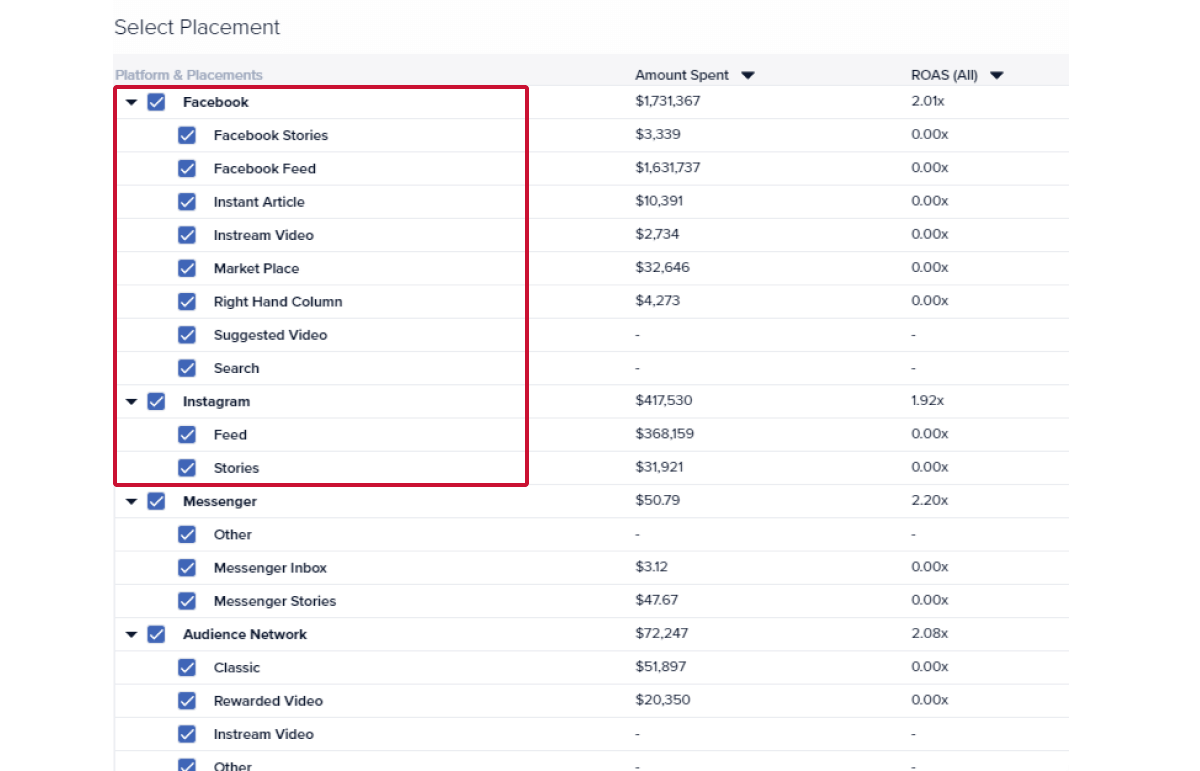
Instead of boosting a Facebook post and then setting up a separate promotion on Instagram, you can manage you can manage audience targeting, budget, ad creative, and placements from one dashboard.
The benefits?
✔️ Reach more people with a single campaign
✔️ Reporting is combined, so you can clearly see which platform is driving the most engagement or conversions
💡 If you’re working with influencers, this setup also allows you to run ads through a creator’s profile using allowlisting, rather than just your own brand account. Here’s a step-by-step guide on how to allowlist influencers for Meta ads.
Once linked, Instagram DMs and post comments can appear in your Page inbox in Messenger or in Meta Business Suite.

Instead of replying to messages from the Instagram app, your team can:
The benefits?
✔️ External partners like agencies can manage their clients’ messages without phone access
✔️ All conversations are organized in a single dashboard so you stay responsive without sharing your Instagram login
Connecting your accounts lets you share content across both platforms from the Instagram app or via Meta’s Accounts Centre.
This lets you:
The benefit?
✔️ You publish once instead of twice, maintain a consistent presence across platforms, and reduce the chances of forgetting to post when things get busy.
By linking Instagram to a Facebook Page, you can grant partners Facebook Page access through Page roles or a Meta Business Portfolio instead of handing over login credentials. Agencies and freelancers can also request access to their client’s Instagram account from their end.
That means if a freelancer leaves or a contract ends, you can revoke access instantly without:
The benefit?
✔️ You keep full control of your accounts while still giving partners the access they need. It’s a safer setup and much easier to manage long term, especially when multiple people are involved.
When your Facebook Page is linked to a professional Instagram account, you gain access to business-only features across both platforms.

These include:
The benefit?
✔️ These tools make it easier to drive actions, promote content, and manage payments without switching accounts or setting things up twice.
This is the easiest way to link your Instagram account to a Facebook Page.
📝 Before you start:
If your Instagram account is still personal one, go to:
Settings and activity (☰) > Account type and tools > Account type and switch to professional account.
This only takes a minute and unlocks the option to connect your Page.
💡 Tip: When switching to a Professional account for the first time, Instagram may automatically prompt you to connect a Facebook Page. You can complete the connection during that setup or follow the steps below.
Step 1. Go to your Instagram profile on the app.
Step 2. Tap “Edit Profile.”
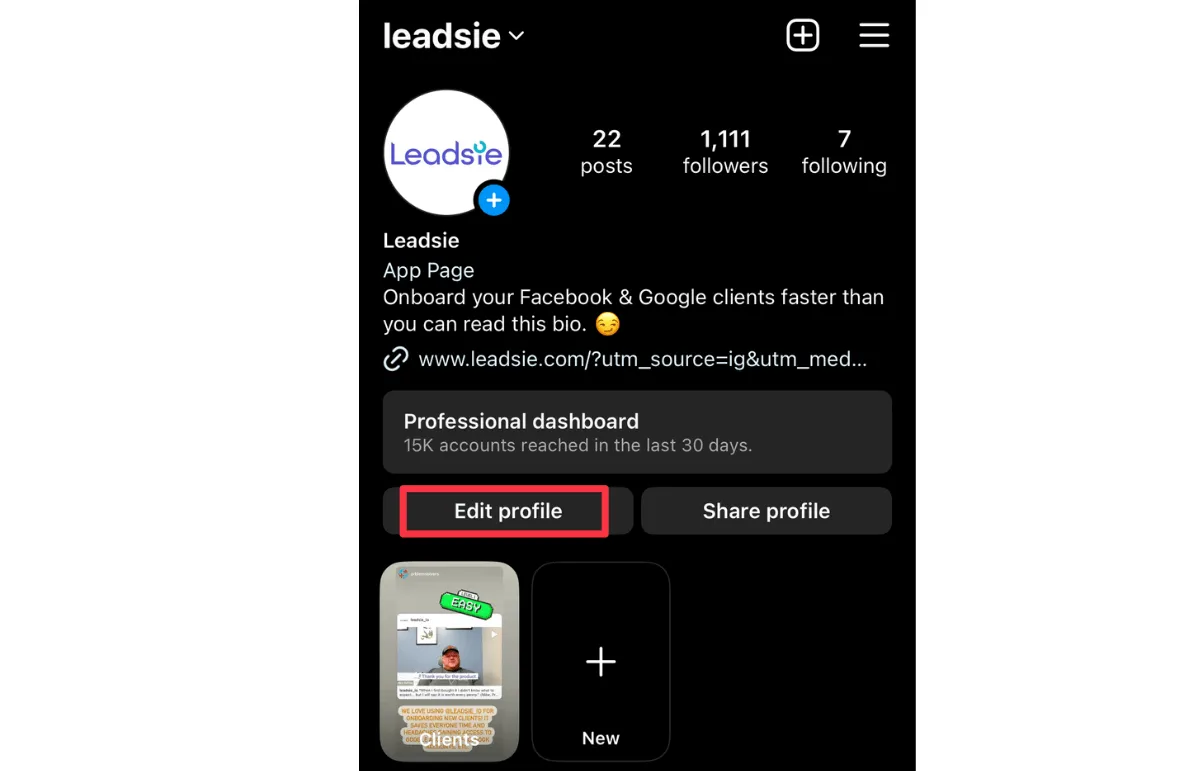
Step 3. Scroll down to Public business information and go to “Page.”

Step 4. Tap “Continue” on the popup. You’ll be prompted to log in to Facebook.
Step 5. After logging in, choose the Facebook Page you want to connect to.
❗ Note: Make sure you log in with the Facebook account that has full control (admin access) of the Page you want to connect.
.webp)
If you don’t have one yet, you can create it in the app simply by tapping on “Create a new Facebook Page.”
👉 Not sure how to set it up properly? Here’s how to create and optimize your Facebook Business Page.
Step 6. Your Instagram account and Facebook Page are connected! You will be taken back to Instagram, where your Page should now be linked.
To double-check, go back to your profile and confirm the Page name shows under Public Business Information.
⚠️ Important to know
Once your Instagram account is connected to a Facebook Page:
If you manage multiple Pages, double-check you’re connecting the correct one before confirming.
✅ Once you’ve linked your accounts successfully, you might also want to strengthen your brand’s credibility on the platform. Learn how to get verified on Instagram to make your profile stand out.
If you need to switch Pages or remove the connection entirely, you can disconnect your professional Instagram account at any time.
Follow these steps in the Instagram app:
Once disconnected, your Instagram account will no longer be linked to that Facebook Page. Cross-posting, shared messaging, and Page-level access will also be removed.
This method can be done on a laptop or computer from your Facebook Page.
📝 Before you start, make sure:
If you don’t have the right permissions, the Instagram option may appear greyed out or you won’t see your Page listed.
Then, follow these steps:
Step 1. Log in to Facebook and head to your Page @ https://www.facebook.com/pages/?category=your_pages&ref=bookmarks.
Step 2. Once inside, click on "Settings" (usually found in the left sidebar).

Step 3. In the left-hand menu, click “Linked Accounts.”

This section shows all Instagram and WhatsApp accounts currently connected to your business.
Step 4. Select Instagram and click on the blue “Connect Account” button. Then click “Connect” again to confirm you want to proceed.

Step 5. Decide whether you want to connect your message inboxes.
If you’d like to manage Instagram and Facebook messages in one place, click “Confirm.” This is recommended if you want unified messaging.
Step 6. Here you’ll be prompted to log in to Instagram, so you'll need to enter the login details for the Instagram account you want to connect.
💡 Tip: Make sure this is the correct account, especially if you manage multiple profiles!
Step 7. Once logged in, your Instagram account and Facebook Page will be connected.
You can double-check by going back to Settings > Linked Accounts and confirming that your Instagram account appears as connected.
If the first two methods don’t apply to your setup, there are two additional ways to connect your accounts.
If you manage your assets through a Meta Business Portfolio (formerly Business Manager), you can connect your Instagram account at the business level.
This method is best if:
👉 Follow these steps to add Instagram to a Business Portfolio.
Don't have a Business Portfolio yet? Here's how to create a Meta Business Portfolio.
You can also link Instagram and Facebook through Accounts Centre inside the Instagram app.
Unlike Method 2 above, which connects your Instagram directly to a specific Facebook Page, Accounts Centre connects your Instagram and Facebook accounts at the account level.
This method is mainly used to:
👉 Follow these steps to add a Facebook account to Instagram Accounts Centre
If you want your content to automatically share across both platforms, whether from Instagram to Facebook or Facebook to Instagram, you can manage this in Accounts Center.
Here’s how:

If your Facebook account isn’t connected yet, tap “Add accounts” and log in. If it’s already connected, select the account you want to manage sharing for.
From there, you can choose what gets shared automatically, including posts, stories, and reels. You can toggle each content type on or off depending on your preference.
💡 Good to know: Even if auto-sharing is enabled, you can still adjust sharing settings individually each time you create a post, Story, or Reel. You’re not locked into automatic posting.
Still sending onboarding emails, sharing PDFs, or jumping on calls just to get access to a client's accounts?
With Leadsie, one secure link handles the entire process. Clients can grant access to Meta, Google, LinkedIn, TikTok, Shopify, and 14+ marketing, advertising, and social media accounts without sharing passwords.
✅ Get access to client accounts in minutes, not days
✅ Replace hours of emails, admin work, and onboarding calls
✅ Scale client onboarding without adding operational overhead
✅ Reduce your agency's turnaround time by over 50%
✅ Start billable work and billing cycles sooner
✅ Create a professional onboarding experience that helps retain clients
✅ Keep access secure with 100% GDPR and CCPA-compliant workflows
💬 "I never want to do onboarding without Leadsie!" - Alyssa, Meta Ads Manager
🎁 Start your free 14-day trial today —no credit card required.
P.S. It's risk-free, and you get to keep your account connections after the trial ends. 🙌

Sarah is a pro at writing articles that accelerate SaaS businesses' organic growth. When she’s not caught up in the thrill of content writing, you’ll find her surfing in the Atlantic Ocean and running her own yoga retreats.


Clients struggling to share access to their
accounts? Get the access you need in minutes with a free trial of Leadsie.
Approved by Meta, Google & Tiktok
Keep access to accounts if you cancel
Secure & 100% GDPR compliant
Delete your onboarding PDF. Cancel the video call. Just send one link, and get hassle-free access to 13+ platforms in minutes. Start free today.
Approved by Meta, Google & Tiktok
Keep access to clients' accounts if you cancel
Secure & 100% GDPR compliant
No. Connecting your Instagram to a Facebook Page does not change your followers, delete posts, or affect your engagement. It simply enables cross-platform tools like ads, messaging, and cross-posting.
No. An Instagram account can only be connected to one Facebook Page at a time.
If you need to switch Pages, you’ll first need to disconnect the current Page before linking a new one. This is especially important if you manage multiple client accounts.
Technically yes, but your options are limited.
Linking to a Facebook Page unlocks full campaign control inside Meta Ads Manager, unified reporting, and better asset management. Most businesses benefit from connecting the accounts.
Yes. Even though you’re connecting a Facebook Page, the process requires a personal Facebook profile with admin access to that Page. This is how Meta verifies permissions.
You cannot connect accounts using only a Page without a personal profile behind it.
Yes, but only if access is granted correctly.
Instead of sharing your Instagram password, you can give people access through:
Once connected, anyone with the appropriate Page access can help manage messages, ads, and certain business features without logging into Instagram directly.
This usually happens for one of these reasons:
Questions unanswered? Check out our help center or get in touch 🤠