
Clients struggling to share access to their
Google Business Profile
accounts? Get the access you need in minutes with a free trial of Leadsie.
14 day unlimited free trial
Extend until you onboard a client
No credit card required
Keep access to clients if you cancel


With easy one-link access requests for 13+ platforms your campaigns can go live in minutes, not days. Start free today.
Approved by Meta, Google & Tiktok
Keep access to clients' accounts if you cancel
Secure & 100% GDPR compliant


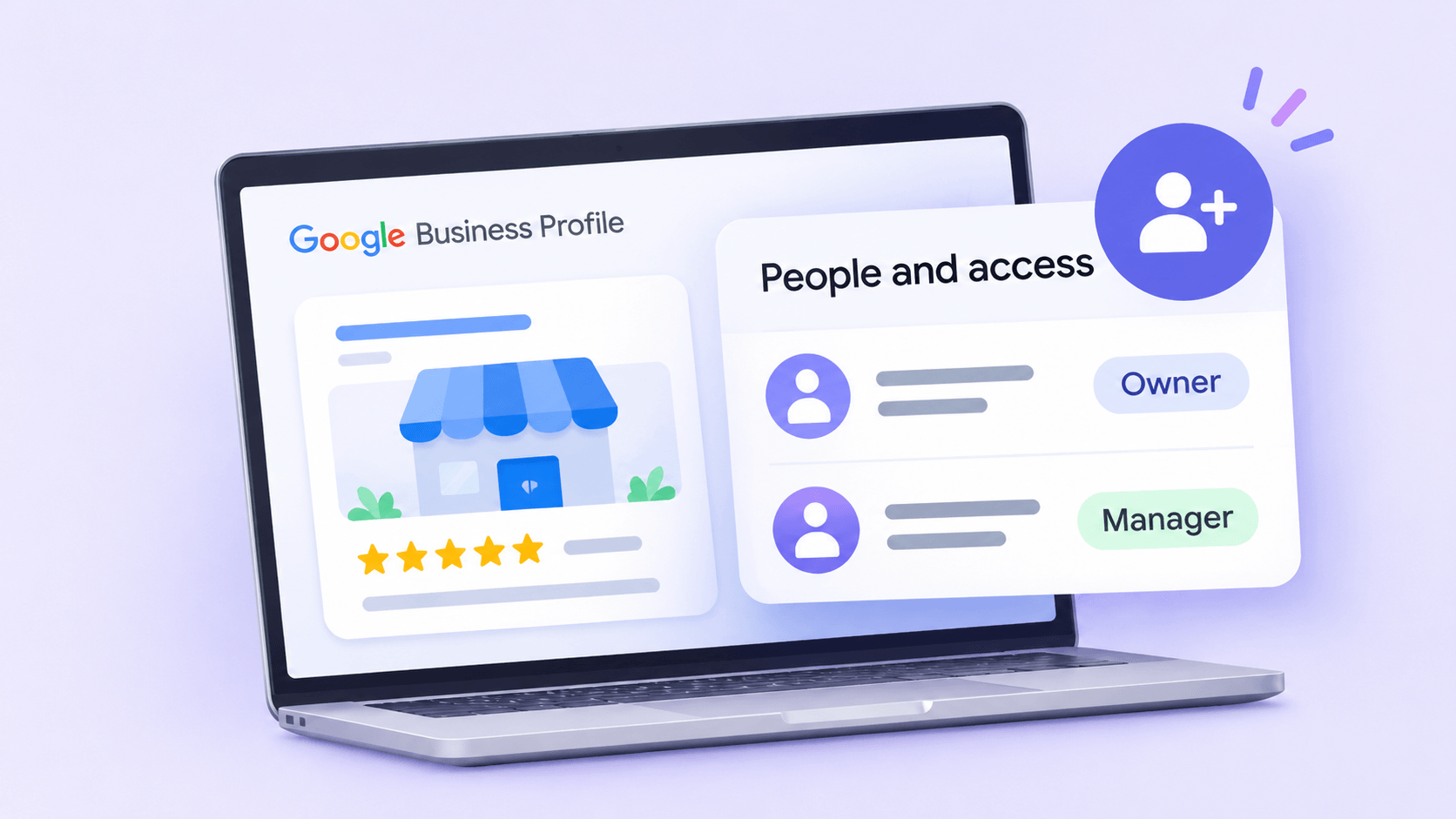
To give someone access to your Google Business Profile (formerly known as Google My Business), search on Google for your business while logged in, click the three-dot menu on the results panel, then select Business Profile settings > People and access.
We suggest giving agencies and freelancers the Manager role, so they can update your profile and reply to reviews without being able to manage user access or delete the profile.

Related articles: If you also need to share access to other Google tools, see our guides on:
Find the user by their email address, name, or business group ID (depending on their account type), and select their permission level: choose from Manager or Owner. They'll receive an email invitation and gain access as soon as they accept it.
Go to https://www.google.com/business/ and click Sign in or Manage now. If you're using Chrome browser and are already signed into the correct Google account, proceed to the next step.
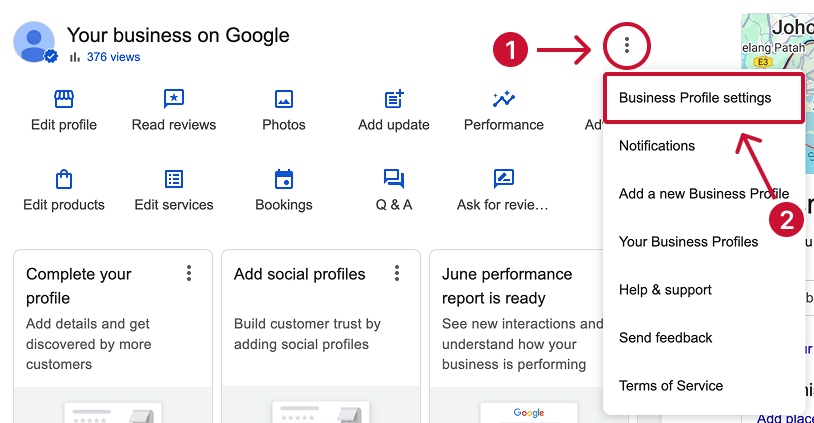
Click the three-dot menu ⠇ in the top right of your business profile panel, then select Business Profile settings.
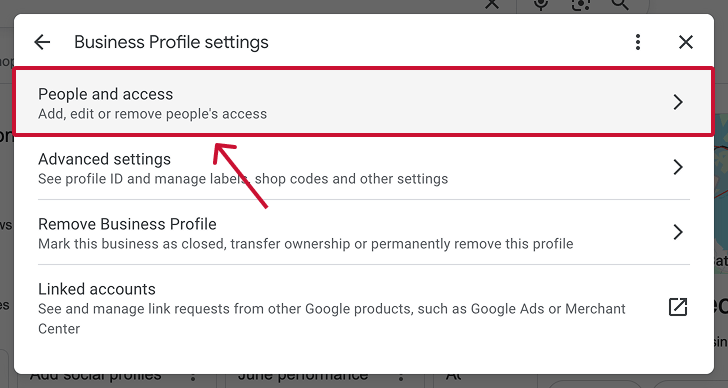
On the pop-up, select People and access, and then the Add button to invite a new user.
Note: Remember, only Owners can add or remove people.
How you find them depends on whether you're inviting an individual or an agency.
Type their email address (Gmail or Google Workspace) or full name.
Search them by their full business name as it is listed in their directory, or by their business group ID (also known as location group ID), which they should have given you.
Most agencies use a Google Business Profile organization account to manage multiple clients. This account type can’t be invited with an email address alone. Ask your agency for the correct details if you're unsure.

Choose whether you want them to be an Owner or a Manager:
We recommend giving agencies and freelancers Manager level access.
Click Invite to send the access request.
The user will receive an email invitation. Once they click Accept, they can start managing your profile.
Note: Google restricts some actions for newly added Owners and Managers during their first seven days, including:
Head to Business Profile settings > People and access to cancel an invitation that hasn’t been accepted yet. Here, you will see the pending invitation and you can choose the option to cancel it.
This is useful if you've invited the wrong person or no longer want to give them access.
Our recommendation: give agencies and freelancers Manager access. It covers everything they need to run your profile day to day, and you stay in control of who else gets in.
This is also what Fat Cat Strategies (a marketing agency) recommends on the Digital Marketing Podcast. While an agency needs enough permissions to manage clients' profiles, business owners should retain ownership.
Every Google Business Profile also has one primary owner, usually the person who created or verified it. Other owners can't remove the primary owner, which is another reason to keep that role yourself.
Only Owners can change or remove other users' access to a Google Business Profile.
Tip: Review your user list periodically. Fat Cat Strategies recommends limiting unnecessary staff access to Google Business Profiles, rather than letting permissions accumulate over time.
For example, when an employee leaves or you stop working with an agency, check whether they still have access and remove it if it's no longer needed.
If a former employee, freelancer or agency originally created your profile, they might still control it.
Caitlyn and Meredith, from Fat Cat Strategies, say they've seen businesses struggle to access their Google Business Profile because a former employee or someone else originally set it up and retained ownership.
If you don't have ownership access (AKA the primary Owner role), you can request ownership through Google. The current owner has three days to respond, but if they don't, Google may give you the option to verify and claim the profile yourself.
Only Owners can manage other users' access. If you're a Manager, ask an existing Owner to make the change, or to update your role to Owner.
If you've only recently been added as an Owner, Google restricts certain actions during your first seven days, including removing other users and transferring primary ownership.
Hiring a marketing agency, freelancer, or consultant? Giving them access to your marketing accounts shouldn't require endless emails, confusing permission settings, or sharing login credentials (too risky).
If your agency sent you a long PDF and asked you to navigate Meta Business settings and 5 other social platforms to grant them access, send them over to leadsie.com to automate this part of client onboarding for you.
With Leadsie, you can securely share access to Meta, Google, LinkedIn, TikTok, Shopify, and 14+ other marketing platforms via a secure link in just a few clicks.
✅ Approve only the permissions your agency actually needs
✅ No need to share passwords or sensitive login information
✅ Get campaigns, ads, and marketing projects started faster
✅ Keep account access secure with 100% GDPR and CCPA-compliant workflows
💬 "I never want to do onboarding without Leadsie!" - Alyssa, Meta Ads Manager
🎁 Start your free 14-day trial today —no credit card required.
P.S. It's risk-free, and you get to keep your account connections after the trial ends. 🙌

With over 5 years of experience in B2B SaaS content and marketing, Nina wears a few hats at Leadsie, from writing articles to being the face of its YouTube channel. Outside work, she's a newbie digital nomad exploring the world, learning Spanish, and binge-watching food vloggers for recipes she may or may not attempt!


Clients struggling to share access to their
Google Business Profile
accounts? Get the access you need in minutes with a free trial of Leadsie.
Approved by Meta, Google & Tiktok
Keep access to accounts if you cancel
Secure & 100% GDPR compliant
Delete your onboarding PDF. Cancel the video call. Just send one link, and get hassle-free access to 13+ platforms in minutes. Start free today.
Approved by Meta, Google & Tiktok
Keep access to clients' accounts if you cancel
Secure & 100% GDPR compliant
There isn’t a limit to the number of users you can add to your Google Business Profile.
However, be mindful of how often you add or change user access. The team at Fat Cat Strategies shared that they've seen Google Business Profiles suspended following frequent changes to user access.
They recommend limiting unnecessary staff access and keeping user permissions consistent wherever possible.
Yes. You can view all current users (and any pending invites) in the People and access section of your Business Profile settings.
There’s no built-in “temporary access” option, but you can remove a user at any time once they no longer need access.
Questions unanswered? Check out our help center or get in touch 🤠


