Clients struggling to share access to their
Google Business Profile
accounts? Get the access you need in minutes with a free trial of Leadsie.
14 day unlimited free trial
Extend until you onboard a client
No credit card required
Keep access to clients if you cancel


With easy one-link access requests for 13+ platforms your campaigns can go live in minutes, not days. Start free today.
Approved by Meta, Google & Tiktok
Keep access to clients' accounts if you cancel
Secure & 100% GDPR compliant


To request access to a client’s Google Business Profile, ask the client to invite you or submit an access request.
Alternatively, you can use a client onboarding tool like Leadsie to automate the access request process. We'll walk you through each method step by step.

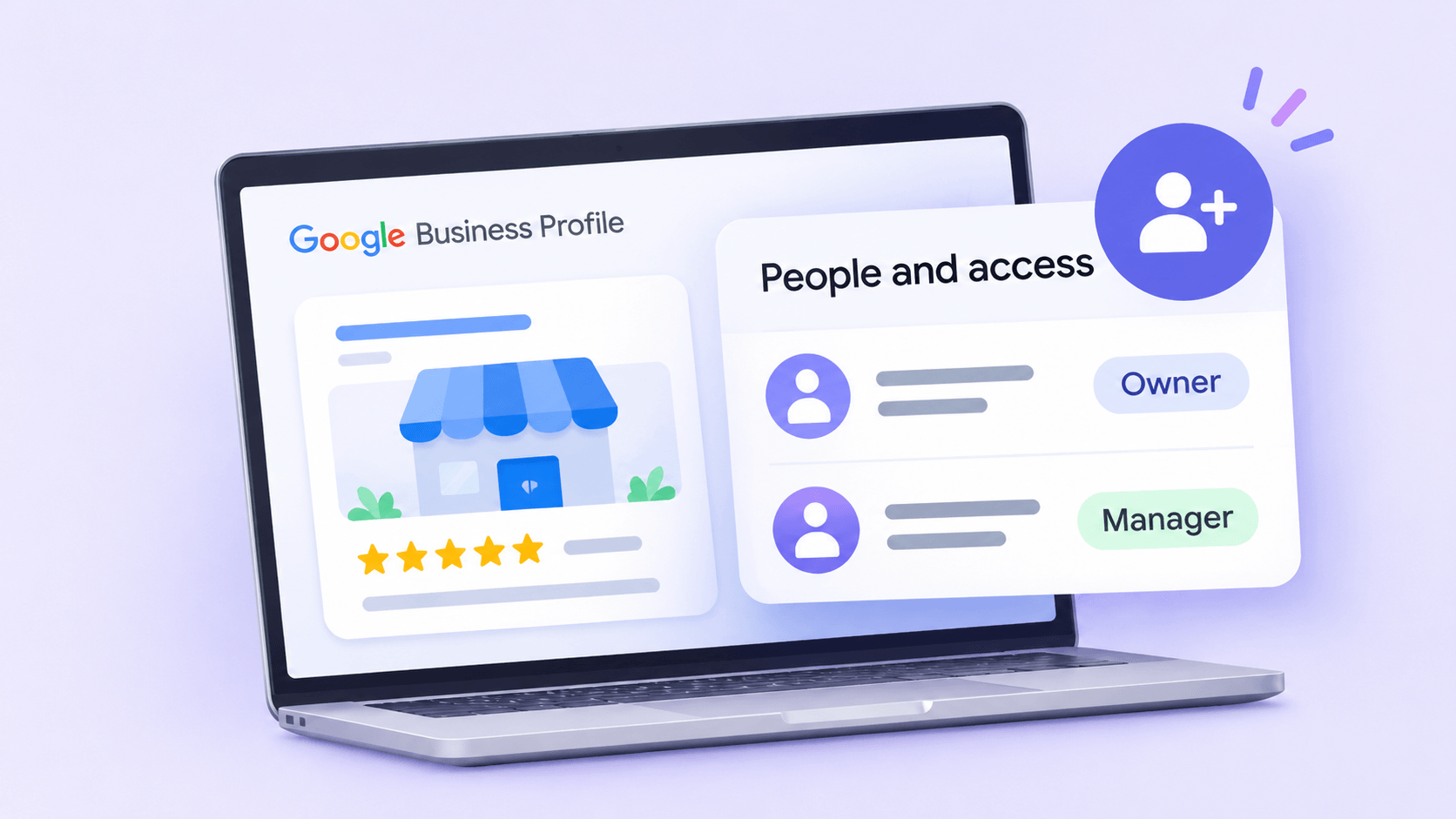
Have your client or colleague go to their Google Business Profile > Settings > People and access > Click "Add".
You'll need to send them these two pieces of information:
Then, have them add you as a Manager.
Note: Your client will remain the primary owner of the profile, while the Manager role lets you update business information, upload photos, publish posts, and respond to reviews.
In the next two sections, we explain how you can request access to an existing Google Business Profile yourself without an invitation:
a) Through Google Search or Maps: Best if you only need access to one Business Profile.
b) Through your organization account: Best if you're managing multiple client profiles through a Google Business Profile organization account.
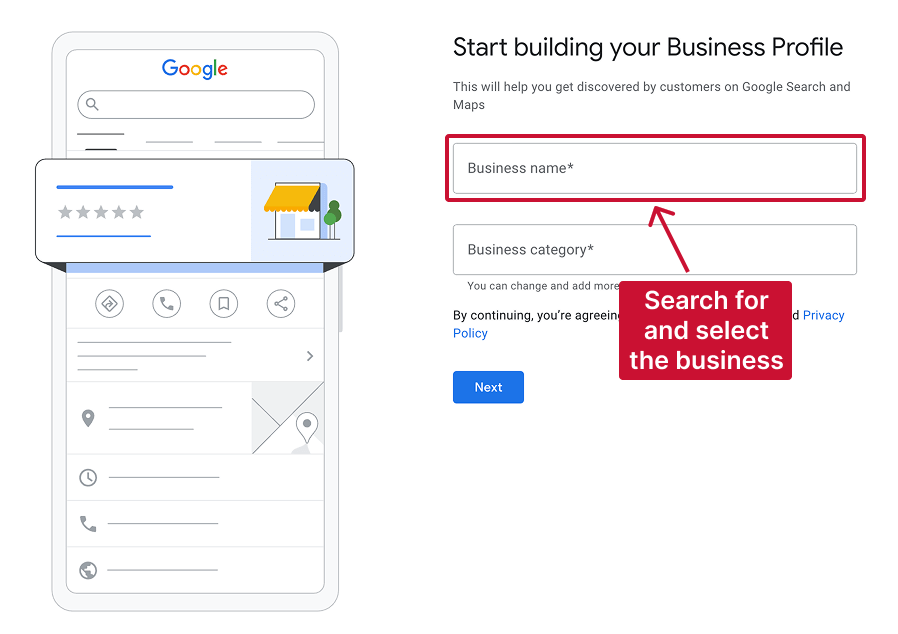
Go to business.google.com/create and sign into the Google account you want to use to manage your client’s profile.
Type your client’s business name and select the right option from the dropdown or results.
Note: You're not creating a new profile if you select one of the results or an existing business name.
Alternatively, find your client's business on Google Search or Maps and click Own this business? if the option appears.
If the profile is already managed by someone else, Google will show a message indicating that the business may be claimed. This does not affect your ability to send an access request.
Click the Request Access button to continue.
Complete the form with the following details:
Then, click Submit to send your request.
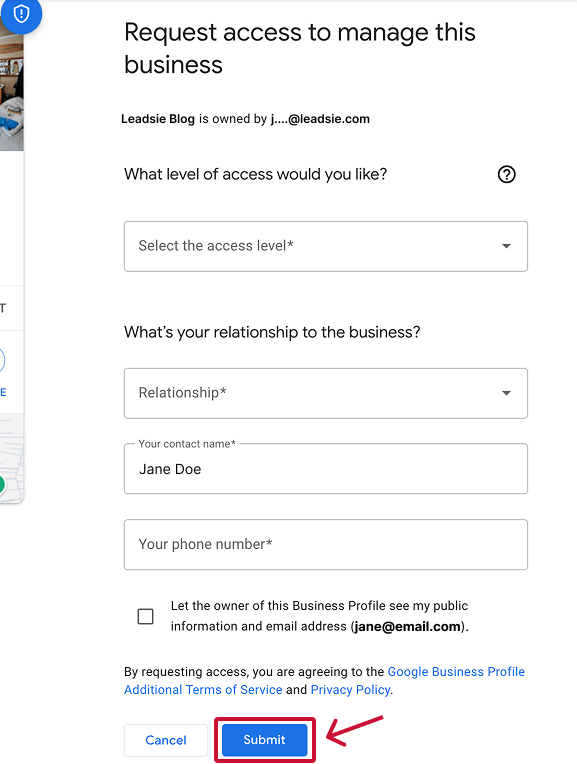
That's all. Your client will see the request in their dashboard and email.
Google will notify the current profile owner, who has three days to respond.
If you're an agency managing multiple clients' Google Business Profiles, you can request access through your Google Business Profile organization account.
An organization account lets you manage client profiles in one place without needing to request access through a personal Google account.
Log in to your Business Profile Manager @ https://www.google.com/business.
If you don’t have one yet, go to business.google.com/agencysignup to set up a new Business Profile Manager account.
In your Agency Dashboard, click on the Manage invitations tab, then select Request access in the top right corner.
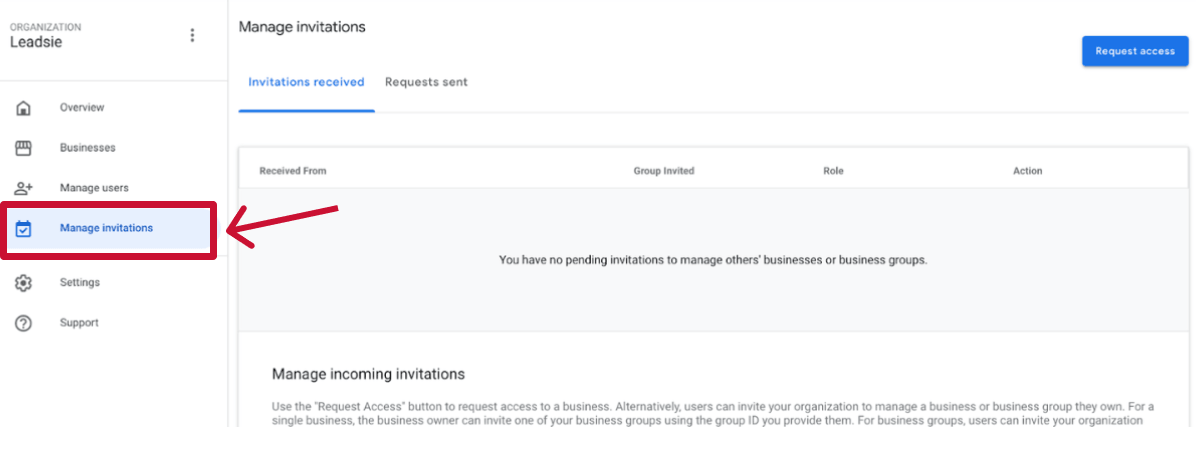
Choose your Organization (your agency's name) and the Business Group where you want to manage the client's profile.
Business Groups are like folders that help you organize client profiles.
Type in your client's business name and select the correct profile from the search results.
Click Request access and follow any additional prompts to submit your request.
Your client will receive a notification asking them to approve your agency's access request. Once they approve it, you'll receive a confirmation email and can manage their Business Profile through your selected Business Group.
You can see all your pending requests in your dashboard under Manage invitations > Requests sent.

Leadsie is a client onboarding tool that allows agencies request access to a client's Google Business Profile with a single link. This same Leadsie link can be used for multiple clients to give you access to various msocial media and marketing platforms in one go.
The same Leadsie link can also request access to Google Ads, Google Analytics, Google Tag Manager and 14+ other marketing platforms.
🔗 Want to automate more time-consuming parts of client onboarding? Learn the best ways to automate your onboarding process.
Service-area businesses with a hidden address often don't show up when you search for them to request access.
In this case, ask the owner to invite you directly, or contact Google Business Profile support for help.
Ask your client to get in touch with their previous agency and request that they transfer primary ownership back to the business owner.
If the agency refuses or doesn't respond, your client can start Google's ownership request process, following the steps in Method 2.
This happens more often than you might think. In an episode of Digital Marketing for Contractors, the hosts describe an agency that refused to share access to a client's profile, claiming it was against company policy.
As the hosts put it: “That is not a thing.”
Your client should always retain control of their Business Profile, no matter who manages their account.
Still sending onboarding emails, sharing PDFs, or jumping on calls just to get access to a client's accounts?
With Leadsie, one secure link handles the entire process. Clients can grant access to Meta, Google, LinkedIn, TikTok, Shopify, and 14+ marketing, advertising, and social media accounts without sharing passwords.
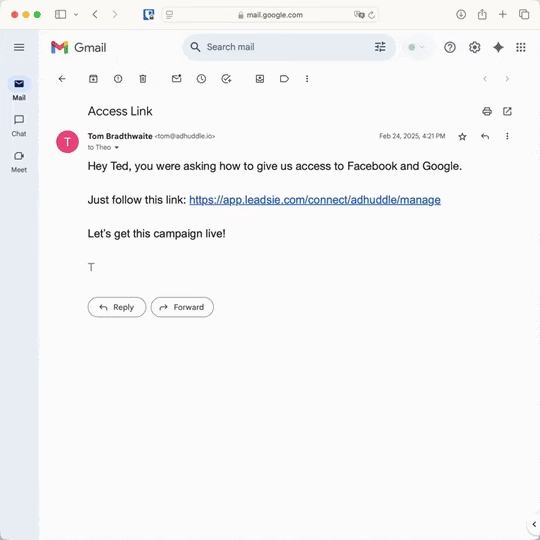
✅ Get access to client accounts in minutes, not days
✅ Replace hours of emails, admin work, and onboarding calls
✅ Scale client onboarding without adding operational overhead
✅ Reduce your agency's turnaround time by over 50%
✅ Start billable work and billing cycles sooner
✅ Create a professional onboarding experience that helps retain clients
✅ Keep access secure with 100% GDPR and CCPA-compliant workflows
💬 "I never want to do onboarding without Leadsie!" - Alyssa, Meta Ads Manager
🎁 Start your free 14-day trial today —no credit card required.
P.S. It's risk-free, and you get to keep your account connections after the trial ends. 🙌

Sarah is a pro at writing articles that accelerate SaaS businesses' organic growth. When she’s not caught up in the thrill of content writing, you’ll find her surfing in the Atlantic Ocean and running her own yoga retreats.


Clients struggling to share access to their
Google Business Profile
accounts? Get the access you need in minutes with a free trial of Leadsie.
Approved by Meta, Google & Tiktok
Keep access to accounts if you cancel
Secure & 100% GDPR compliant
Delete your onboarding PDF. Cancel the video call. Just send one link, and get hassle-free access to 13+ platforms in minutes. Start free today.
Approved by Meta, Google & Tiktok
Keep access to clients' accounts if you cancel
Secure & 100% GDPR compliant
For most agencies, Manager access is sufficient. It lets you update business information, publish posts, upload photos, and respond to reviews without taking ownership of the profile.
Your client should remain the primary owner, so they retain control over who can access their business listing.
Questions unanswered? Check out our help center or get in touch 🤠