Clients struggling to share access to their
accounts? Get the access you need in minutes with a free trial of Leadsie.
14 day unlimited free trial
Extend until you onboard a client
No credit card required
Keep access to clients if you cancel


With easy one-link access requests for 13+ platforms your campaigns can go live in minutes, not days. Start free today.
Approved by Meta, Google & Tiktok
Keep access to clients' accounts if you cancel
Secure & 100% GDPR compliant


To give someone access to a Facebook Page, use one of two routes:
Choose the person’s access level, review their permissions, and send the invitation. The process usually takes only a few minutes, although access may not activate until the recipient accepts. This guide explains both methods and the types of permissions to give a teammate, freelancer, or marketing agency.
🔗 Related article: How to request access to a client's Facebook Page
To give someone access to a Page that is not part of a Business Portfolio, switch into the Page and open Settings > Page setup > Page access. Add the person under Facebook access or Task access, choose their permissions, and confirm with your password.
Here are the steps in detail.
Click your profile picture, select “See all profiles,” and choose the Page you want to manage.
From the Page, go to Settings and privacy > Settings > Page setup > Page access.
.png)
You will see separate sections for people with Facebook access and task access.
Click “Add New” beside the appropriate section:
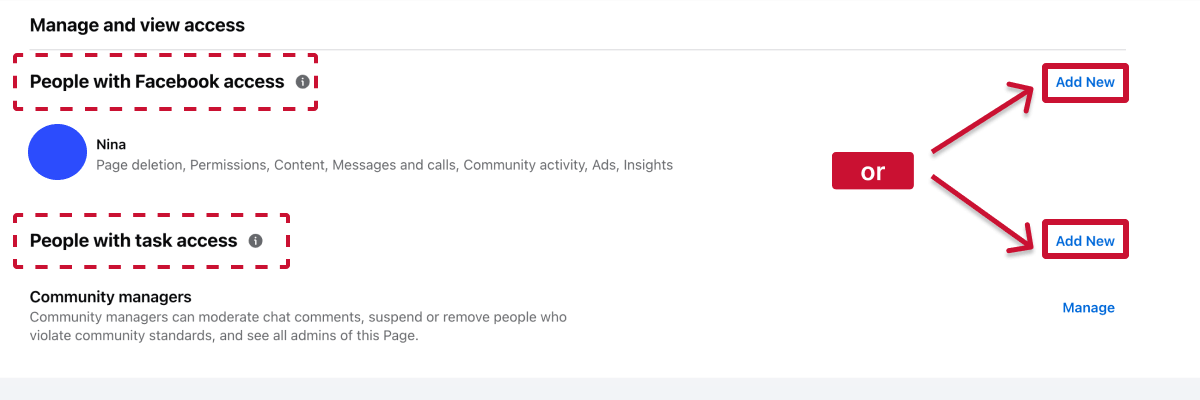
💡 Tip: Choose task access for advertisers, analysts, or contractors who do not need to act as the Page directly.
Click “Next,” search for the person by name or email address, and select their account.
If they do not appear, confirm that they have a Facebook account and that you entered their details correctly.
Facebook access is set to partial control by default, allowing the person to manage content, messages, comments, ads and insights without managing access or critical settings.
To grant full control, turn on the toggle before clicking "Give access." Full control includes settings, permissions and Page deletion.

For task access, enable only the tasks they need, such as content, messages and community activity, ads, or insights.
⚠️ Warning: Someone with full control can remove you or delete the Page. Grant it only to trusted owners.
Click “Give access,” enter your Facebook password, and select “Confirm.”
The recipient will receive an invitation by email, and they have 30 days to accept it.
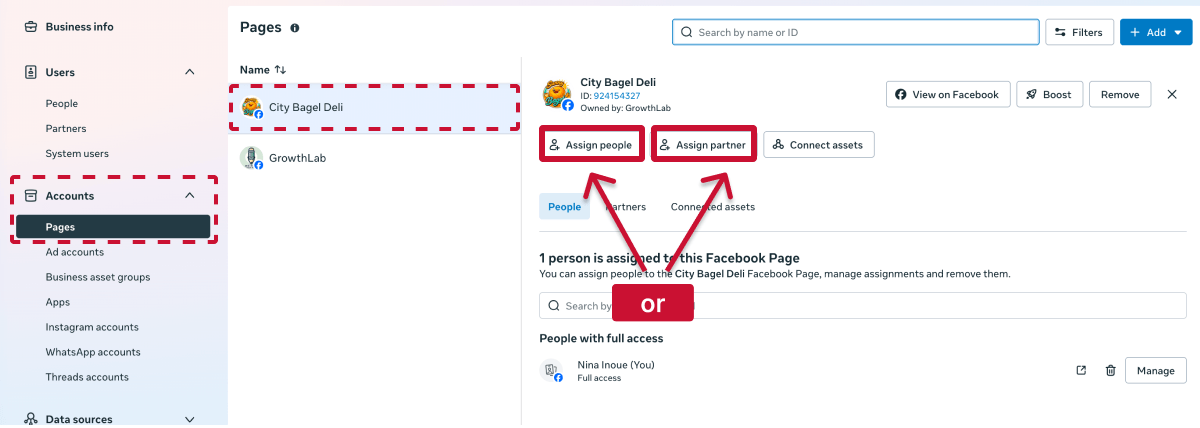
To give someone access, open Meta Business Suite > Settings > Accounts > Pages and select the Page. Click Assign people for an individual or Assign partner for an agency.
Confirm that:
Here are the steps in detail.
Open Meta Business Suite, choose the Business Portfolio that owns the Page, and click “Settings.”
Under Accounts, click “Pages” and select the Page you want the person to manage.
Is the page not listed? Here’s how you can connect a Facebook Page to a Business Portfolio:
Click "Assign people" to invite individual teammates or freelancers. If they are not listed, go to Users > People, invite them by email, and then return to the Page assignment screen.
Click “Assign partner” for an agency or another business. Choose “Business ID” to enter the agency’s Business ID, or “Get Link to Share” to generate a one-time access link.
Meta Business Suite provides three Page access levels:
💡 Choose individual permissions based on the person’s responsibilities. An advertiser may need Ads and Insights, while a community manager may need only Content, Community activity, and Messages and calls.
⚠️ Warning: Full-access users can remove anyone, including you, and delete the Page. Reserve this level for trusted owners.
Review the selected permissions and click “Assign.”
The recipient will need to accept an invitation before access becomes active.
Are you an agency accessing a client’s Page? This guide explains how the Page owner grants access. If you want to initiate the process from your own Business Portfolio, see our guide on how to request access to a Facebook Page.
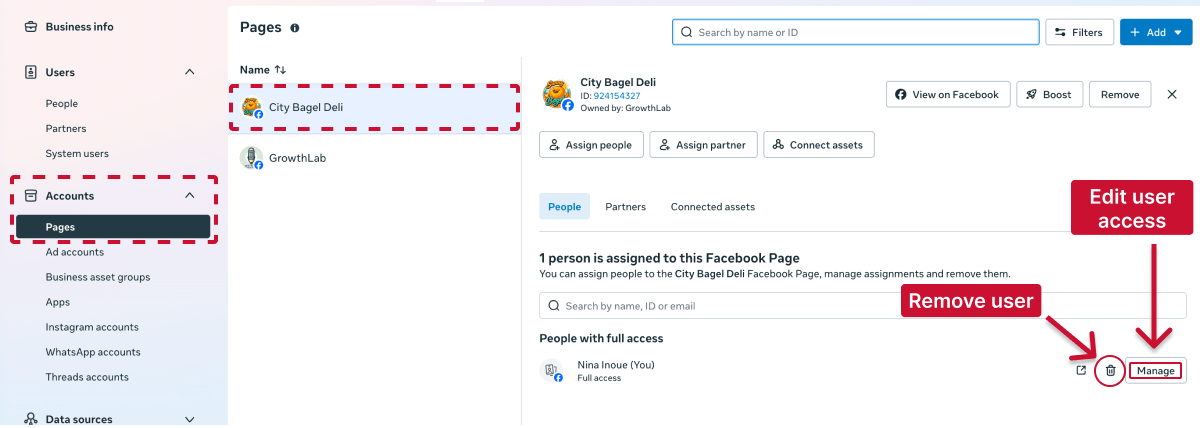
For a standalone Page, return to Settings > Page setup > Page access. Find the person, open the options beside their name, and choose "Edit access" or "Remove access."
For a Business Portfolio Page, open Meta Business Suite > Settings > Accounts > Pages, select the Page and find the assigned person or partner. Click "Manage" to change permissions or "Remove access" to revoke them.
If you can't find the person you're trying to add, check three things:
Facebook uses different permission names depending on whether your Page is standalone or part of a Business Portfolio.
Rule of thumb: Give full control only to trusted owners. Give employees, freelancers and agencies partial or task-based access for the specific work they perform.
❗ You may still encounter the older roles Admin, Editor, Moderator, Advertiser and Analyst in legacy instructions, but Meta has largely replaced these with full control, partial access and task-based permissions.
Hiring a marketing agency, freelancer, or consultant? Giving them access to your marketing accounts shouldn't require endless emails, confusing permission settings, or sharing login credentials (too risky).
If your agency sent you a long PDF and asked you to navigate Meta Business settings and 5 other social platforms to grant them access, send them over to leadsie.com to automate this part of client onboarding for you.
With Leadsie, you can securely share access to Meta, Google, LinkedIn, TikTok, Shopify, and 14+ other marketing platforms via a secure link in just a few clicks.
✅ Approve only the permissions your agency actually needs
✅ No need to share passwords or sensitive login information
✅ Get campaigns, ads, and marketing projects started faster
✅ Keep account access secure with 100% GDPR and CCPA-compliant workflows
💬 "I never want to do onboarding without Leadsie!" - Alyssa, Meta Ads Manager
🎁 Start your free 14-day trial today —no credit card required.
P.S. It's risk-free, and you get to keep your account connections after the trial ends. 🙌

Nina is an SEO content specialist with expertise in B2B SaaS. She helps businesses increase organic traffic with strategic, high-quality content. Outside of work, you’ll find her sailing somewhere in the Mediterranean.


Clients struggling to share access to their
accounts? Get the access you need in minutes with a free trial of Leadsie.
Approved by Meta, Google & Tiktok
Keep access to accounts if you cancel
Secure & 100% GDPR compliant
Delete your onboarding PDF. Cancel the video call. Just send one link, and get hassle-free access to 13+ platforms in minutes. Start free today.
Approved by Meta, Google & Tiktok
Keep access to clients' accounts if you cancel
Secure & 100% GDPR compliant
Access normally becomes available shortly after the recipient accepts the invitation. If it remains unavailable, confirm that the invitation was accepted using the correct Facebook account.
Open Meta Business Suite > Settings > Accounts > Pages. If the Page is listed under a Business Portfolio, manage access there. Otherwise, switch into the Page and use Settings > Page setup > Page access.
No. You can find someone using the name or email associated with their Facebook account. In a Business Portfolio, add them under Users > People or Partners using their email address or Business ID.
An individual generally needs a personal Facebook account. An agency can instead receive partner access through its Business Portfolio and Business ID, but its team members will still use their own personal accounts.
Questions unanswered? Check out our help center or get in touch 🤠