Clients struggling to share access to their
accounts? Get the access you need in minutes with a free trial of Leadsie.
14 day unlimited free trial
Extend until you onboard a client
No credit card required
Keep access to clients if you cancel


With easy one-link access requests for 13+ platforms your campaigns can go live in minutes, not days. Start free today.
Approved by Meta, Google & Tiktok
Keep access to clients' accounts if you cancel
Secure & 100% GDPR compliant


To request access to a client’s Meta business assets, open your agency’s Meta Business Settings, go to Users > Partners > Add, and choose the option to request assets as a partner or agency. Enter the client’s details, select the assets and permissions you need, and send the request for them to approve.
This is known as an agency-initiated request.
More broadly, there are two ways to get access to a client’s Meta assets:
Alternatively, you can also use a client onboarding tool like Leadsie to avoid the manual setup and let clients grant access through a single secure link (more on that in this article!).
This guide mainly focuses onthe agency-initiated process, including how to request an individual asset and what to do if your request stalls. We’ll also show you how Leadsie simplifies the process.
🔗 Related article: How to add or give someone access to a Meta Business Portfolio
Follow these steps to send a partner access request from your agency’s business portfolio.
Make sure:
If your client doesn’t have a business portfolio yet, they’ll need to create one first. You can share our guide on how to create a Meta business portfolio to help them get set up.
Go to Meta Business Suite settings @ https://business.facebook.com/settings and select your agency’s business portfolio.
From the left-hand menu, go to Users > Partners. Click Add, then select Request assets as a partner or agency.
Depending on the version of Meta Business Suite you’re using, this option may also appear as Ask a partner to assign you their assets.
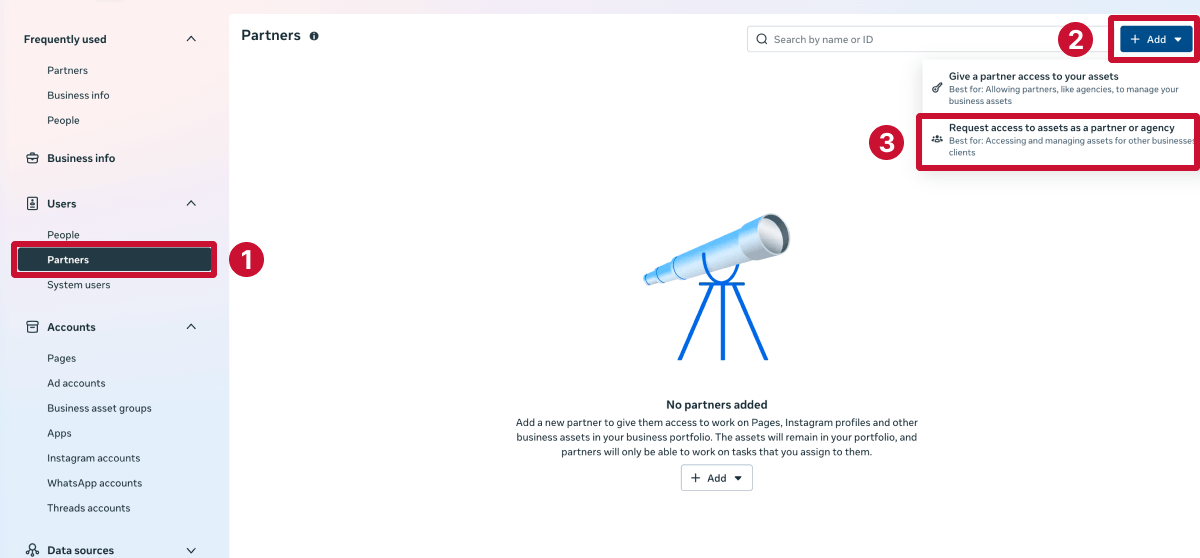
Can’t see the Partners section or the option to add a partner? Go to People, find your name, and check that you have full access. If not, ask an admin (someone with full access) to update your permissions.
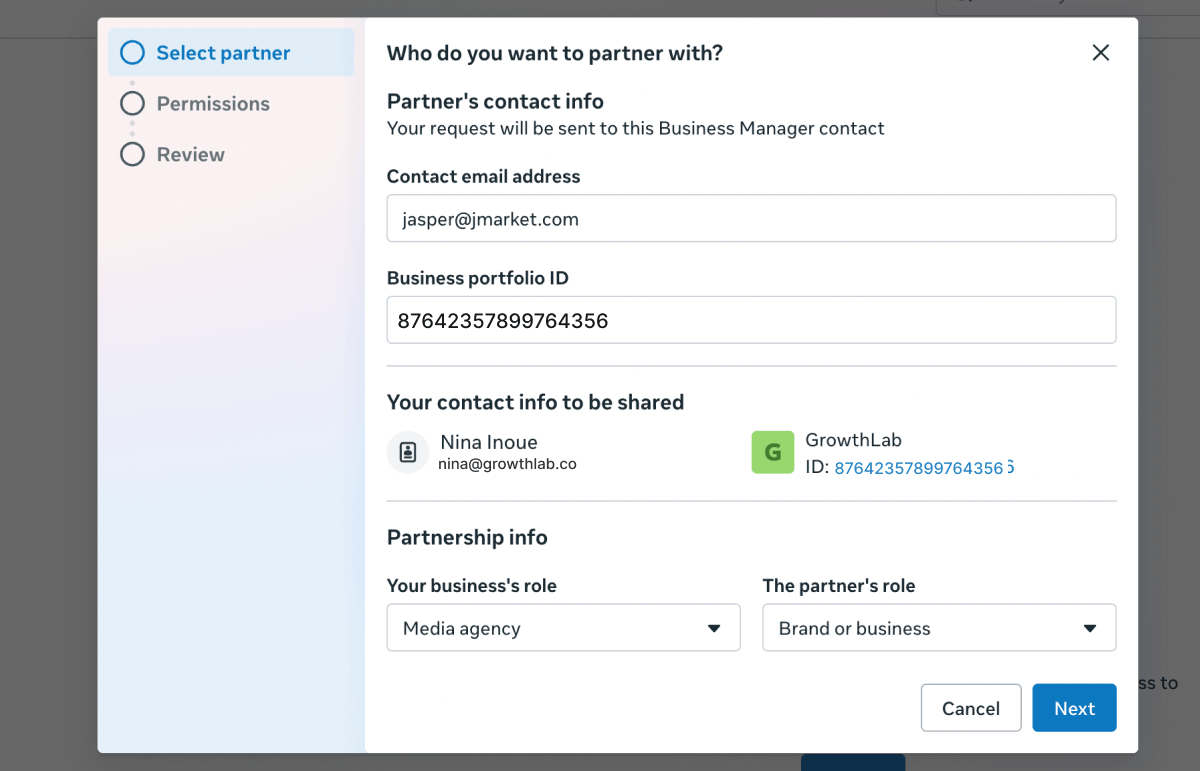
Enter the information Meta requests about your client and your working relationship. This includes:
Your client can find their portfolio ID under Business portfolio info (https://business.facebook.com/latest/settings/business_info) in Meta Business Settings. It also appears in their Business Suite URL as the number after business_id=.
If they’re unsure where to find it, send them this quick guide on finding your business portfolio ID.
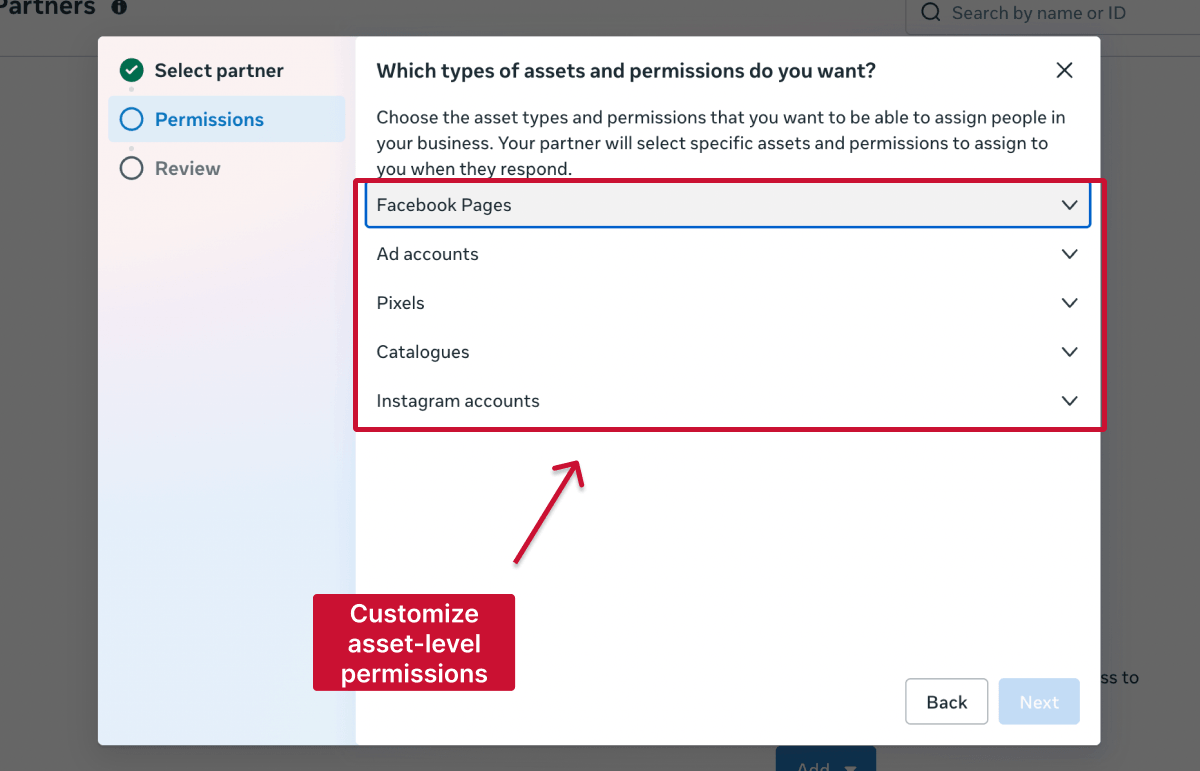
Choose the assets your agency needs to work with. These might include:
You’ll also need to choose the appropriate permission level for each asset. Only request the access your agency needs to complete the agreed work; the client can then approve, reject, or adjust your selections before granting access.
Meta may ask whether your agency needs access to the client’s credit line to place ads on their behalf. This only applies if the client pays for Meta ads through monthly invoicing.
Select Yes if you’ve already agreed to use their credit line. Otherwise, choose No or Not now, then click Next.
Before sending, take a moment to check the client’s details, requested assets, and permission levels. If everything looks right, submit the request.
You can track its status from the Partners section of your business portfolio. If anything is incorrect, cancel the request and send a new one.
Your client will receive a pending request in their Partner section asking them to review it. Access won’t be granted until someone with the necessary permissions in the client’s business portfolio approves the request.
If you only need one specific asset, you can also start the request from that asset instead of going through the Partners section.
In Meta Business Settings:
This is still shared partner access between two business portfolios, but the request is limited to the selected asset.
Instead of sending the request yourself, your client can add your agency’s business portfolio as a partner and assign the required assets directly.
They’ll need to:
For complete instructions, send them our guide to giving a partner access to assets in a Meta business portfolio, or use the message template below.
Hi [Name],
To get started, we’ll need access to your Meta business assets.
Could you please add our business as a partner in your business portfolio using the ID below and grant access to the following:
Business ID: [XXXX]
If it’s easier, we can also send a request from our side—happy to guide you through it if needed.
If your client hasn’t approved the request, check the following:
If the client can access their portfolio but can’t see a requested Page, ad account, or other asset, that asset may belong to a different business portfolio.
An ordinary partner request won’t solve the problem if nobody currently has enough access to approve it.
This can happen when:
In this situation, the business owner may need to use Meta’s process for requesting full access to a business portfolio. In this case, Meta will ask the requester to provide evidence that they’re authorized to act for the busines., such as atax certificate, articles of incorporation, or a utility/bank statement matching the business name.
Keep in mind that this is a portfolio recovery process, so it should be completed by the business owner or an authorized representative, not by an external agency claiming ordinary partner access.
If the problem only affects a Facebook Page, Meta may direct the business through a separate Page access or Page admin dispute process. See our guide to regaining access to a Facebook Business Page for the steps.
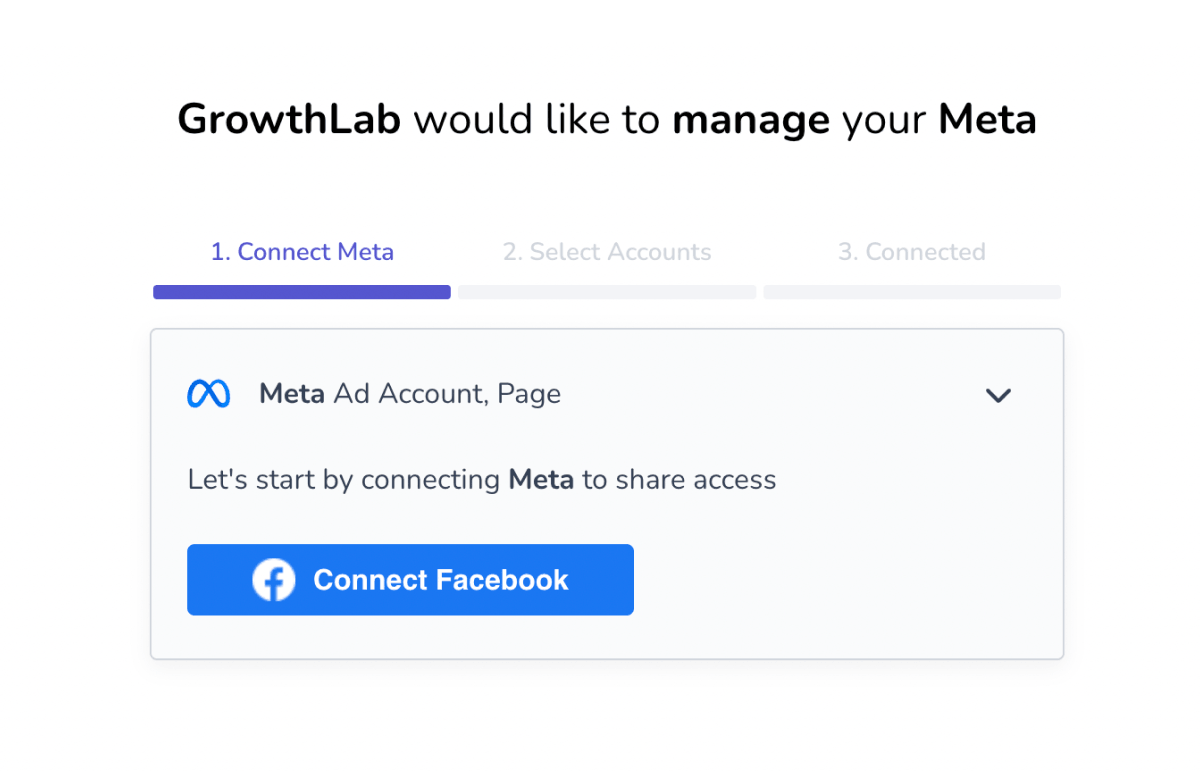
Leadsie is a client onboarding tool that lets agencies request access to a client’s Meta assets through a secure link.
You simply select the assets and permissions you need in the Leadsie app, then send the link to your clients. No need to find their business portfolio ID or navigate Meta’s settings manually.
From there, the client:
1. Logs in to their Meta business account
2. Selects the relevant assets you need access to
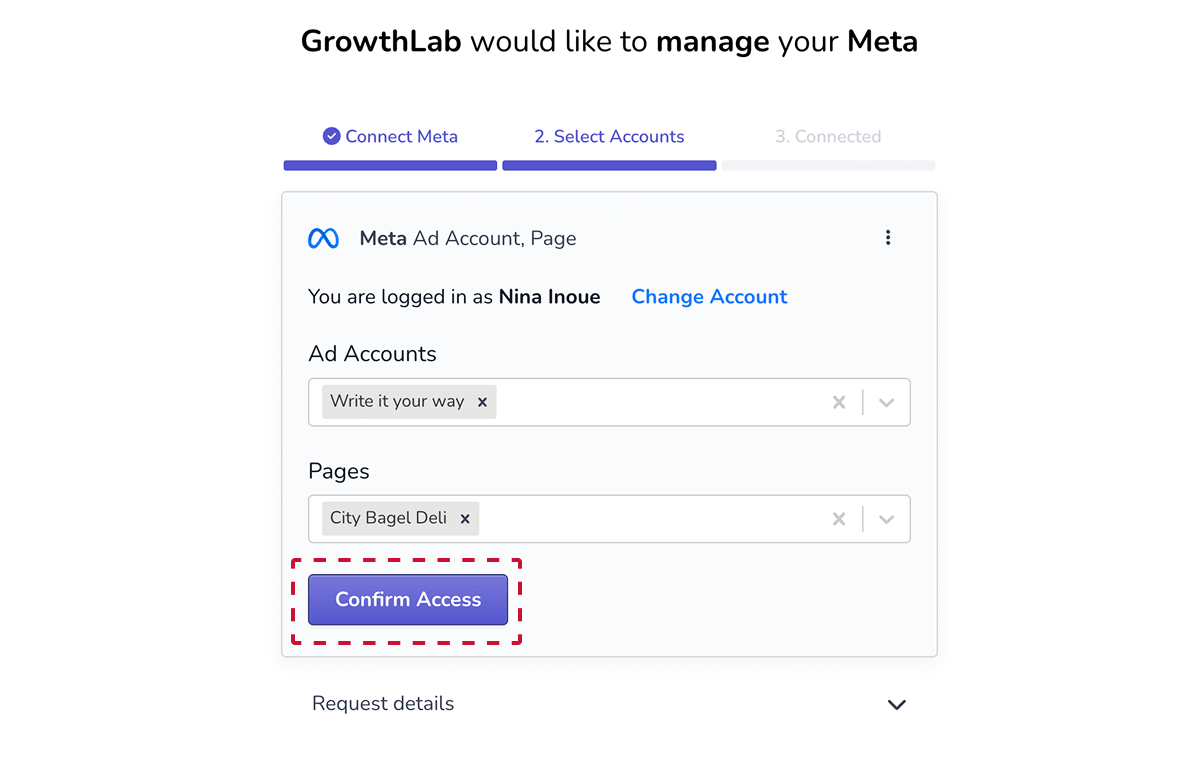
3. Reviews choices and grants access in under five minutes!
Access is still granted through Meta’s official permissions, but Leadsie guides the client through the process and removes the need to exchange business portfolio IDs.
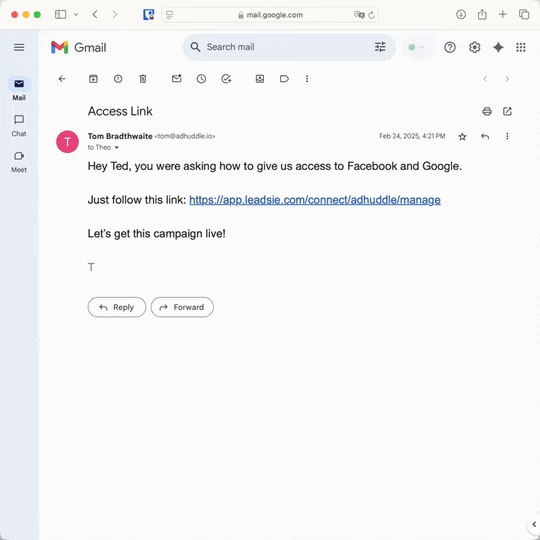
Still sending onboarding emails, sharing PDFs, or jumping on calls just to get access to a client's accounts?
With Leadsie, one secure link handles the entire process. Clients can grant access to Meta, Google, LinkedIn, TikTok, Shopify, and 14+ marketing, advertising, and social media accounts without sharing passwords.
✅ Get access to client accounts in minutes, not days
✅ Replace hours of emails, admin work, and onboarding calls
✅ Scale client onboarding without adding operational overhead
✅ Reduce your agency's turnaround time by over 50%
✅ Start billable work and billing cycles sooner
✅ Create a professional onboarding experience that helps retain clients
✅ Keep access secure with 100% GDPR and CCPA-compliant workflows
💬 "I never want to do onboarding without Leadsie!" - Alyssa, Meta Ads Manager
🎁 Start your free 14-day trial today —no credit card required.
P.S. It's risk-free, and you get to keep your account connections after the trial ends. 🙌

Nina is an SEO content specialist with expertise in B2B SaaS. She helps businesses increase organic traffic with strategic, high-quality content. Outside of work, you’ll find her sailing somewhere in the Mediterranean.


Clients struggling to share access to their
accounts? Get the access you need in minutes with a free trial of Leadsie.
Approved by Meta, Google & Tiktok
Keep access to accounts if you cancel
Secure & 100% GDPR compliant
Delete your onboarding PDF. Cancel the video call. Just send one link, and get hassle-free access to 13+ platforms in minutes. Start free today.
Approved by Meta, Google & Tiktok
Keep access to clients' accounts if you cancel
Secure & 100% GDPR compliant
No. Individual access (called people access) must be granted from the client’s side. Ask someone with full access to go to Business Settings > People > Invite people, enter your email address, and assign the assets and permissions you need. You’ll receive an email invitation to accept.
Technically, yes, but it’s not recommended. Some businesses add agencies as individual users or share login details, but this makes access harder to manage, less secure, and more difficult to remove later.
Meta has limits in place:
If you hit these limits, you may need to re-organize access or use multiple accounts.
No. Partner access lets another business work on selected assets without changing their ownership. The client’s business portfolio keeps control of the assets and can change or remove the partner’s access.
A business portfolio is the current name for what many older guides call a Business Manager account. Meta Business Suite is the interface used to manage the portfolio, its assets, people and partners, so you may see these terms used interchangeably. Related article: Meta Business Suite vs. Meta Business Portfolio
Questions unanswered? Check out our help center or get in touch 🤠