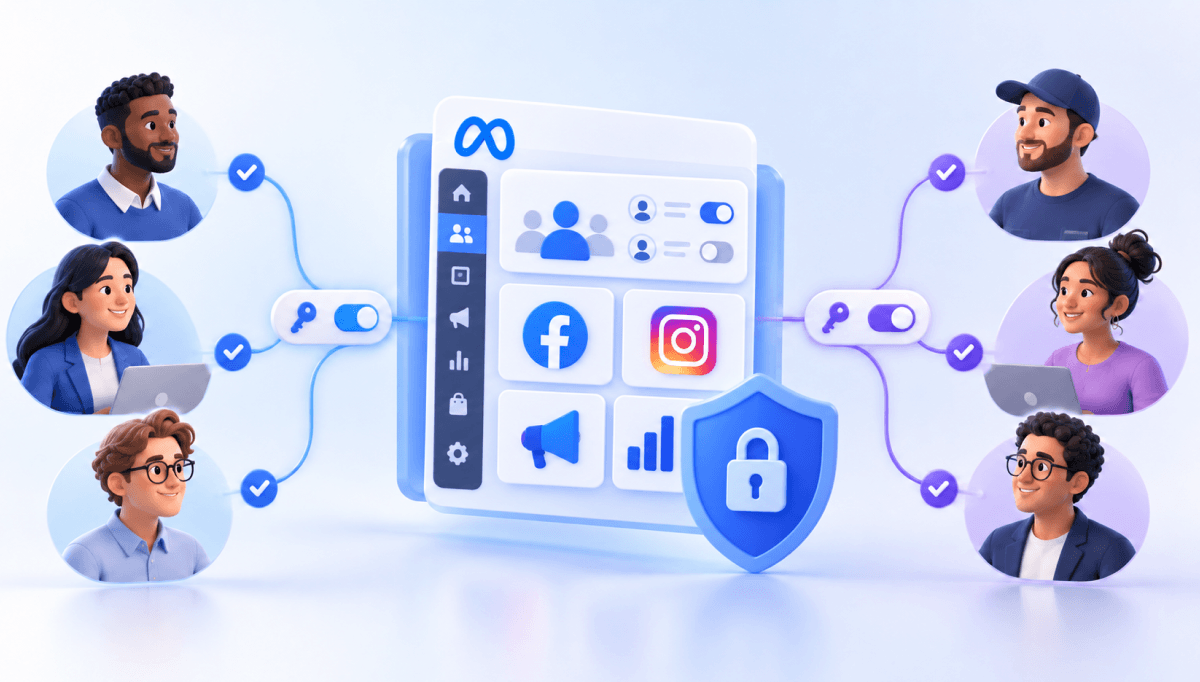
Clients struggling to share access to their
accounts? Get the access you need in minutes with a free trial of Leadsie.
14 day unlimited free trial
Extend until you onboard a client
No credit card required
Keep access to clients if you cancel


With easy one-link access requests for 13+ platforms your campaigns can go live in minutes, not days. Start free today.
Approved by Meta, Google & Tiktok
Keep access to clients' accounts if you cancel
Secure & 100% GDPR compliant


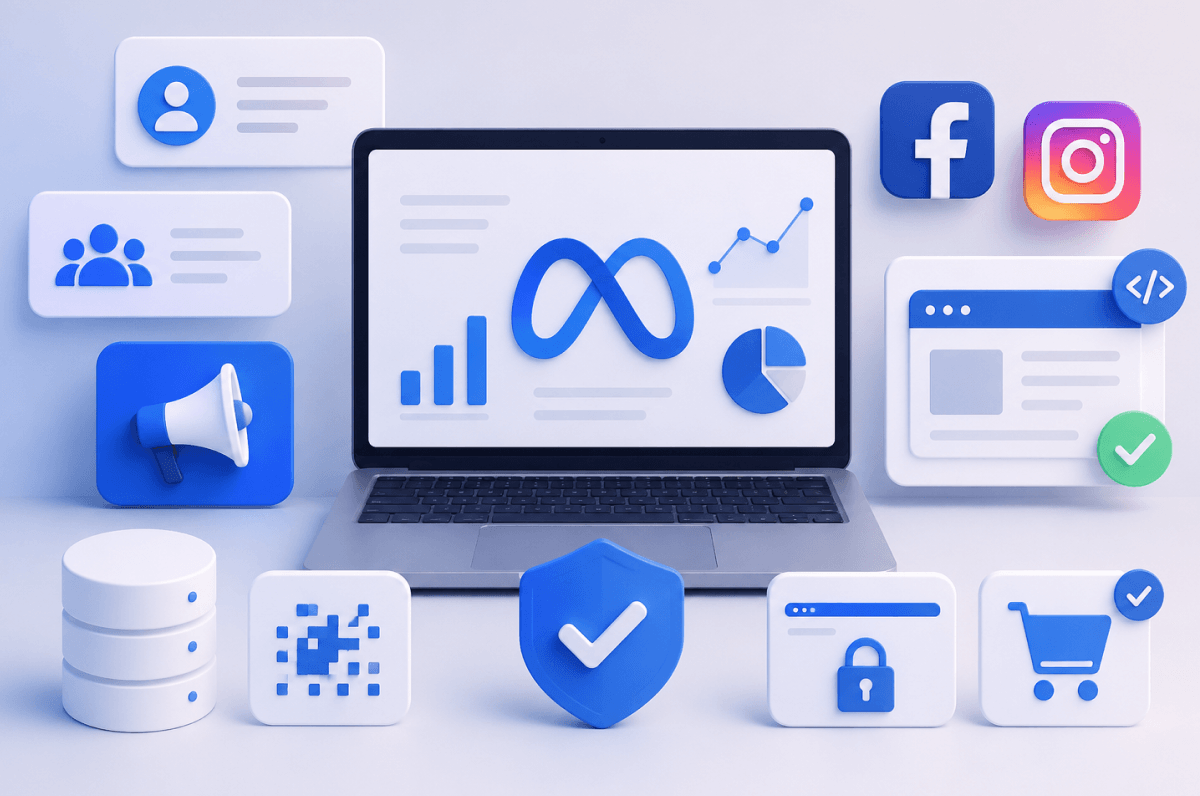
You don't need to install any special software to start running Meta ads. Instead, you'll need to create and connect several Meta accounts and advertising tools, including a Meta Business account, Meta Ad account, Facebook Page.
If you're advertising a website, you'll also need to set up website tracking so Meta can measure conversions and optimize your campaigns. This includes setting up the Meta Pixel and, depending on how you connect your website, the Conversions API to improve tracking accuracy.
This guide will walk you through each step, so you'll have everything in place before launching your first Meta ad campaign.
* These steps apply if you're advertising a website. If you're promoting a mobile app, you'll need to set up app event tracking instead.
To run Meta ads, you first need a Meta Business account. Creating one gives you access to Meta Business Suite, where you manage your advertising assets, and allows you to create a Meta Business Portfolio, which stores your Facebook Pages, Instagram accounts, ad accounts, Threads accounts, and other business assets.
Once your Meta Business account has been created, you'll be able to access Meta Business Suite, create a Business Portfolio, and continue setting up the assets needed to run ads.
❗You may still see the term Meta Business Manager in older guides. Meta renamed Business Manager to Business Portfolio, but many people still use the old name interchangeably.
👉 Need step-by-step screenshots? Follow our complete guide to creating a Meta Business account and Business Portfolio.
Businesses that want added account protection and support can also apply for Meta Verified once eligible assets are connected to their portfolio.
A Meta Ad account is where you create, manage, and pay for your Facebook and Instagram advertising campaigns. If you created a Meta Business account, you'll usually be prompted to create an ad account during setup.
If not, you can create one at any time from Meta Business Suite.
Once your ad account has been created, you'll be able to open Meta Ads Manager, where you'll create, manage, and monitor your advertising campaigns.
❗ Important: Your ad account's currency can't be changed after it's created, so choose it carefully. If you need a different currency later, you'll have to create a new ad account.
To run Meta Ads, you need to connect a Facebook Page to your Business Portfolio. Your Facebook Page serves as the identity behind your ads, including ads shown on Instagram, allowing people to recognize and interact with your business.
To run ads on Instagram, you'll need to connect an Instagram Professional account to your Business Portfolio. Connecting your account lets you run ads across Instagram, use your Instagram profile as the ad identity, and manage messages and notifications from Meta Business Suite.
If you only plan to advertise on Facebook, this step is optional.
However, connecting Instagram gives you access to more placements and lets Meta optimize your ads across both Facebook and Instagram.
🔗 Related article: How to Change Your Instagram Personal Profile to a Professional Account
If you're advertising a website, you'll need to set up website tracking before launching your first campaign. This allows Meta to measure actions people take on your website after interacting with your ads, such as purchases, form submissions, and sign-ups.
Today, website tracking is managed through a Meta Dataset in Meta Events Manager. During setup, you'll create (or select) a Dataset before choosing how you'd like to connect your website.
💡Good to know: Although Meta's interface now uses the term Dataset, you're still setting up the Meta Pixel to track activity on your website. If supported, your setup may also include the Conversions API, which sends additional server-side data to improve tracking.
💡 With partner integrations like Shopify and WordPress, the Meta Pixel is installed automatically and the Conversions API is often enabled as part of the setup.
If you're sending traffic to your website, you should verify your domain in Meta Business Suite before launching conversion campaigns. Domain verification proves that you own your website and allows you to configure web events, improve conversion tracking, and manage how your links appear across Meta's platforms.
While you can create campaigns without verifying your domain, some advertising features and event configuration may be limited.
💡 Tip: Verify your root domain (for example, example.com) rather than individual subdomains whenever possible.
Before launching your first Meta ad campaign, decide which actions you want Meta to measure and optimize for. These actions are called events and are configured in Meta Events Manager.
Common standard events include:
Meta uses these events to understand whether your campaigns are driving real business outcomes, optimize delivery to people most likely to convert, and report on your campaign performance.
If Meta's standard events don't match your business goals, you can also create custom events or custom conversions for more specific actions.
Before spending money on your first campaign, take a few minutes to confirm that everything is connected and working correctly. Catching setup issues early can help you avoid inaccurate tracking, missing conversions, and wasted ad spend.
Use this checklist before you publish your first ad:
✅ Your Meta Business account, Business Portfolio, and Meta Ad account are set up.
✅ A valid payment method has been added to your ad account.
✅ Your Facebook Page and Instagram Professional account (if applicable) are connected.
✅ Your website tracking has been set up (Meta Pixel and, where applicable, the Conversions API).
✅ Your website domain has been verified (if you're advertising a website).
✅ Your conversion events are configured and firing correctly in Meta Events Manager.
Once everything is in place, you're ready to launch your first Meta ad campaign with confidence.
💡 Tip: Use the Test Events tool in Meta Events Manager to confirm that your website events are being recorded correctly before your campaign goes live.
If you're working with a marketing agency, freelancer, or consultant, you'll need to give them access to your Meta assets so they can manage your campaigns without sharing passwords or transferring ownership.
You can do this manually in Meta Business Suite by going to Settings > Users > Partners > Add.
From there, choose either Business ID to enter your agency's Business ID or Get Link to Share to generate a secure access link. Then assign access to the relevant assets, such as your ad account, Facebook Page, Instagram account, or Dataset.
Alternatively, you can use a client onboarding tool such as Leadsie to grant access to your Meta assets. Your agency sends you a secure access request link, and you review and approve the permissions being requested instead of manually assigning access to each Meta asset.
The same request can also include access to 14+ other marketing platforms such as Google Ads, Google Analytics, Shopify, LinkedIn, and TikTok.
Still sending onboarding emails, sharing PDFs, or jumping on calls just to get access to a client's accounts?
With Leadsie, one secure link handles the entire process. Clients can grant access to Meta, Google, LinkedIn, TikTok, Shopify, and 14+ marketing, advertising, and social media accounts without sharing passwords.
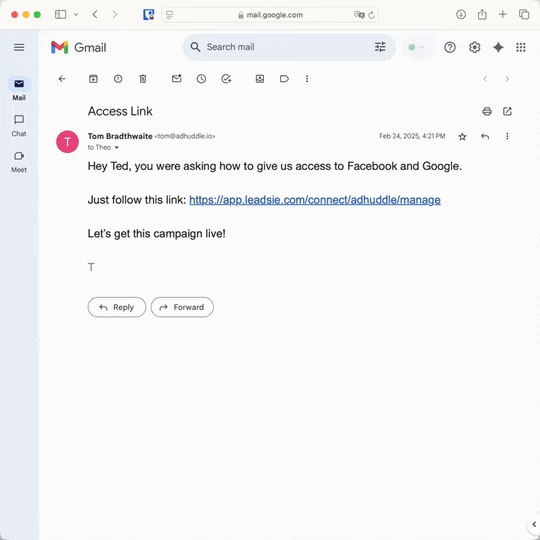
✅ Get access to client accounts in minutes, not days
✅ Replace hours of emails, admin work, and onboarding calls
✅ Scale client onboarding without adding operational overhead
✅ Reduce your agency's turnaround time by over 50%
✅ Start billable work and billing cycles sooner
✅ Create a professional onboarding experience that helps retain clients
✅ Keep access secure with 100% GDPR and CCPA-compliant workflows
💬 "I never want to do onboarding without Leadsie!" - Alyssa, Meta Ads Manager
🎁 Start your free 14-day trial today —no credit card required.
P.S. It's risk-free, and you get to keep your account connections after the trial ends. 🙌

Nina is an SEO content specialist with expertise in B2B SaaS. She helps businesses increase organic traffic with strategic, high-quality content. Outside of work, you’ll find her sailing somewhere in the Mediterranean.


Clients struggling to share access to their
accounts? Get the access you need in minutes with a free trial of Leadsie.
Approved by Meta, Google & Tiktok
Keep access to accounts if you cancel
Secure & 100% GDPR compliant
Delete your onboarding PDF. Cancel the video call. Just send one link, and get hassle-free access to 13+ platforms in minutes. Start free today.
Approved by Meta, Google & Tiktok
Keep access to clients' accounts if you cancel
Secure & 100% GDPR compliant
Yes. You only need a website if your ads are sending people there. Meta Ads can also promote mobile apps or direct people to destinations such as Facebook, Instagram, Messenger, or WhatsApp.
Yes, but only if you're not advertising a website. If your ads drive traffic to your website, the Meta Pixel is recommended to measure conversions and optimize your campaigns.
Meta Business Suite is the dashboard where you manage your business. Your Business Portfolio is part of Business Suite and stores your business assets, such as Facebook Pages, Instagram accounts, ad accounts, and datasets. Meta Ads Manager is where you create and manage your ad campaigns.
Yes. You'll need a personal Facebook account to create and manage a Meta Business account. Your personal profile remains separate from your business assets and isn't shown in your ads.
Yes. You can create up to two Business Portfolios within the same Meta Business account and also access an unlimited number of portfolios owned by other businesses or clients.
Questions unanswered? Check out our help center or get in touch 🤠