Clients struggling to share access to their
accounts? Get the access you need in minutes with a free trial of Leadsie.
14 day unlimited free trial
Extend until you onboard a client
No credit card required
Keep access to clients if you cancel


With easy one-link access requests for 13+ platforms your campaigns can go live in minutes, not days. Start free today.
Approved by Meta, Google & Tiktok
Keep access to clients' accounts if you cancel
Secure & 100% GDPR compliant


There are three ways to connect a Facebook Page to your business portfolio: add it, request access, or create a new one.
The right option depends on whether you own the Page or need access to it.
In this guide, we’ll walk you through each method step by step, so you can connect your Page quickly and avoid common issues.
Not sure which option to choose?
Before connecting a Page, make sure:
✔️ You have full control of the business portfolio. If not, ask someone on your team who does to grant you access, or follow this guide on how to request access to a Meta Business Portfolio. Alternatively, you can claim onwership by submitting a request to Meta.
✔️ If your Page is linked to Instagram, it’s a good idea to connect that Instagram account to your business portfolio as well to keep everything in sync.
Choose this option if your business already owns the Page and you want to bring it into your business portfolio.
Your business portfolio will become the official owner, but anyone who already has access to the Page will still be able to manage it.
Step 1. Open Settings in Meta Business Suite.
Step 2. Click “Pages” under Accounts.
Step 3. Click “Add” and select “Add an existing Facebook Page.”

Step 4. Enter the Page name or URL and click “Next.”

Step 5. Review the people who currently have access to the Page. If everything looks correct, agree to Meta’s terms and click “Add Page.”
Once it’s connected, you can also give teammates, freelancers, or agencies access to the Facebook Page from your Business Portfolio settings.
Choose this option if the Page belongs to another business, client, or partner, and you just need permission to manage it.
This does not transfer ownership. Instead, the Page remains owned by the original business, and your business portfolio is granted access based on the permissions you request.
📝 Before requesting access, you must already have a primary Page added to your business portfolio. Follow this guide on setting a primary Page in a business portfolio.
Step 1. Open Settings in Meta Business Suite.
Step 2. Click “Pages” under Accounts.
Step 3. Click “Add” and select “Request shared access to a Facebook Page.”

Step 4. Enter the Page name or URL and select the correct Page.
Step 5. Choose your access level:
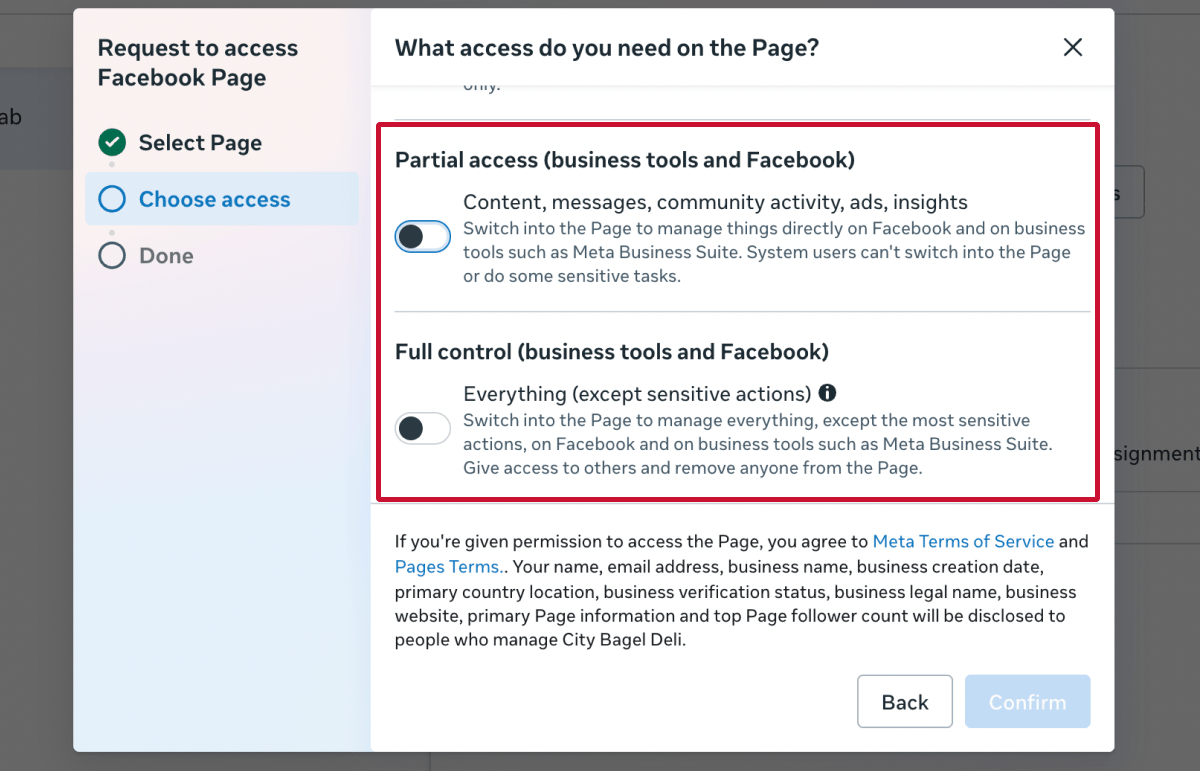
Step 6. Click “Confirm” to send the request.
Your request will be sent to someone with full control of the Page or its business portfolio. Once approved, the Page will appear in your business portfolio, and the original owner will still be listed as having full control.
❗ If your request stays pending, you may need to contact the Page owner directly.
Choose this option if you don’t have a Page yet and want to create one directly inside your business portfolio.
The new Page will automatically be owned by your business portfolio, so there’s no need to transfer ownership later.
Step 1. Open Settings in Meta Business Suite.
Step 2. Click “Pages” under Accounts.
Step 3. Click “Add” and select “Create a new Facebook Page.”

Step 4. Enter your Page details (name, category, and bio).
Step 5. Agree to Meta’s terms and click “Done.”
Once your Page is created, you’ll need to complete the setup directly on the Page itself. This includes adding profile and cover images, filling in your business details, and publishing your first content.
You can confirm whether a Page is owned by your business or another partner at any time:
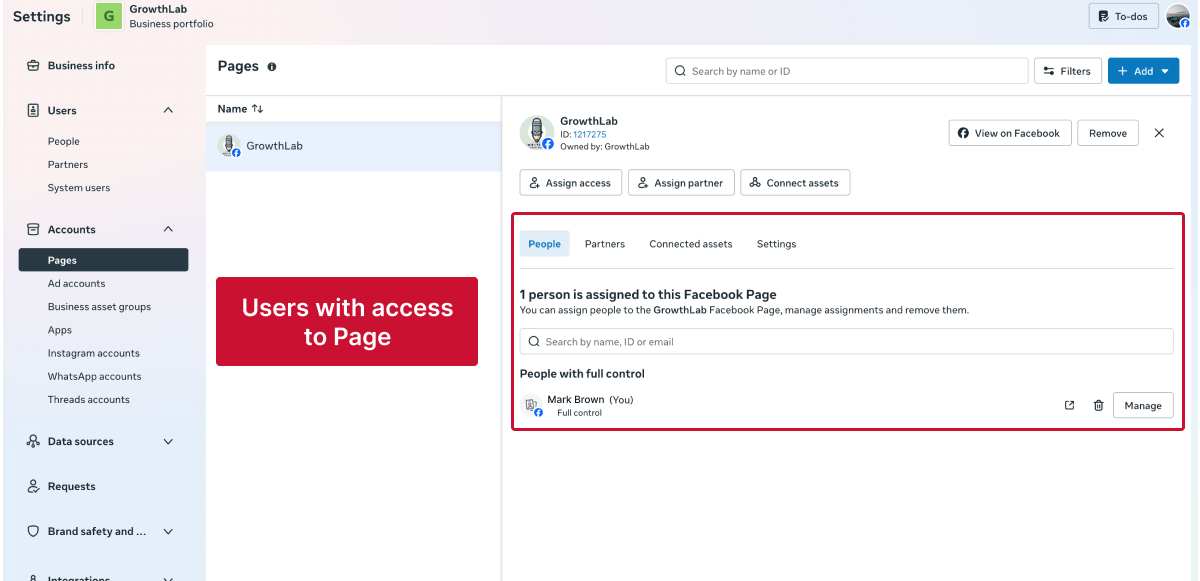
From here, you’ll be able to see:
For a quicker overview, Leadsie’s Access Detective shows you who has access and which admin can grant you permissions without digging through settings.
If you need a more detailed breakdown or want to audit access across multiple Pages, this guide on seeing who has access to a Facebook Page walks through additional methods.
Hiring a marketing agency, freelancer, or consultant? Giving them access to your marketing accounts shouldn't require endless emails, confusing permission settings, or sharing login credentials (too risky).
If your agency sent you a long PDF and asked you to navigate Meta Business settings and 5 other social platforms to grant them access, send them over to leadsie.com to automate this part of client onboarding for you.
With Leadsie, you can securely share access to Meta, Google, LinkedIn, TikTok, Shopify, and 14+ other marketing platforms via a secure link in just a few clicks.
✅ Approve only the permissions your agency actually needs
✅ No need to share passwords or sensitive login information
✅ Get campaigns, ads, and marketing projects started faster
✅ Keep account access secure with 100% GDPR and CCPA-compliant workflows
💬 "I never want to do onboarding without Leadsie!" - Alyssa, Meta Ads Manager
🎁 Start your free 14-day trial today —no credit card required.
P.S. It's risk-free, and you get to keep your account connections after the trial ends. 🙌

Nina is an SEO content specialist with expertise in B2B SaaS. She helps businesses increase organic traffic with strategic, high-quality content. Outside of work, you’ll find her sailing somewhere in the Mediterranean.


Clients struggling to share access to their
accounts? Get the access you need in minutes with a free trial of Leadsie.
Approved by Meta, Google & Tiktok
Keep access to accounts if you cancel
Secure & 100% GDPR compliant
Delete your onboarding PDF. Cancel the video call. Just send one link, and get hassle-free access to 13+ platforms in minutes. Start free today.
Approved by Meta, Google & Tiktok
Keep access to clients' accounts if you cancel
Secure & 100% GDPR compliant
You won’t be able to add it to your own business portfolio. Instead, you’ll need to request access or ask the current owner to remove it from their portfolio first.
No, only one business portfolio can own a Page at a time. However, multiple businesses can be granted access to it.
No. Anyone who already has access to the Page will keep their permissions unless you manually change them later.
This usually means you don’t have full control of the business portfolio. You’ll need someone with full control to grant you the right permissions first. If you’re unsure who has the right permissions, tools like Access Detective can help identify which admin can grant access without needing to check manually.
Yes, you can cancel pending requests from your business settings if you no longer need access or made a mistake.
Questions unanswered? Check out our help center or get in touch 🤠