Clients struggling to share access to their
accounts? Get the access you need in minutes with a free trial of Leadsie.
14 day unlimited free trial
Extend until you onboard a client
No credit card required
Keep access to clients if you cancel


With easy one-link access requests for 13+ platforms your campaigns can go live in minutes, not days. Start free today.
Approved by Meta, Google & Tiktok
Keep access to clients' accounts if you cancel
Secure & 100% GDPR compliant


Meta Catalogues (also known as product catalogues or sometimes spelt as ‘catalog’) are online inventories for you to organize, manage, and promote your products across Meta. They’re necessary for Advantage+ catalogue ads but can be used across other ad types to show products and services. Catalogues are part of Commerce Manager, where you also handle the Facebook and Instagram Shop feature.
This guide will show you how to create your first Catalogue and how to make edits to it after (including checking the connections and adding new products)
TL;DR: Steps to create a Meta Catalogue
1. Add products
2. Connect event tracking
🔗 Related article: How to Give & Request Access to Meta Catalogues
A Meta Catalogue is a “digital warehouse” of your product data (images, prices, descriptions) so you can use it for e-commerce ads across Facebook, Instagram, Messenger, and WhatsApp.
What you can add to a catalogue:
Example of a Catalogue:
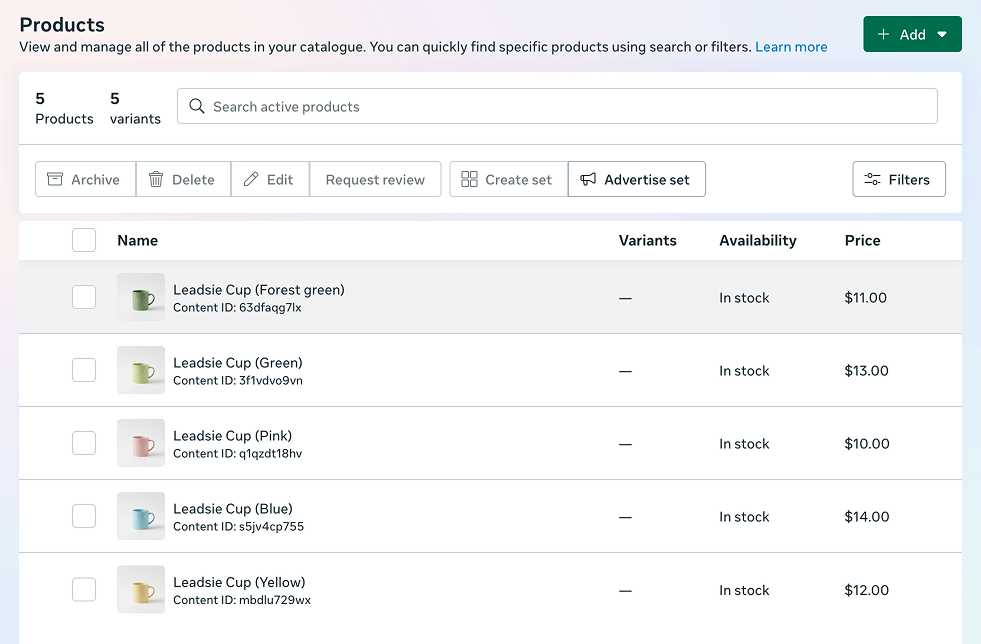
What are Catalogues for? They’re used to deliver a personalized shopping experience by showing different products to different users based on their behaviors and interests.
If you’ve used Google Ads or Shopping, you’ll find that a Meta Catalogue is similar in function to Google Merchant Center (MCC).
🔗 Related article: How to give or request access to Google Merchant Center
⚠️ Before you begin, you need to have full control over a Meta Business Portfolio to add the new catalogue to. Learn how to create a new business portfolio here.
Step 1: Go to Meta Commerce Manager @ https://business.facebook.com/commerce/ and check that you’re in the right business portfolio (in the left hand menu).
Step 2: Click ‘Add products’ to create your first catalogue.

Step 3: Fill in basic information, then click ‘Next’.
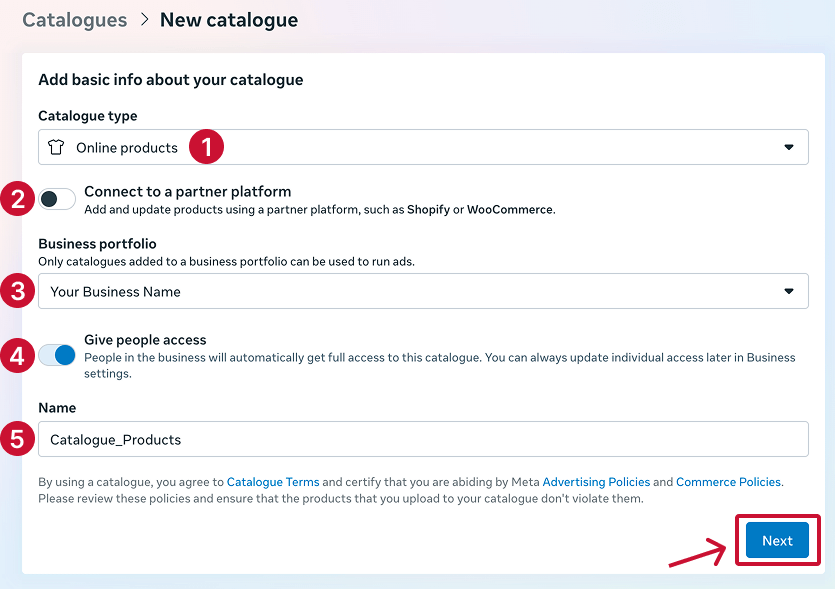
Step 4: Catalogues must be connected to a Meta Pixel or an app SDK to work. Choose from the list of existing event trackers or add one (click ‘Add new in Events Manager’). Click ‘Next’
🔗 Related article: How to Create and Set Up Your Meta (Facebook) Pixel
.png)
Step 5: Upload your product/services list from a spreadsheet or file (Connect to a data feed) or add them individually (Manually add your products).

💡 Pro Tip: Not sure how to format your spreadsheet? Click ‘Connect to a data feed’ > ‘Download template’ > Select either .xlsx, .csv, or custom template.

Step 6: Once you are done uploading your products or services, your Meta Catalogue set up is done 🙌, and you’ll be taken back to the Overview page. Errors will be shown as a red icon and you can click on them to re-do that particular step.

Your catalogue is now ready to be used in an Advantage+ catalogue ad and other ad types across the Meta ecosystem! 🎉
Go to Commerce Manager @ https://business.facebook.com/commerce/.
Then, click ‘Events’ > ‘Manage connections’ to see which pixels and app SDKs your catalogue is connected to.

Go to Commerce Manager @ https://business.facebook.com/commerce/.
Then, click ‘Products’ > ‘+ Add’ > Select a method to add new products.

Catalogues can have their own custom audiences, which allows you to include and exclude audiences at the ad set level.
🔗 Related article: How to Create a Facebook Ad Account
Every day spent waiting for account access is a day you're not launching campaigns, delivering results, or generating revenue.
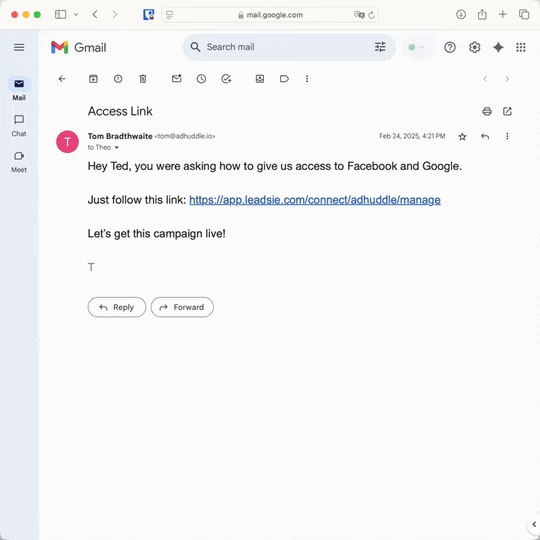
Leadsie is a client onboarding software that helps agencies request and receive access to client marketing, advertising, and social media accounts with one secure link. Instead of managing endless emails, permission requests, and troubleshooting sessions, you send a link to your client, they approve the permissions you've requested, and you get access in minutes, not days.
Clients can grant access to Meta, Google, LinkedIn, TikTok, Shopify, and 14+ other marketing platforms without sharing passwords.
✅ Request, manage, and remove client access from one place
✅ Replace hours of emails, admin work, and onboarding calls
✅ Scale client onboarding without adding operational overhead
✅ Reduce your agency's turnaround time by over 50%
✅ Start billable work and billing cycles sooner
✅ Create a professional onboarding experience that helps retain clients
✅ Keep access secure with 100% GDPR and CCPA-compliant workflows
💬 "I never want to do onboarding without Leadsie!" - Alyssa, Meta Ads Manager
🎁 Start your free 14-day trial today —no credit card required.
P.S. It's risk-free, and you get to keep your account connections after the trial ends. 🙌

Jocelyn’s background spans UX research, marketing, content writing, and consulting. Outside of work, she enjoys reading, surfing, board games, billiards, Latin dancing, and MMORPGs.


Clients struggling to share access to their
accounts? Get the access you need in minutes with a free trial of Leadsie.
Approved by Meta, Google & Tiktok
Keep access to accounts if you cancel
Secure & 100% GDPR compliant
Delete your onboarding PDF. Cancel the video call. Just send one link, and get hassle-free access to 13+ platforms in minutes. Start free today.
Approved by Meta, Google & Tiktok
Keep access to clients' accounts if you cancel
Secure & 100% GDPR compliant
It’s best to use one Catalogue per Meta Pixel or app SDK. Having multiple catalogues each will affect the ad performance as the catalogue match rate will appear lower and have a negative impact, depending on the cat
The most common reasons are violating Meta’s Advertising Policies (e.g., selling prohibited items like supplements, alcohol, or digital services) or data quality issues. Ensure every product has a clear image, a description, and an accurate price.
For most businesses, a daily scheduled fetch is sufficient. However, if your inventory moves fast or prices change hourly, you should use a real-time API or a 1-hour fetch interval to avoid showing "In Stock" ads for items that are sold out.
Meta’s crawler visits your website to verify that the price and availability in your catalog match what is on the page. If your website doesn't have the correct "Open Graph" or "Schema.org" tags, Meta might flag your products as unreliable.
Yes. Meta allows you to import a Google XML feed directly. Most column headers are compatible, though you may occasionally need to map "Product Type" or "Google Product Category" manually.
Questions unanswered? Check out our help center or get in touch 🤠