Clients struggling to share access to their
accounts? Get the access you need in minutes with a free trial of Leadsie.
14 day unlimited free trial
Extend until you onboard a client
No credit card required
Keep access to clients if you cancel


With easy one-link access requests for 13+ platforms your campaigns can go live in minutes, not days. Start free today.
Approved by Meta, Google & Tiktok
Keep access to clients' accounts if you cancel
Secure & 100% GDPR compliant


Meta’s UI isn’t exactly known for being user-friendly.
So when you’re trying to give someone access, and you’re seeing different options, permissions, and settings, it’s easy to feel unsure if you’re doing it right.
There are two main ways to grant access within Meta: through Meta Business Portfolio or directly via Ads Manager.
We’ll walk you through both, so you can choose what works best. And if security is a concern, don’t worry, when set up properly, granting access is safe and fully controlled on your end.
⭐ And if you’d rather skip the process altogether, we’ll also show you a third, faster way to manage access using Leadsie.
There are three ways to give access to your Facebook ad account:
👉 Via Ads Manager – best for quick access to individuals
👉 Via Business Portfolio (Meta Business Manager) – better for managing access across people, assets, and partners (including agencies)
👉 Via Leadsie – best when working with agencies and you want to grant access quickly without navigating Meta
Need to request access instead? Check out our guide on how to request access to a Facebook ad account.
Before you grant access, you need to understand what someone can do once they’re in your ad account.
Permissions work differently depending on how you grant access:
We’ll break both down:
If you’re assigning access directly to an ad account, you’ll choose from three roles:
Has full control over the ad account.
They can:
Best for: Business owners or trusted team members.
⚠️ Note: External partners like agencies typically don’t need this level of access, as it includes sensitive permissions, so it should only be granted to them in specific cases where it’s absolutely necessary.
Can manage campaigns, but not account settings.
They can:
They can’t:
Best for: Most agencies and freelancers.
Read-only access.
They can:
They can’t:
Best for: Clients, stakeholders, or reporting-only roles.
If you’re granting access through your business portfolio in Meta Business Suite, the structure is slightly different.
Instead of assigning a single role (like Admin or Advertiser), access is split into two levels:
This is the highest level of access.
They can:
It’s equivalent to admin-level control across your business.
This is more flexible and task-based.
They can:
This is the recommended option for external partners.
➡️ What happens next? Once someone is added to your business portfolio, you then assign:
Someone can have full control of a specific asset (like your ad account) without having full control of the entire business portfolio.
Learn more about business portfolio permissions here.
If you want a quick and direct way to give someone access to your ad account, you can do it straight from Ads Manager.
This method is usually best when:
📝 A few things to check before you start:
Step 1. Go to Ad Account Settings in Ads Manager.
Step 2. Find the Ad account roles section and click “Add People.”
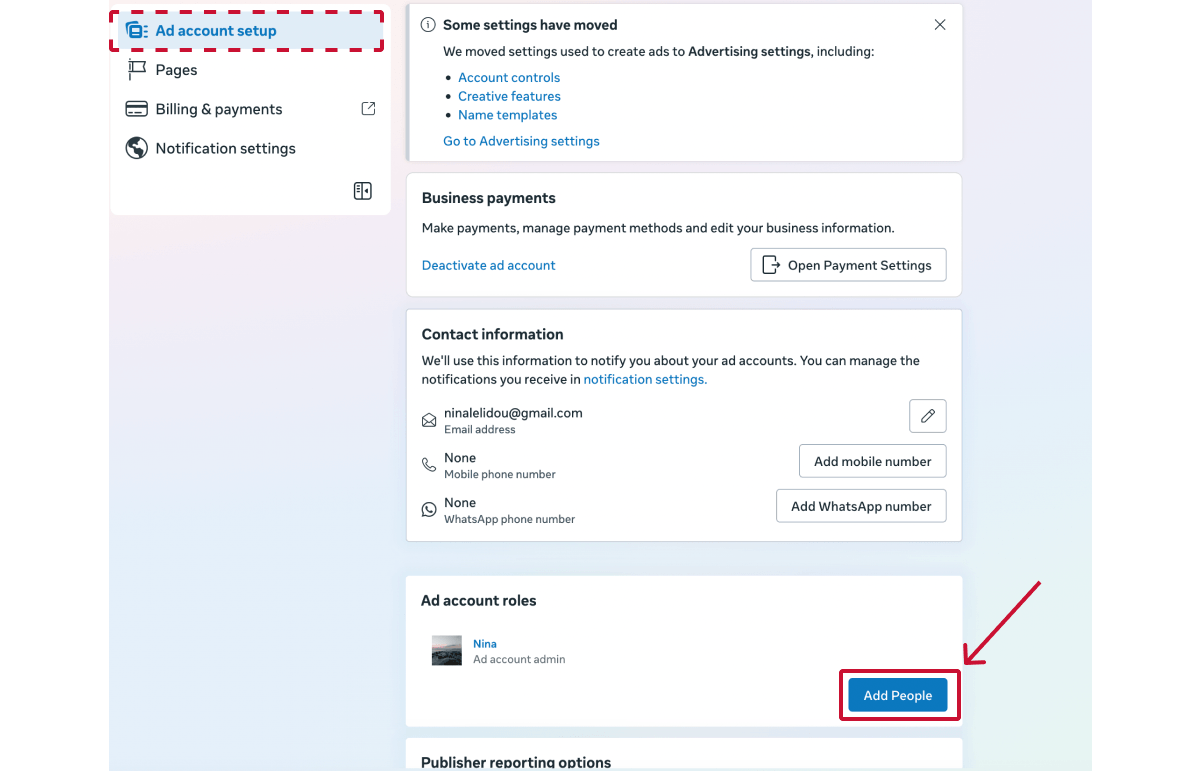
If you don’t see this section or the button is greyed out, you likely don’t have admin permissions.
Step 3. Search and select the person, then choose their role (Admin, Advertiser, or Analyst).
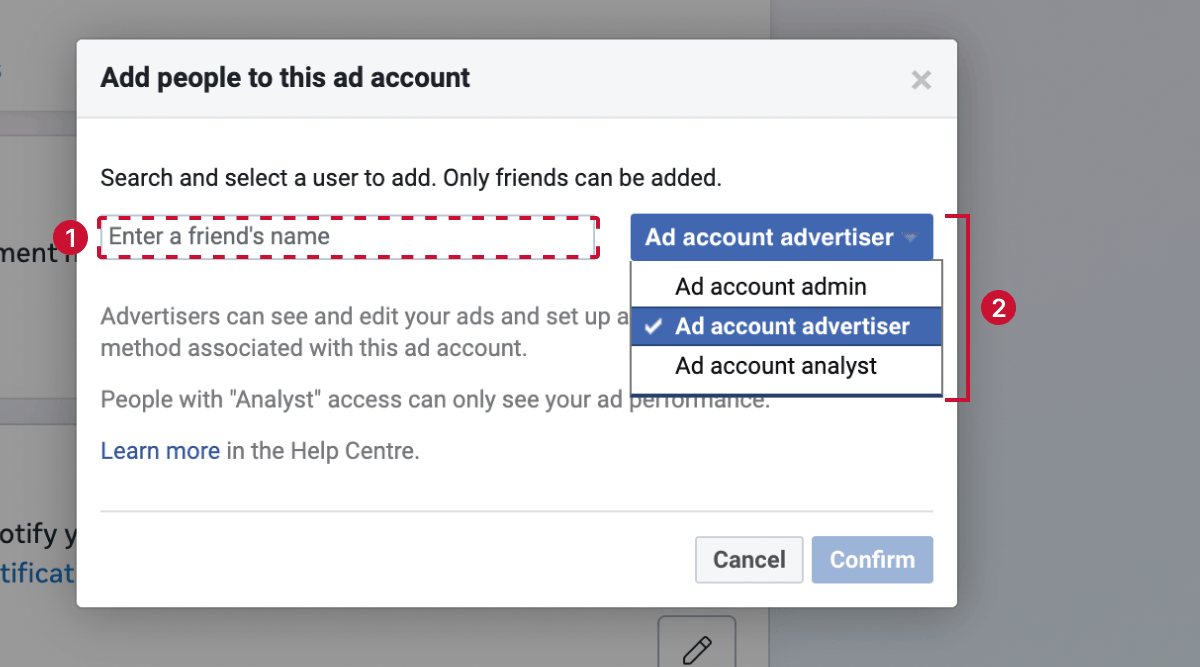
You’ll only be able to find people you’re connected with on Facebook.
Step 4. Click “Confirm.”
Once confirmed, they’ll be able to see the account right away.
Need to remove someone or update their permissions? You can do both from the same place in Ads Manager:
To remove access, click “Remove user.”
To change their role, remove them first, then click “Add people,” re-add them, and select the new role.
If you’re working with an agency or multiple people, this is the better, more scalable option.
Instead of giving access to individuals, you’re assigning permissions to assets (like your ad account) inside the business portfolio.
This keeps everything cleaner, more secure, and easier to manage long-term.
📝 A few things to check before you start:
Step 1. Go to Settings in Meta Business Suite @ https://business.facebook.com/settings.
Step 2. Click “People” or “Partners,” depending on whether you want to assign assets to individuals (employees, freelancers) or external businesses like agencies.
Step 3. Select the person or partner you want to assign access to and click “Assign assets.”

This assumes they’ve already been added to your business portfolio.
👉 If they’re not listed, you’ll need to add them first before assigning assets.
Step 4. Select your ad account and assign permissions.

Step 5. Click “Assign assets.”
They’ll now have access to the ad account based on the permissions you selected.
Access is usually immediate, but they may need to refresh or switch accounts to see it.
You can update or remove someone’s access at any time through your business portfolio:
From here, you have a few options:

If you’d rather not go through Meta’s setup at all and just get access sorted quickly, there’s a simpler option.
Leadsie is a client onboarding tool that lets you grant access to your Meta assets using a single secure link, bypassing the usual Meta workflow.
👉 This is typically something your agency will send you.
Here’s how it works:
1. The agency sends you a secure access request link
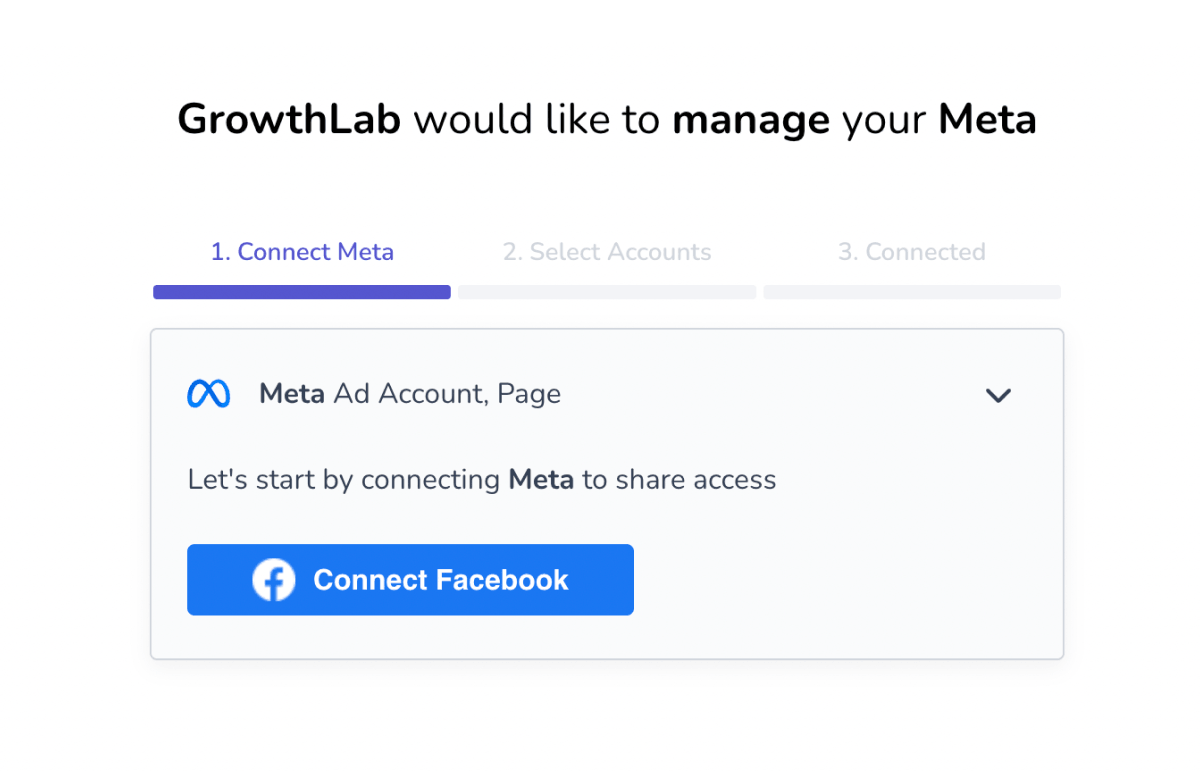
2. You log in and choose the accounts you want to share
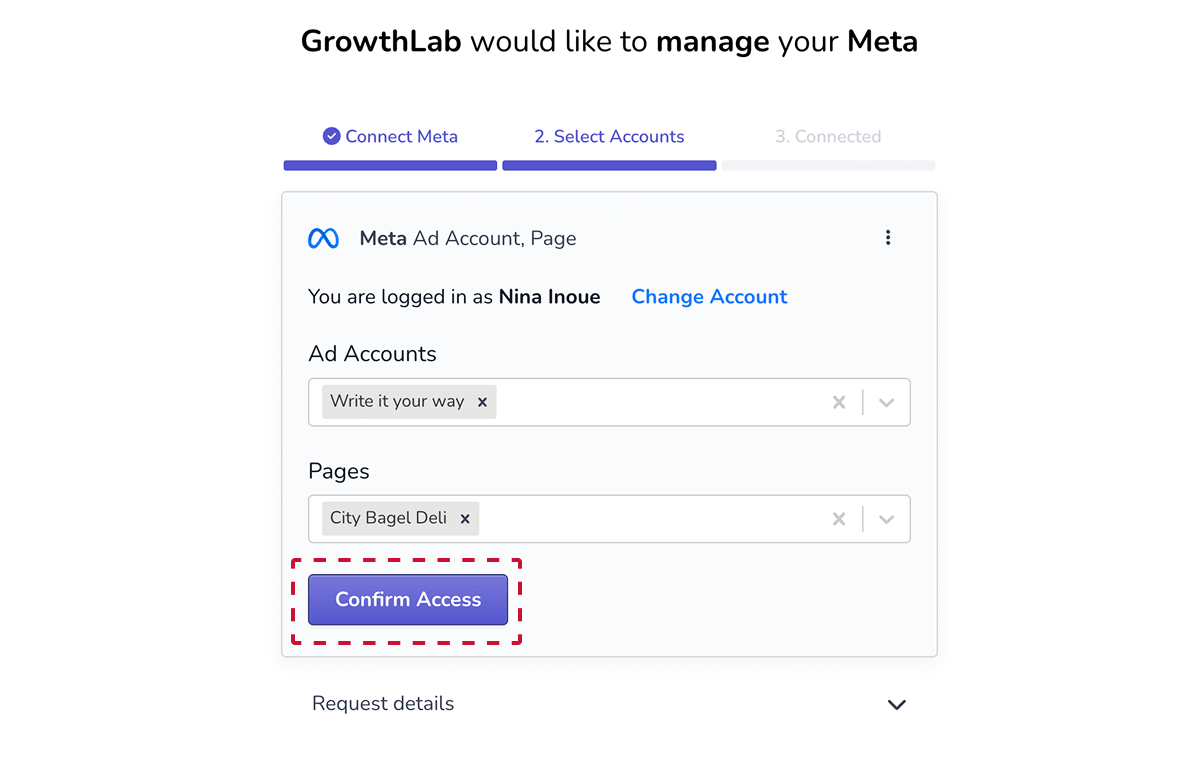
3. Access is granted automatically
The best part? The same link works across 14+ social and ad platforms, so you can grant everything in one go.
With Leadsie:
If you’re an agency, this is a much faster and safer way to onboard new clients. And if you’re a business, you can either follow the link your agency sends, or share this option with them to make the process easier.
Even if you follow all the steps, things don’t always work perfectly the first time.
Here are the most common issues and how to resolve them:
This usually happens because:
💡 Fix: Double-check the ad account is assigned under Assets > Ad accounts in Business Portfolio.
If you’re seeing errors like:
…it’s almost always a missing permission somewhere else.
For instance, in some cases, the person doesn’t have access to the Facebook Page or Instagram account linked to the ad account.
Make sure:
🔎 Bonus: If you’re not sure how to connect your Instagram account to a Meta ad account:
Go to your Instagram profile > Menu > Ads payments > Add new payment method with a Facebook account. Then select your ad account and tap Continue.
This comes down to permissions.
If you don’t have admin (or full control), you won’t be able to add or manage people.
💡 Fix: You’ll need someone with the right access level to do this, or upgrade your permissions first.
This usually means one of two things:
In some cases, the ad account may also be suspended or restricted by Meta due to policy, billing, or security issues.
💡 Fix: If the account belongs to another business, you’ll need to either add it to your portfolio or request access from the owner. If the account was restricted by Meta, the owner needs to go through a separate ad account recovery or appeal process.
If everything looks right but you still can’t add or share access, it might be a setup issue rather than permissions.
This can happen if your email hasn’t been verified or your ad account doesn’t have a payment method set up yet.
💡 Fix: Go to your ad account settings, make sure your email is verified, and add a payment method if needed. Then try again.
Still sending onboarding emails, sharing PDFs, or jumping on calls just to get access to a client's accounts?
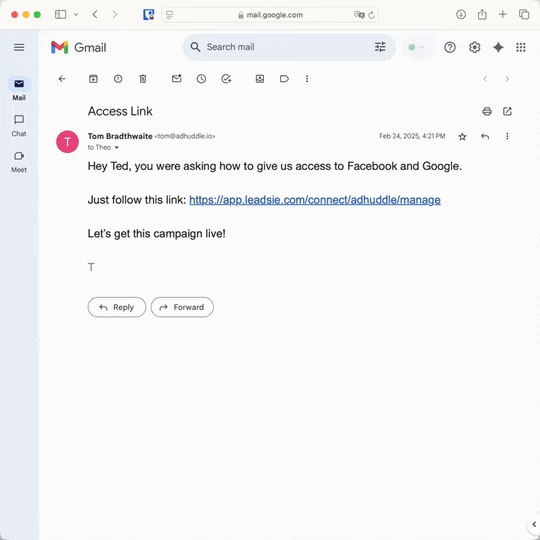
With Leadsie, one secure link handles the entire process. Clients can grant access to Meta, Google, LinkedIn, TikTok, Shopify, and 14+ marketing, advertising, and social media accounts without sharing passwords.
✅ Get access to client accounts in minutes, not days
✅ Replace hours of emails, admin work, and onboarding calls
✅ Scale client onboarding without adding operational overhead
✅ Reduce your agency's turnaround time by over 50%
✅ Start billable work and billing cycles sooner
✅ Create a professional onboarding experience that helps retain clients
✅ Keep access secure with 100% GDPR and CCPA-compliant workflows
💬 "I never want to do onboarding without Leadsie!" - Alyssa, Meta Ads Manager
🎁 Start your free 14-day trial today —no credit card required.
P.S. It's risk-free, and you get to keep your account connections after the trial ends. 🙌

Nina is an SEO content specialist with expertise in B2B SaaS. She helps businesses increase organic traffic with strategic, high-quality content. Outside of work, you’ll find her sailing somewhere in the Mediterranean.


Clients struggling to share access to their
accounts? Get the access you need in minutes with a free trial of Leadsie.
Approved by Meta, Google & Tiktok
Keep access to accounts if you cancel
Secure & 100% GDPR compliant
Delete your onboarding PDF. Cancel the video call. Just send one link, and get hassle-free access to 13+ platforms in minutes. Start free today.
Approved by Meta, Google & Tiktok
Keep access to clients' accounts if you cancel
Secure & 100% GDPR compliant
Yes. They can’t log into your personal profile, and they only get the permissions you assign. You can remove access at any time.
Yes. You can give access to multiple individuals or businesses, each with different permission levels.
They lose access immediately. Your ads, data, and account history stay exactly the same.
Yes, through Ads Manager. But it’s more limited and harder to manage, especially if you’re working with agencies.
The ad account is owned by the account that created it.
Ownership can’t be transferred, so it’s best to create and manage ad accounts under your own business portfolio from the start.
Questions unanswered? Check out our help center or get in touch 🤠