
Clients struggling to share access to their
accounts? Get the access you need in minutes with a free trial of Leadsie.
14 day unlimited free trial
Extend until you onboard a client
No credit card required
Keep access to clients if you cancel


With easy one-link access requests for 13+ platforms your campaigns can go live in minutes, not days. Start free today.
Approved by Meta, Google & Tiktok
Keep access to clients' accounts if you cancel
Secure & 100% GDPR compliant


Meta Verified is a paid subscription that gives eligible creators and businesses access to a blue verified badge, account protection, better customer support access, and extra tools on Instagram, Facebook, and WhatsApp.
While Meta Verified probably won’t automatically increase your reach or sales, marketing consultant Allie Boyd points out that direct support access can be one of the most valuable parts of the subscription, especially given Meta’s long-standing reputation for limited support options for advertisers and businesses.
In this guide, we’ll break down how Meta Verified works, what features are included, pricing plans, and common sign-up problems.
🔗 Want to get that blue check on Instagram too? Check out our guide on how to get verified on Instagram.
Meta Verified is a paid subscription service that provides creators and businesses with access to a verified badge, account protection features, enhanced support, and additional profile tools across platforms such as Instagram, Facebook, and WhatsApp.
At the moment, Meta Verified is available for:
Originally, verification on Instagram and Facebook was mostly reserved for notable public figures and major brands. But with Meta Verified, users can now subscribe by meeting Meta’s eligibility, identity, and security requirements rather than relying on public notoriety.
🔎 Note: Meta doesn’t officially promise algorithm boosts or automatic reach increases, so while it may help your profile appear more credible, it won’t replace strong content, engagement, or advertising strategies.
Meta Verified is available to:
To qualify, users generally need to enable additional account security features like Advanced Protection and two-factor authentication, and meet Meta’s account activity requirements.
Businesses must also:
To check whether your business is eligible, open Meta Business Suite, go to “Settings,” and look for Meta Verified in the left-hand menu. If your business qualifies, you should see the option to apply or join a waitlist.
Meta Verified gives creators and businesses access to a verified badge, enhanced support, account protection features, and additional visibility tools across Meta platforms.
Here’s a closer look at the main Meta Verified features and benefits:
The blue verified badge helps creators and businesses appear more authentic and trustworthy, especially to new visitors. Some plans also include profile enhancements like featured profiles, enhanced business details, and the ability to showcase related accounts or brands.
Meta Verified includes security features designed to help protect accounts from impersonation and unauthorized access. Subscribers also need to enable advanced protection features, such as two-factor authentication, to strengthen overall account security.
Depending on the subscription tier, Meta Verified subscribers receive improved customer support via live chat or email.
Higher-tier business plans also include faster issue resolution, callback requests, and active case monitoring.
💡 Marketers frequently point out that direct support access can sometimes be more valuable than the verified badge itself, especially for businesses running ads or relying heavily on Instagram, Facebook, or WhatsApp for revenue and customer communication.
Meta Verified includes tools designed to help profiles become easier to discover and stand out across Meta platforms.
Depending on the plan, this can include:
Business plans include additional tools designed for teams and larger brands.
Depending on the subscription tier, businesses can get access to:
Meta Verified offers multiple subscription tiers for businesses, with plans starting at $14.99/month and increasing based on the level of support, protection, and business features included.
Currently, Meta offers four main business plans:
All plans include core features like:
Higher-tier plans unlock additional benefits such as:
Meta also allows businesses to bundle eligible assets, such as a Facebook Page and Instagram account, which may reduce overall subscription costs.
🔎 Note: For creators and individuals, pricing is typically lower than business plans and may vary depending on whether you subscribe through the web, iOS, or Android.
To sign up for Meta Verified, you need to apply through Instagram, Facebook, or Meta Business Suite, choose a subscription plan, and complete Meta’s verification process.
The exact steps vary slightly depending on whether you’re applying as a creator, individual, or business, but the overall process is fairly similar.
📝 Before starting the application, make sure you're ready to complete the verification process. If you don't finish the process within three days, Meta may cancel the subscription request and issue a refund.
Here’s how the Meta Verified application process works through Meta Business Suite, which is the recommended signup method for businesses:
Before applying, your account needs to meet Meta’s eligibility and security requirements. This includes using an eligible Instagram, Facebook, or WhatsApp account, enabling Advanced Protection and two-factor authentication, and using profile information that matches your identity or business.
Businesses also need a business portfolio in Meta Business Suite with full control permissions and eligible business assets connected.
To check eligibility, open Instagram, Facebook, or Meta Business Suite settings and look for Meta Verified. If available, you’ll see the option to get started or join a waitlist.

Click “Get started” and choose a Meta Verified plan.
Then select the Facebook Pages or Instagram accounts you want to verify, add your payment details, and complete the subscription setup. You can verify up to two eligible business assets.
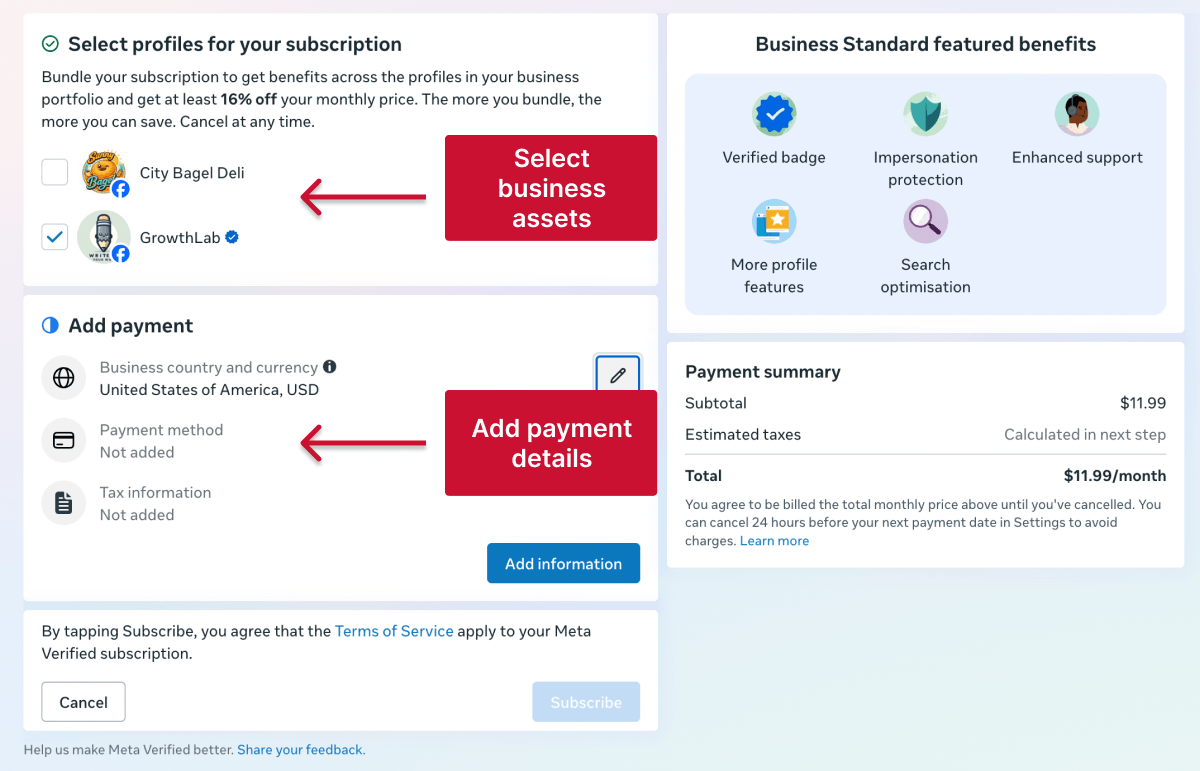
At this stage, Meta may also allow you to bundle multiple business assets together for discounted pricing.
Before your business can be verified, Meta requires Advanced Protection to be enabled for the business portfolio.
This includes security measures like:
💡 You can enable this through Settings > Accounts Center > Password and Security > Advanced Protection on Facebook.
If Advanced Protection isn’t already enabled, Meta will guide you through the setup process during the application.
Meta will ask you to verify your business using one of several methods.
Depending on your region and business type, available verification methods may include:
Some businesses may also need to upload official documents if Meta can’t automatically verify the business information provided.
❗ Important: Make sure to provide accurate business information during the verification process. Providing false or misleading information or attempting to verify a business you're not authorized to represent can lead to application rejection or removal of verified status.
Meta may then ask you to confirm your connection to the business through:
Once submitted, Meta will review your application and usually send an update within a few business days.
While your application is under review, you may temporarily lose the ability to edit certain profile details, including your business name, username, or location information.
If approved, your account will receive the verified badge and access to Meta Verified features and support tools. 🎉
Even if your business is eligible for Meta Verified, the verification process doesn’t always go smoothly. Here are some of the most common Meta Verified sign-up issues and how to fix them:
If you can’t start the sign-up process, make sure your business profile is complete, includes a profile picture, and has eligible business assets connected to Meta Business Suite.
You’ll also need:
If Meta places your account on a waitlist instead of allowing direct signup, your business assets may be missing important information.
Try:
Rejected ID uploads are one of the most common Meta Verified verification issues.
This can happen if:
To improve the chances of approval, take the photo in good lighting and make sure all information is fully visible.
Business verification can fail if your Facebook and Instagram asset names don’t match, your legal business name differs from your profile name, or Meta can’t confirm your connection to the business.
In some cases, Meta may ask you to upload official business documents manually if the business can’t be verified automatically.
If you don’t receive your Meta Verified confirmation code:
Meta’s confirmation codes expire after 24 hours.
If your verification fails completely, common reasons include:
In many cases, you can correct the issue and restart the application process.
Payment problems can happen because of expired payment methods, insufficient funds, or regional payment restrictions.
If your payment fails, try updating your payment method or checking whether your payment provider supports Meta subscriptions.
Every day spent waiting for account access is a day you're not launching campaigns, delivering results, or generating revenue.
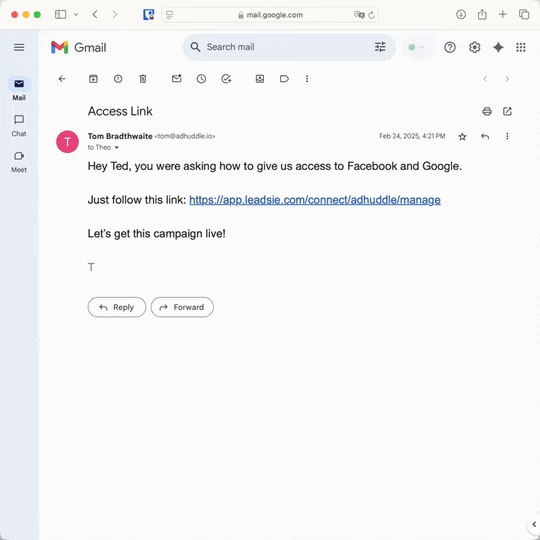
Leadsie is a client onboarding software that helps agencies request and receive access to client marketing, advertising, and social media accounts with one secure link. Instead of managing endless emails, permission requests, and troubleshooting sessions, you send a link to your client, they approve the permissions you've requested, and you get access in minutes, not days.
Clients can grant access to Meta, Google, LinkedIn, TikTok, Shopify, and 14+ other marketing platforms without sharing passwords.
✅ Request, manage, and remove client access from one place
✅ Replace hours of emails, admin work, and onboarding calls
✅ Scale client onboarding without adding operational overhead
✅ Reduce your agency's turnaround time by over 50%
✅ Start billable work and billing cycles sooner
✅ Create a professional onboarding experience that helps retain clients
✅ Keep access secure with 100% GDPR and CCPA-compliant workflows
💬 "I never want to do onboarding without Leadsie!" - Alyssa, Meta Ads Manager
🎁 Start your free 14-day trial today —no credit card required.
P.S. It's risk-free, and you get to keep your account connections after the trial ends. 🙌

Nina is an SEO content specialist with expertise in B2B SaaS. She helps businesses increase organic traffic with strategic, high-quality content. Outside of work, you’ll find her sailing somewhere in the Mediterranean.


Clients struggling to share access to their
accounts? Get the access you need in minutes with a free trial of Leadsie.
Approved by Meta, Google & Tiktok
Keep access to accounts if you cancel
Secure & 100% GDPR compliant
Delete your onboarding PDF. Cancel the video call. Just send one link, and get hassle-free access to 13+ platforms in minutes. Start free today.
Approved by Meta, Google & Tiktok
Keep access to clients' accounts if you cancel
Secure & 100% GDPR compliant
Meta Verified can be worth it for businesses and creators that rely heavily on Instagram, Facebook, or WhatsApp for revenue, advertising, or customer communication. For many users, the biggest value comes from support access and account protection rather than the verified badge itself.
Meta doesn’t officially guarantee higher reach or engagement for Meta Verified subscribers. While some features may improve discoverability, strong content and engagement still matter more.
Meta Verified applications are usually reviewed within a few business days, although approval times can vary depending on the account type and verification method.
Yes. You can cancel your Meta Verified subscription through Instagram, Facebook, or Meta Business Suite settings. In Meta Business Suite, go to Settings > Meta Verified > Cancel subscription.
Yes. Meta can remove verified status if your account no longer meets eligibility requirements or violates Meta’s policies.
Questions unanswered? Check out our help center or get in touch 🤠


