Clients struggling to share access to their
accounts? Get the access you need in minutes with a free trial of Leadsie.
14 day unlimited free trial
Extend until you onboard a client
No credit card required
Keep access to clients if you cancel


With easy one-link access requests for 13+ platforms your campaigns can go live in minutes, not days. Start free today.
Approved by Meta, Google & Tiktok
Keep access to clients' accounts if you cancel
Secure & 100% GDPR compliant


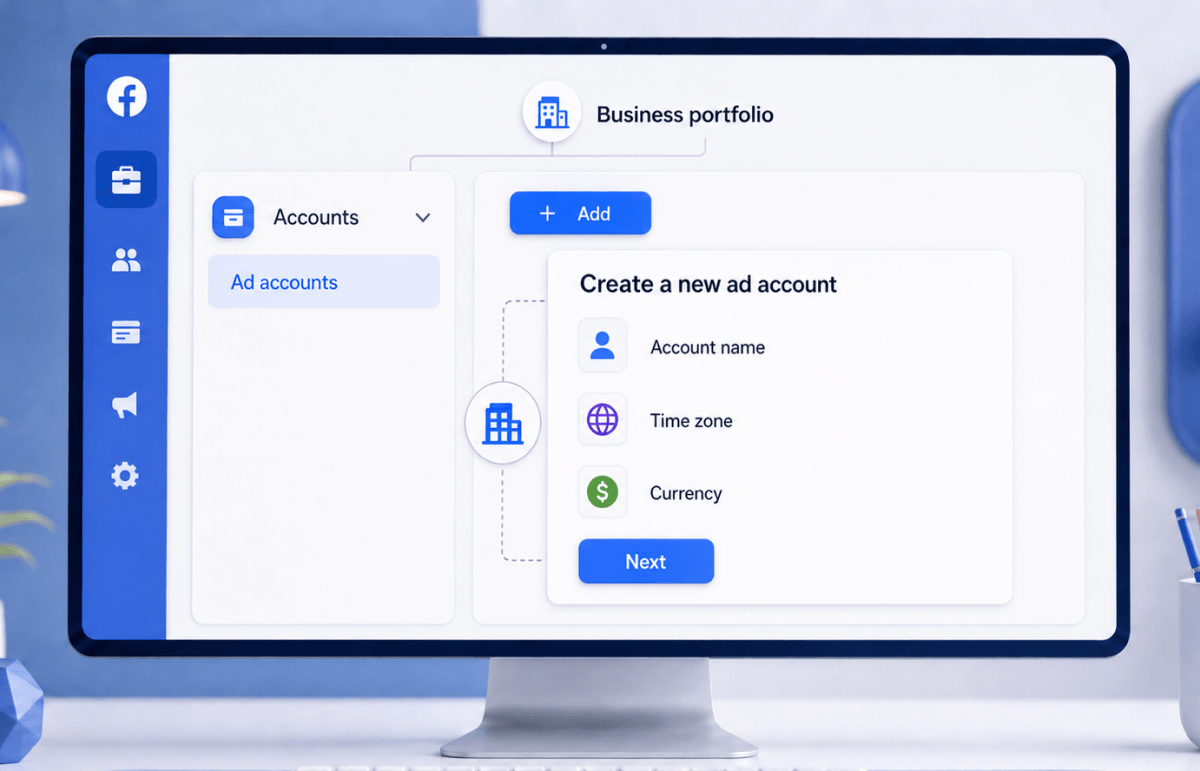
You can create a new Facebook ad account by going to Meta Business Suite’s Settings, open ‘Accounts’, then ‘Ad accounts’, click ‘Add’, and choose ‘Create a new ad account’. Set the name, time zone, and currency, then add a payment method before you run ads.
The rest of this guide walks through each step with screenshots, and it covers the part most tutorials skip: how to avoid the one setup mistake that forces a painful rebuild later. If your ad account ends up attached to your personal profile instead of your business, you can lose it, cap your spending, and orphan your tracking, so it is worth getting it right the first time.
💡 Before you can create a Facebook Ad account, you'll need to have a Meta Business Portfolio and Account.
A Facebook ad account is the container where you build campaigns, set your billing, and see your reporting. Everything you spend and every result you measure lives inside it. You need one before you can run a single ad*.
Your ad account is not the same thing as your Facebook profile or your Facebook Page. Your profile is your personal identity, your Page is your business's public presence, and your ad account is the advertising engine that sits behind them. A Meta Pixel, the small piece of code that tracks what happens on your website, also connects to your ad account.
*Note: Meta automatically creates a personal ad account for first-timers (with no prior ad account) who boost a post. However, this is tied to their personal Facebook profile.
💡Pro tip: If you plan to advertise regularly, it is important to create a full-featured ad account under a Business Portfolio, not from your personal Facebook profile, as doing so limits your ability to collaborate with agencies, colleagues, or freelancers.
Quick checklist:
Step 1: In Meta Business Suite's Settings, look under' Accounts' → click 'Ad accounts' (direct link: https://business.facebook.com/latest/settings/ad_accounts).
Step 2: Click on either of the blue '+ Add' button.
Step 3: From the options, select 'Create a new ad account.'
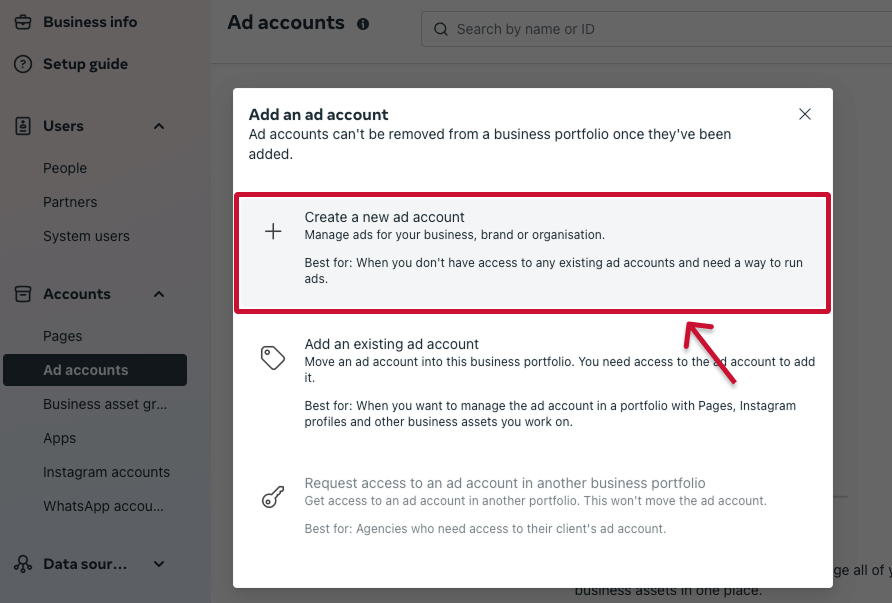
Step 4: Fill in details, such as ad account name, your time zone, and currency. Click 'Next.'
Step 5: Follow the on-screen prompts to declare usage and review the info and terms. Then click 'Create Ad Account'.
⚠️ Note: There are ad account limits per account. Once you create an ad account that's tied to a business portfolio, you cannot delete the ad account. However, you can close it and possibly reactivate it again in future. Read more about closing Meta/Facebook ad accounts.
Step 6: Now you have a Facebook/Meta ad account, but there's just one more step before you can start using it. Add at least one payment method to your Ad account when prompted to do so.
That is the core setup. Two details deserve their own attention, and they come next: the settings you cannot easily change later, and the payment step that quietly blocks your first campaign.
🔗 Related article: How to Request Access to a Facebook Ad Account
Set up your ad account on a desktop browser if you can. The full settings are easier to find and the menus are clearer.
You can create and manage ad accounts in the Meta Ads Manager mobile app, but the menu labels differ from the desktop version and some options are harder to reach. Use mobile for quick checks, not for first-time setup.
Choose your currency and time zone carefully, because they are effectively locked once the ad account is created. Changing them later usually means starting a brand-new ad account, so treat these fields as permanent decisions rather than defaults to rush past.
Add a payment method before you try to launch anything, because no payment method means no live ads. Your account can exist fully set up and still refuse to spend until billing is attached.
How to add or edit a payment method:
1. Go to Ads Manager @ https://adsmanager.facebook.com/adsmanager/
2. Open 'Billing & payments' from the left-hand menu
3. Click 'Payment methods'
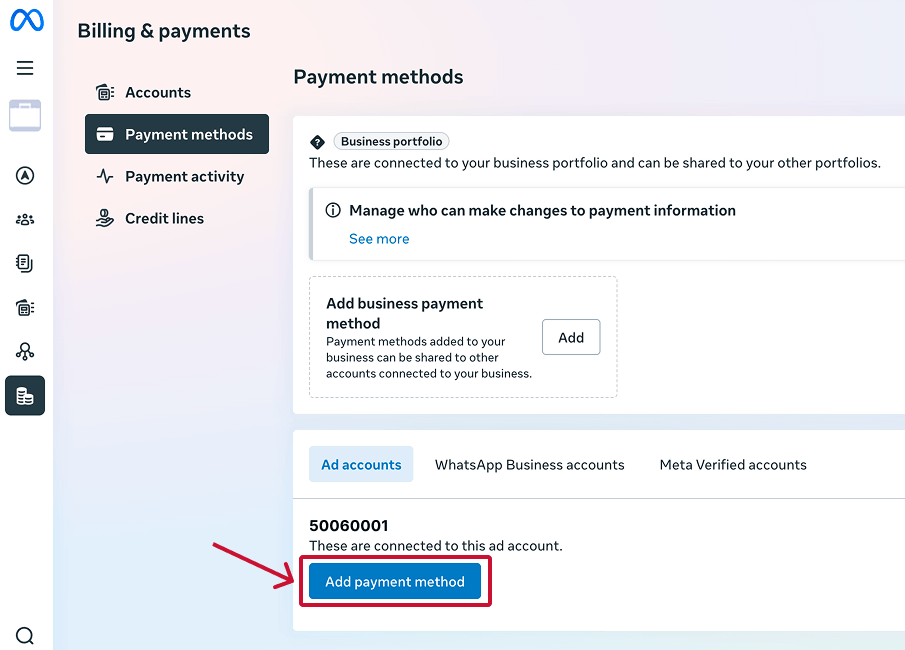
4. Under 'Ad accounts', click 'Add payment method' and enter a card or PayPal.
5. Save it, and your account is cleared to run ads.
If your first campaign will not launch, billing is the first thing to check. It is the step people most often forget, and Meta will not deliver ads without it.
The most common and costly setup mistake is running your ad account off your personal Facebook profile instead of a Business Portfolio. It happens by accident, it creates real risk, and fixing it later is a hassle, so check for it now.
Here is how it happens. Your first brush with advertising is usually boosting a post or clicking a "create ads" link inside your personal profile. From there, in the words of Stacy Covitz, "Meta, Facebook just takes it upon themselves to create an ad account under your personal profile. And you end up running ads from there." You never chose this setup; Facebook chose it for you.
Why it is a problem comes down to security, limits, and tracking. On the security side, your advertising is tied to your personal login: "If your account gets hacked or locked or anything like that, your whole ad account goes down with it. And there's no separation," Covitz explains.
On the practical side, a personal ad account carries a tiny spending limit and cannot easily take on team members. And your tracking suffers, because "your pixel is basically sitting on your personal account. It's not named. It's not managed. It's not getting the proper data."
How to check if yours is set up wrong:
The fix is to move your advertising under a proper Business Suite. Set up a Business Portfolio if you do not have one. Your pixel cannot simply be dragged over, so if the old pixel has little data, start a fresh one inside your new Business Suite. If the orphaned pixel does hold data worth keeping, name it first so you can at least identify it while you transition.
🔗 Related article: How to create a Meta Business Account and Business Portfolio
A properly built Facebook advertising setup follows a simple structure. Start with a Meta Business Suite account. Have that be the umbrella for everything. Build yours to match this checklist and you avoid nearly every problem above.
🔗 Related article: How to give access to a Facebook (Meta) Ad account
If the “Create a new ad account" option is missing or greyed out, it is almost always one of four reasons, and each has a fix. The button is not broken; Meta is holding it back for a specific cause.
The usual causes are that your portfolio has reached its ad account limit, your account is too new, your business is restricted or unverified, or you do not have full admin access. Work through them in that order.
If none of these apply and the option still will not appear, verifying your business details and email resolves most of the remaining cases.
Every day spent waiting for account access is a day you're not launching campaigns, delivering results, or generating revenue.
Leadsie is a client onboarding software that helps agencies request and receive access to client marketing, advertising, and social media accounts with one secure link. Instead of managing endless emails, permission requests, and troubleshooting sessions, you send a link to your client, they approve the permissions you've requested, and you get access in minutes, not days.
Clients can grant access to Meta, Google, LinkedIn, TikTok, Shopify, and 14+ other marketing platforms without sharing passwords.
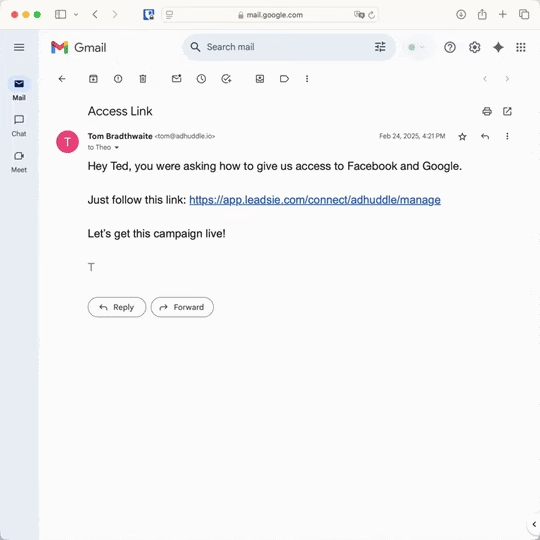
✅ Request, manage, and remove client access from one place
✅ Replace hours of emails, admin work, and onboarding calls
✅ Scale client onboarding without adding operational overhead
✅ Reduce your agency's turnaround time by over 50%
✅ Start billable work and billing cycles sooner
✅ Create a professional onboarding experience that helps retain clients
✅ Keep access secure with 100% GDPR and CCPA-compliant workflows
💬 "I never want to do onboarding without Leadsie!" - Alyssa, Meta Ads Manager
🎁 Start your free 14-day trial today —no credit card required.
P.S. It's risk-free, and you get to keep your account connections after the trial ends. 🙌

Jocelyn’s background spans UX research, marketing, content writing, and consulting. Outside of work, she enjoys reading, surfing, board games, billiards, Latin dancing, and MMORPGs.


Clients struggling to share access to their
accounts? Get the access you need in minutes with a free trial of Leadsie.
Approved by Meta, Google & Tiktok
Keep access to accounts if you cancel
Secure & 100% GDPR compliant
Delete your onboarding PDF. Cancel the video call. Just send one link, and get hassle-free access to 13+ platforms in minutes. Start free today.
Approved by Meta, Google & Tiktok
Keep access to clients' accounts if you cancel
Secure & 100% GDPR compliant
Yes, creating a Facebook ad account is free, and so is setting up Meta Business Suite (AKA a Meta Business Managera account). You only pay for the ads you choose to run. There is no fee to open the account, build a campaign, or set everything up.
What costs money is ad spend. You can build and even publish an ad without paying, but it will not deliver to anyone until you set a budget. The account is the free workspace; the delivery is what you pay for.
On the common "is five dollars a day enough" question, a small daily budget can work for early testing but limits how many people you reach and how fast you learn. It is a reasonable way to start and get comfortable, as long as you treat the results as a small experiment rather than a full campaign.
If you’ve never followed the steps to create an ad account on Meta Business Suite and boosted a post on Facebook before, Facebook has quietly created a personal ad account for you.
However, you do not want your ad data to live independently outside of a portfolio. A business ad account is part of a Business Portfolio, which keeps your advertising separate, secure, and easy to share with a team.
These three names describe three different things, and the labels have changed over the years, which is why people get confused. Here is the updated version:
Summary: the portfolio is the folder, the ad account is the file, and Ads Manager is the app you open the file in.
Technically yes, from a personal profile, but it is not recommended. You get tiny spending limits, weaker security, and messy tracking. Set up a Business Portfolio instead.
Yes, up to your portfolio's limit. One account per business is the clean default unless you genuinely run several businesses.
Effectively no. Changing either usually means creating a new ad account, so choose carefully at setup.
Questions unanswered? Check out our help center or get in touch 🤠