Clients struggling to share access to their
accounts? Get the access you need in minutes with a free trial of Leadsie.
14 day unlimited free trial
Extend until you onboard a client
No credit card required
Keep access to clients if you cancel


With easy one-link access requests for 13+ platforms your campaigns can go live in minutes, not days. Start free today.
Approved by Meta, Google & Tiktok
Keep access to clients' accounts if you cancel
Secure & 100% GDPR compliant



More and more organizations are starting to migrate to managed Meta accounts (MMA), but the process can be confusing if you’re encountering it for the first time. 😵💫
Some people first hear the term after receiving an email asking them to sign up. Others want to migrate their organization but can’t find the option to enable it or aren’t sure where the process begins.
Part of the confusion comes from how the system works.
Not everyone can switch to managed Meta accounts. The process starts when an organization receives an invitation from Meta to begin the migration, after which the company's administrators can create accounts for employees and invite them to activate them.
In this guide, we’ll explain what managed Meta accounts are, why Meta introduced them, and how organizations can migrate to them. We’ll also walk through common issues teams run into during migration and how to fix them.
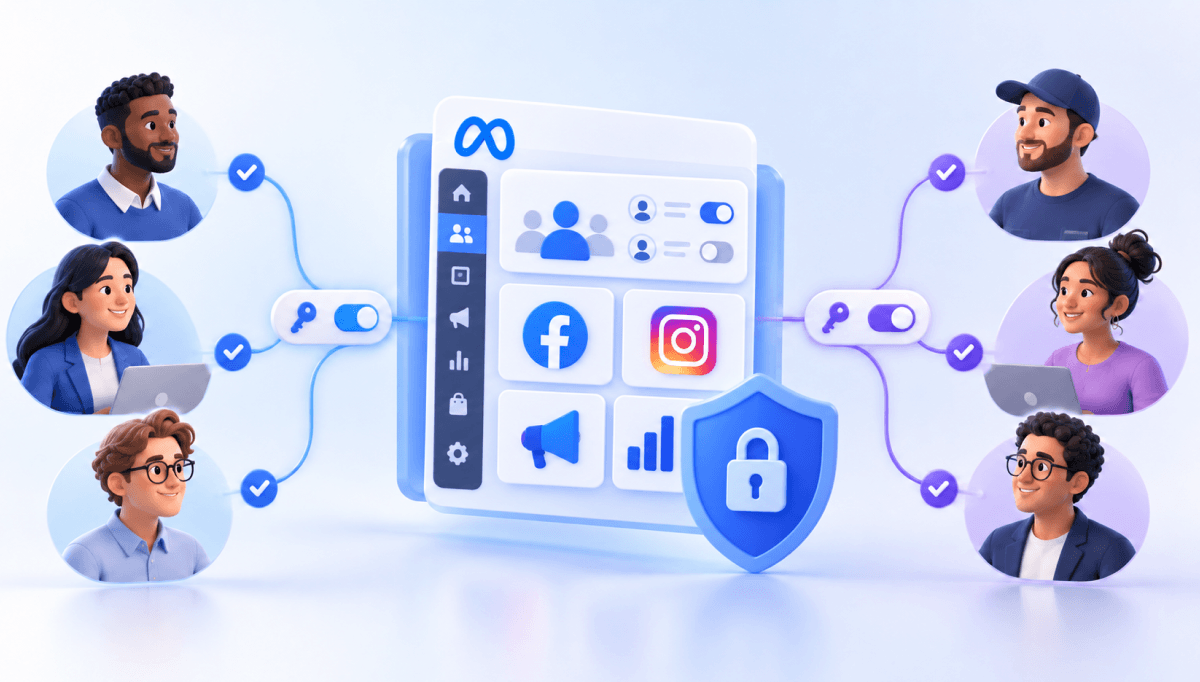
Managed Meta accounts are free work-only accounts that allow employees to access Meta’s business tools using their company credentials or single sign-on (SSO) instead of a personal Facebook profile. This means employees no longer need a Facebook account to access Meta Business Suite or Ads Manager.
Typically, anyone managing business assets on Meta, like ad accounts or Facebook Pages, needs to log in with a personal Facebook account. Even when assets are organized within a Business Portfolio, the login identity still belongs to the individual rather than the organization.
For businesses with larger teams, this can create security challenges because they have limited visibility into how those accounts interact with their business tools.
Managed accounts solve this by separating personal and professional access.
Unlike personal Facebook accounts, managed Meta accounts are designed strictly for business use.
Some key differences include:
✔️ No consumer Facebook features
Managed Meta accounts don’t have a personal timeline or access to the Facebook News Feed. They are not meant for interacting with Facebook as an individual user and exist only to access business tools.
✔️ Accounts are created and managed by the organization
Admins create accounts for employees and manage them centrally. They can set up accounts directly in the Admin Centre or connect an identity provider (IdP), such as Google Workspace, Okta, or Microsoft Azure AD.
✔️ Work-only access to business tools
These accounts are used specifically to access Meta business products such as Meta Business Suite, Ads Manager, and other business assets.
✔️ Permissions must come through a business account
Managed Meta accounts cannot hold personal asset permissions. Access to Pages, ad accounts, or other assets must be granted through a Business Portfolio.
✔️ Login with work credentials
Employees log in using their work email address or through single sign-on (SSO), rather than a personal Facebook profile.
🔗 Related article: Meta Business Suite vs. Meta Business Portfolio: What’s the Difference?
Meta introduced managed Meta accounts to give organizations more control over how employees access business tools and to support enterprise-level security.
Here are some of the key reasons behind the change:
📝 Stronger security controls
Managed accounts support enterprise security features such as single sign-on (SSO). When Meta is connected to an organization’s identity provider (IdP), employees can log in using their work credentials while the company maintains control over authentication and security policies.
📝 Centralized account management
Accounts can be automatically created or deactivated when employees join or leave the company through identity provider integrations. This helps organizations keep employee access up to date and reduces the risk of outdated permissions.
📝 Better visibility and access auditing
Managed Meta accounts give organizations clearer visibility into who has access to business tools and assets, making it easier to track permissions and conduct internal security or compliance audits.
Managed Meta accounts are designed for larger organizations that want to manage employee access to Meta’s business tools in one place, using their own security and identity systems.
❗ However, migration to managed Meta accounts is not available to all organizations yet. Businesses must first be eligible and receive an invitation from Meta before they can begin the migration process.

Meta has not published a confirmed way to request or speed up access to managed Meta accounts. However, organizations can prepare their accounts so they’re ready if they become eligible.
Some steps that may help include:
While these steps don’t guarantee an invitation, they align with the infrastructure typically required for organizations migrating to managed accounts.
🔗 Related article: How to create a Meta Business Account and Business Portfolio
Organizations migrate to managed accounts through a structured process that replaces employees’ personal Facebook logins with organization-managed accounts.
The transition is handled at the organization level, meaning administrators first prepare the company’s systems and Business Portfolios before employees begin activating their accounts.
Several groups are usually involved in the process, including people with organization management task access, IT managers responsible for identity and security setup, and the employees who will activate their accounts. In some cases, agencies or external partners may also be involved.
The process typically takes place in four main stages.
This stage is usually led by an organization manager (administrator), who oversees the migration and coordinates the setup process. In many cases, they act as project leads to ensure the migration runs smoothly.
The first step is to audit who currently has access to the organization’s Business Portfolios and assets. This helps ensure only the right employees are migrated to managed Meta accounts.
Once the right people are involved, administrators need to complete several setup tasks before migration can begin. These usually include:

👉 If you want a full list of tasks Meta recommends completing before migration, you can review the pre‑migration checklist for managed Meta accounts.
These steps ensure the organization’s identity and security systems are ready to manage employee access to Meta’s business tools.
🔎 Note: Organization managers can also invite up to three people to help them complete IT tasks in Organization Manager during migration. Learn how to invite them here.
Once the organization is ready, administrators can create managed Meta accounts for employees.
🔎 Note: Everyone who needs access to the organization’s Business Portfolios must have a managed Meta account created for them.
Accounts can be created in two ways:
Once accounts are created and the relevant Business Portfolios have been added to Organization Manager, administrators can invite employees to migrate to their managed Meta accounts.
Employees must activate their managed Meta accounts before they can use them to access business tools.
Activation can typically be completed through the invitation email or through a notification in Meta Business Suite.
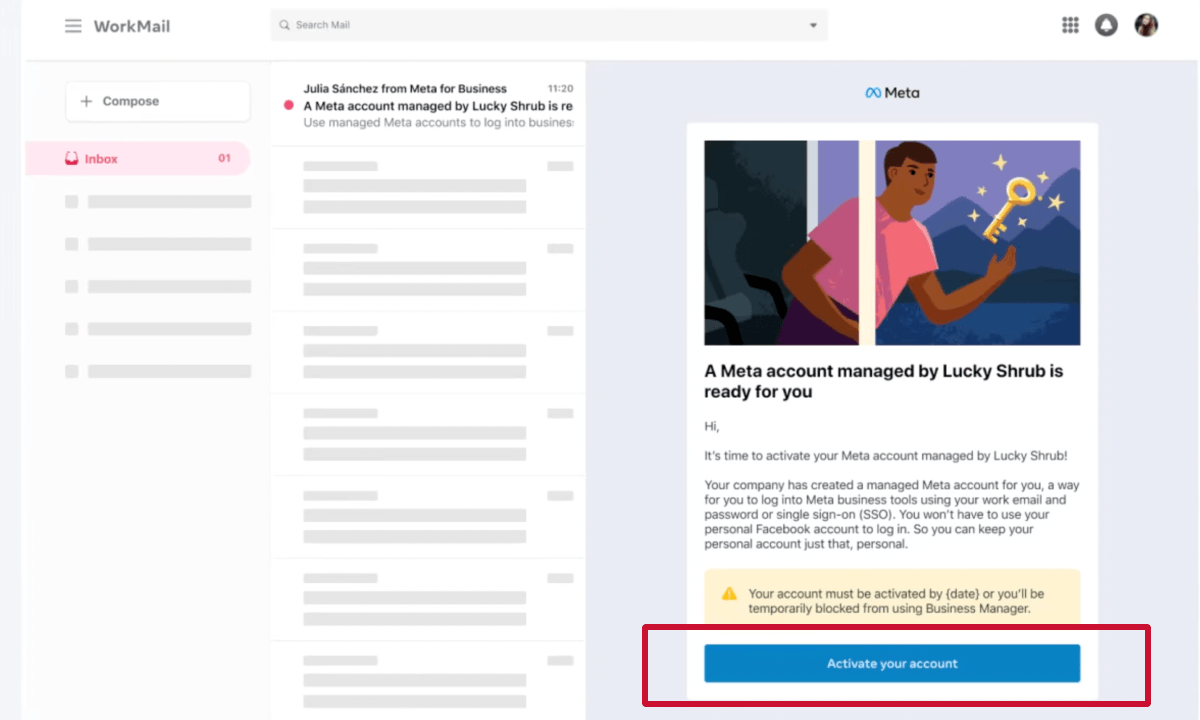
During activation, employees may be asked to:
Once activated, a business user profile is created for the employee, which is used to access Meta’s business tools. They will no longer need to use their personal Facebook account to access their organization’s business portfolios or assets.
🔎 Note: Employees must activate their account before the migration deadline set by the organization. If they miss the deadline, they may temporarily lose access to the organization’s business tools until the migration is completed.
After activating their managed Meta accounts, employees may need to reconnect third-party apps and integrations that were previously connected through their personal Facebook accounts.
This might include tools like social media management platforms, analytics tools, or other apps that had permission to access business assets such as Facebook Pages or ad accounts.
Because these integrations were originally authorized through a personal Facebook account, their permissions don’t automatically carry over to the new managed account. As a result, employees will need to reconnect these apps using their business user profile, which is created when the managed Meta account is activated.
To help avoid disruptions, Meta provides a 30-day grace period during migration so users have time to reconnect their integrations.
Organizations often work with external partners such as marketing agencies, consultants, or freelancers who need access to business assets like Facebook Pages or ad accounts.
These partners do not need a managed Meta account tied to their client’s organization.
Instead, they can be granted access through partner access in the organization’s Business Portfolio. This allows them to continue using their personal Facebook accounts while working with your business assets.
Alternatively, agencies can use a client onboarding tool like Leadsie to securely request access to Meta assets through a single access request link. Rather than guiding clients through Business Portfolio settings, clients can approve access in just a few clicks.
Once access is granted, partners can manage the assigned assets, such as Pages or ad accounts, without being added as employees in the organization’s managed Meta account system.
❗ Note: External partners are not connected to the organization’s identity provider. Because of this, administrators must manually remove their access to business assets if the partnership ends.
🔗 Related article: Unable to assign assets in Meta Business Suite? Here are 4 reasons and how to fix them
Migrating to managed Meta accounts introduces new workflows and identity controls, which can sometimes lead to unexpected issues.
Below are some common problems organizations and employees may encounter during migration, along with possible explanations:
Not all organizations currently have access to managed Meta accounts.
If your organization has not received an invitation from Meta, it means migration is not yet available for your business. At this stage, all you can do is prepare your accounts and infrastructure for when migration becomes available.
Organizations must add their Business Portfolios to Organization Manager before migration can begin. In some cases, administrators may encounter errors when trying to add a portfolio.
Some common reasons include:
In some cases, a request to add a portfolio may require manual approval from someone who has full control of the Business Portfolio.
If the request is not approved within 30 days, it will expire and must be submitted again.
Additionally, Meta allows only one request every 24 hours, so administrators may need to wait before submitting another request.
After activating a managed Meta account, employees may notice that certain features or products they previously accessed with their Facebook account are no longer available.
This happens because business user profiles are designed for business tools only, not consumer platforms.
For example, a managed Meta account cannot be used to access:
However, employees can still manage business assets such as Pages or ad accounts through Meta Business Suite, provided those assets are part of the organization’s Business Portfolio.
Certain Meta tools currently do not support managed Meta accounts.
An example of this is Meta Ads Manager for Excel. If you need to analyze advertising data, Meta recommends exporting reports from Ads Manager or using the Ad Insights API instead.
Some advertising features require additional terms to be accepted after migration.
For example, users must accept the Customer List Custom Audiences Terms before they can create or edit ads that use uploaded customer list audiences.
If someone was invited to help with migration or activate a managed Meta account but cannot find the email invitation, they should check their spam folder or log in directly to Meta Business Suite to accept the invitation.
Every day spent waiting for account access is a day you're not launching campaigns, delivering results, or generating revenue.
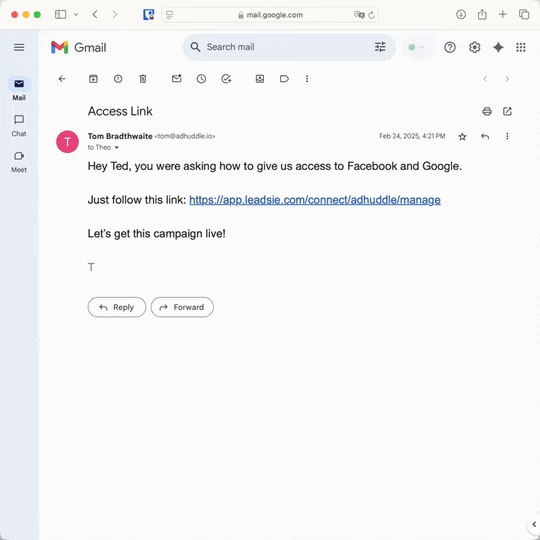
Leadsie is a client onboarding software that helps agencies request and receive access to client marketing, advertising, and social media accounts with one secure link. Instead of managing endless emails, permission requests, and troubleshooting sessions, you send a link to your client, they approve the permissions you've requested, and you get access in minutes, not days.
Clients can grant access to Meta, Google, LinkedIn, TikTok, Shopify, and 14+ other marketing platforms without sharing passwords.
✅ Request, manage, and remove client access from one place
✅ Replace hours of emails, admin work, and onboarding calls
✅ Scale client onboarding without adding operational overhead
✅ Reduce your agency's turnaround time by over 50%
✅ Start billable work and billing cycles sooner
✅ Create a professional onboarding experience that helps retain clients
✅ Keep access secure with 100% GDPR and CCPA-compliant workflows
💬 "I never want to do onboarding without Leadsie!" - Alyssa, Meta Ads Manager
🎁 Start your free 14-day trial today —no credit card required.
P.S. It's risk-free, and you get to keep your account connections after the trial ends. 🙌

Nina is an SEO content specialist with expertise in B2B SaaS. She helps businesses increase organic traffic with strategic, high-quality content. Outside of work, you’ll find her sailing somewhere in the Mediterranean.


Clients struggling to share access to their
accounts? Get the access you need in minutes with a free trial of Leadsie.
Approved by Meta, Google & Tiktok
Keep access to accounts if you cancel
Secure & 100% GDPR compliant
Delete your onboarding PDF. Cancel the video call. Just send one link, and get hassle-free access to 13+ platforms in minutes. Start free today.
Approved by Meta, Google & Tiktok
Keep access to clients' accounts if you cancel
Secure & 100% GDPR compliant
No, employees still keep their personal Facebook accounts. Managed Meta accounts only replace the login used to access the organization’s business tools.
Employees can continue using their personal Facebook or Instagram accounts for personal activity outside of the organization’s business assets.
If the organization uses an identity provider (such as Okta, Microsoft Entra ID, or Google Workspace), removing the employee from the company directory can automatically deactivate their managed Meta account.
If accounts were created manually, administrators must deactivate the account in Admin Center.
No. Agencies, freelancers, and other partners can still access business assets using partner access in a Business Portfolio.
This allows external collaborators to continue using their personal Facebook accounts while managing assets such as Pages or ad accounts.
No. Managed Meta accounts are designed only for Meta business tools. They cannot be used to log directly into Instagram or other consumer Meta platforms.
However, employees can still manage Instagram business accounts connected to their company’s assets through Meta Business Suite.
In most cases, no. If agencies were granted access through partner access, their permissions usually remain unchanged during migration.
However, if access was granted through a specific user’s Facebook account, permissions may need to be reauthorized.
Questions unanswered? Check out our help center or get in touch 🤠