Clients struggling to share access to their
Google Analytics
accounts? Get the access you need in minutes with a free trial of Leadsie.
14 day unlimited free trial
Extend until you onboard a client
No credit card required
Keep access to clients if you cancel


With easy one-link access requests for 13+ platforms your campaigns can go live in minutes, not days. Start free today.
Approved by Meta, Google & Tiktok
Keep access to clients' accounts if you cancel
Secure & 100% GDPR compliant


To request access to Google Analytics, use the Request access button in the GA4 Admin panel. Alternatively, if a client or colleague sends you a direct link to a GA4 property, report or dashboard, open the link and submit a request from the missing-permissions screen. If these options aren't available, you’ll need an existing Administrator to add you manually.
According to our data at Leadsie, 13% of first-time Google Analytics access requests fail on the first attempt, so choosing the right method, access level and role can help avoid delays. This guide explains each option and what to do if your request doesn’t work.
For agencies requesting access from clients, Leadsie is a client onboarding tool that offers an alternative to the native Google Analytics process through a single access request link.
🔗 Related article: How to give access to a Google Analytics account
Prefer a video? 👇
There are two ways to request access to a GA4 account:
If neither option displays a Request access button, ask an existing Administrator to add you manually.
Important: Both native methods request an account-level role (access across the Google Analytics account and its websites or apps). If you only need access to one GA4 property (a specific website or app), an existing Administrator must add you manually.
See also: How to create a Google Analytics account
If you already have some access to the Google Analytics account but need a higher permission level, you may be able to request additional access directly from the Admin panel.
1. Sign in to Google Analytics and select the relevant account.
2. Go to Admin > Account Access Management.
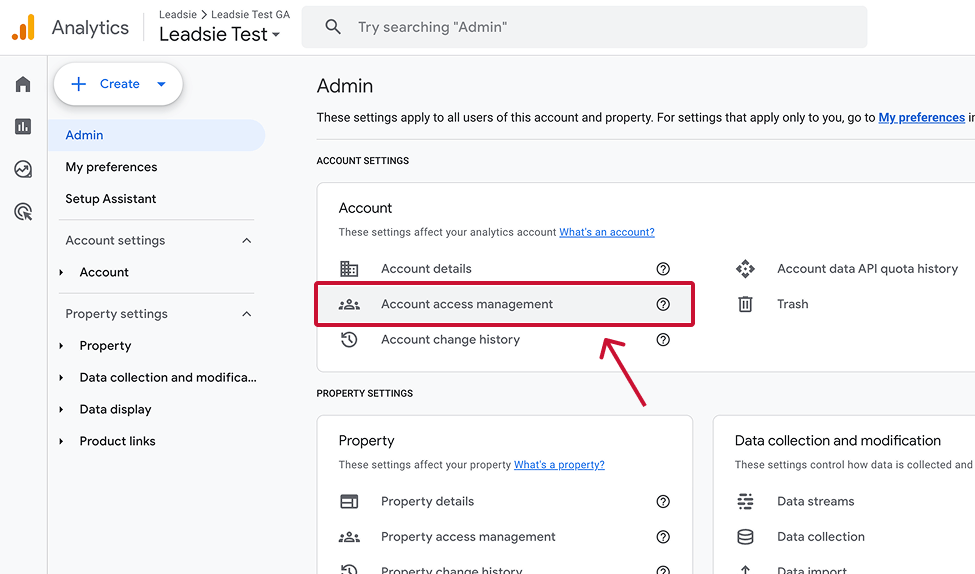
3. Click “Request access.”
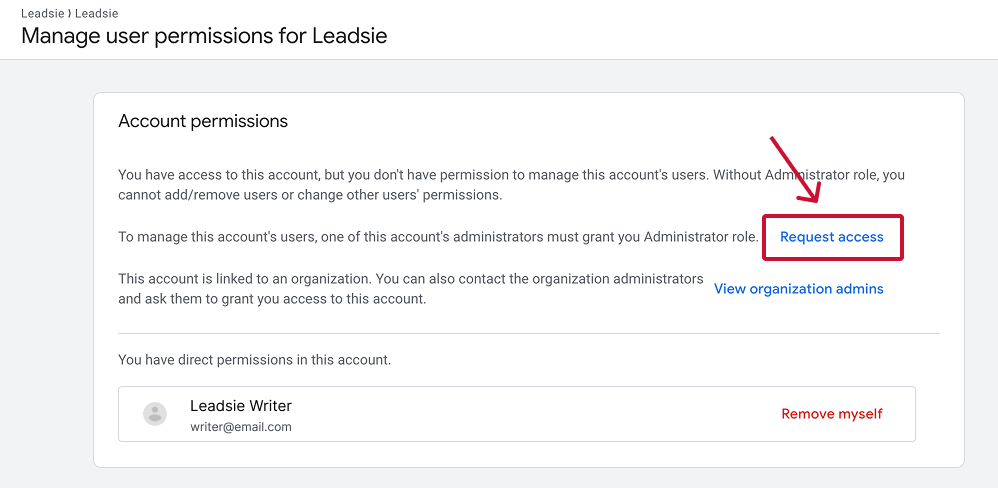
4. Select the permission level you need, such as Viewer, Analyst, Editor or Administrator.
5. Click “Confirm” to submit the request.
GA4 will email your name, Google Account email address and requested permission level to the relevant Administrators. They can then approve or deny the request.
Important: The available options may depend on your existing access and the account’s configuration. If you don’t see Request access, confirm that you’re signed into the correct Google Account and ask an Administrator to add you manually.
If someone sends you a link to a GA4 property, report or dashboard that you can’t access, Google Analytics may let you request access from the permission screen.
Google Analytics will send the request, including your name and email address, to the relevant Administrators for review.
The Request access button may be missing if you’re signed into the wrong Google Account, the link points to a different GA4 property, or the organization has restricted access requests.
If you can’t see the button:
Google Analytics access can be granted at the account or property level. However, the native Request access workflow only lets you request an account-level role.
If you only need access to one GA4 property, ask an existing Administrator to add you manually through Property Access Management.
For agencies working with only one client website or app, property-level access is usually sufficient and avoids granting access to unrelated properties.
Account-level access is more appropriate when you’re responsible for multiple properties or the client’s complete Analytics setup.
Important: Roles requested through the native workflow are granted at the account level. If you need one of these roles for only a particular property, ask an Administrator to grant it manually through Property Access Management.
🔗 Related article: What's the Difference Between Google Search Console & Google Analytics?
For marketing agencies requesting access from clients, Leadsie offers an alternative to the native Google Analytics process. The client onboarding software lets agencies request access to Google Analytics through a single access request link, rather than asking clients to navigate GA4 and add users manually.
Here's how it works:
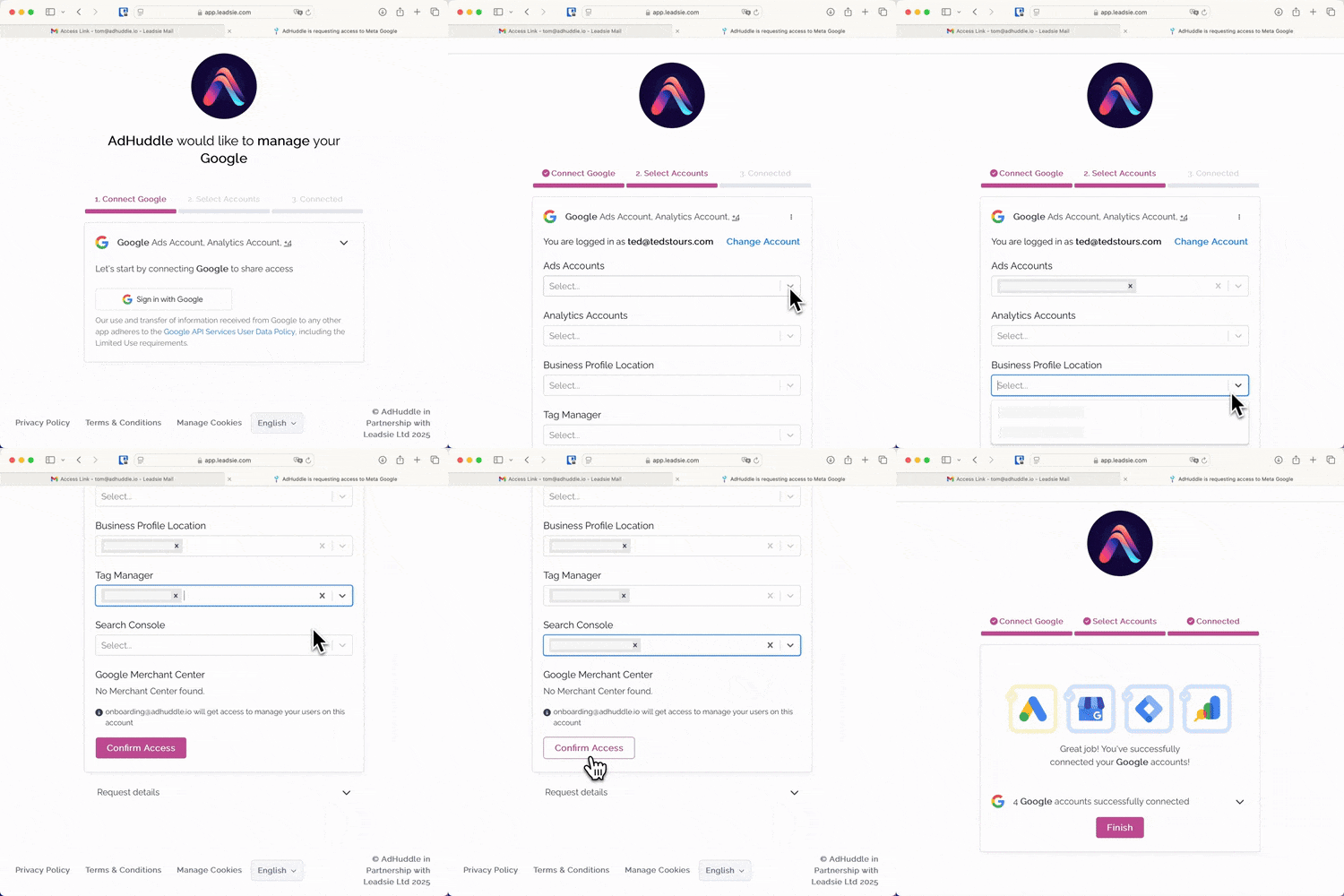
💡 According to Leadsie, 59.2% of Google Analytics requests are accompanied by a Google Ads request, while 39.5% also include Google Tag Manager and 33.9% include Google Search Console.
Because agencies often need access to several platforms during client onboarding, Leadsie lets you combine multiple Google assets and more than 14 other marketing platforms in a single request, without sending separate links or instructions for each one.
Still sending onboarding emails, sharing PDFs, or jumping on calls just to get access to a client's accounts?
With Leadsie, one secure link handles the entire process. Clients can grant access to Meta, Google, LinkedIn, TikTok, Shopify, and 14+ marketing, advertising, and social media accounts without sharing passwords.
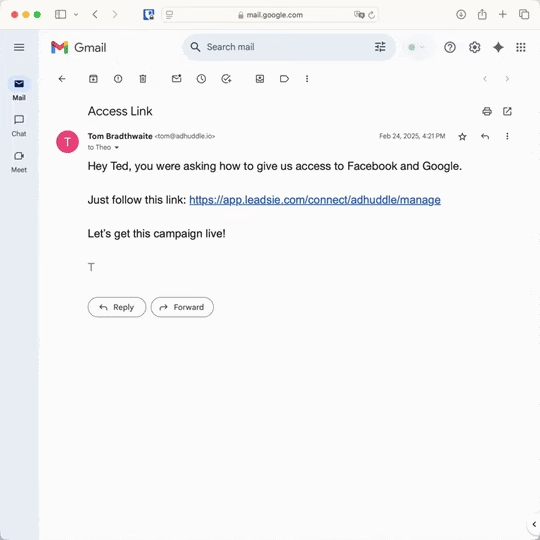
✅ Get access to client accounts in minutes, not days
✅ Replace hours of emails, admin work, and onboarding calls
✅ Scale client onboarding without adding operational overhead
✅ Reduce your agency's turnaround time by over 50%
✅ Start billable work and billing cycles sooner
✅ Create a professional onboarding experience that helps retain clients
✅ Keep access secure with 100% GDPR and CCPA-compliant workflows
💬 "I never want to do onboarding without Leadsie!" - Alyssa, Meta Ads Manager
🎁 Start your free 14-day trial today —no credit card required.
P.S. It's risk-free, and you get to keep your account connections after the trial ends. 🙌

Sarah is a pro at writing articles that accelerate SaaS businesses' organic growth. When she’s not caught up in the thrill of content writing, you’ll find her surfing in the Atlantic Ocean and running her own yoga retreats.


Clients struggling to share access to their
Google Analytics
accounts? Get the access you need in minutes with a free trial of Leadsie.
Approved by Meta, Google & Tiktok
Keep access to accounts if you cancel
Secure & 100% GDPR compliant
Delete your onboarding PDF. Cancel the video call. Just send one link, and get hassle-free access to 13+ platforms in minutes. Start free today.
Approved by Meta, Google & Tiktok
Keep access to clients' accounts if you cancel
Secure & 100% GDPR compliant
No, but the email must be registered as a Google Account or Google Workspace Account.
The account owner must use Google’s administrator-access recovery process and prove ownership of the websites or apps connected to the Analytics account.
“None” means the user has no role for the account or property you’re currently viewing. They may still have permissions for another Analytics resource. It doesn’t necessarily mean the user is a bot or connected application.
If you’re unable to access a client’s GA4 account, go to Admin > Account Access Management or Property Access Management in your GA4 dashboard. This will show whether you’ve been granted access and which permissions you currently have.
Questions unanswered? Check out our help center or get in touch 🤠