Clients struggling to share access to their
accounts? Get the access you need in minutes with a free trial of Leadsie.
14 day unlimited free trial
Extend until you onboard a client
No credit card required
Keep access to clients if you cancel


With easy one-link access requests for 13+ platforms your campaigns can go live in minutes, not days. Start free today.
Approved by Meta, Google & Tiktok
Keep access to clients' accounts if you cancel
Secure & 100% GDPR compliant



Meta Catalogue access is one of the most commonly misunderstood parts of Meta’s setup.
Catalogues have their own permission system, separate from Pages, ad accounts, and pixels. That’s why you can have access to everything else and still be unable to run product-based ads.
Whether you’re a business owner trying to give an agency the right permissions or an agency trying to request access so you can launch ad campaigns, knowing how catalogue access works will make life easier.
In this article, we’ll walk through how to give, request, and manage access to Meta Catalogues without confusion.
Jump to the section you need:
Part 1: Give access to an individual — Add a team member, contractor, or freelancer to your catalogue.
Part 2: Give access to a partner business — Grant access to an entire agency or external business without adding their staff to your Business Portfolio.
Part 3: Request access through Meta Business Suite — Instructions on how to ask a business to give you catalog access (for both agencies and internal teams).
Part 4: Request access with Leadsie — The simplest, fastest way for agencies to get the correct catalogue permissions.
First, let’s quickly clarify what Meta Catalogues are and how they fit into your overall Meta marketing setup.
A Meta Catalogue is a central database inside Commerce Manager where you store all the items you want to advertise or sell on Facebook and Instagram.
Think of it as a digital inventory list that Meta automatically pulls from whenever you run ads or tag a product on Instagram, so the right photos, prices, and details always show up.
For example, if you sell shoes, your catalogue is where you’ll upload each style’s photos, price, sizes, and availability. When you run an ad or tag a product on Instagram, Meta will pull those details from your catalogue, so everything stays accurate without extra manual work.
💡 Tip: Unless you run several businesses, Meta recommends using one catalogue for all your items to make management easier and help your ads reach the right audiences.
🔗 Related: How create and set up a Meta product Catalogue.
Use a Meta Catalogue any time you plan to:
In short, if your product data drives your ads or Shop, you’ll need a Meta Catalogue.
👉 See all the ways you can use Meta Catalogues.
❗ Important: If you’re working with external partners, catalogue access alone isn’t enough to build or manage ad campaigns. They’ll also need access to your ad account, pixel, and sometimes Page or Commerce Manager permissions if they’re handling Shop-related tasks.
🔗 Related: How to Create a Meta Ad Account
Meta offers two permission levels, and it's important to choose the right one depending on the work someone needs to do:
This level is best for people who only need your catalogue for advertising.
They can:
✅ View your products
✅ Create and manage product sets
✅ Check your catalogue’s match rate
✅ Use the catalogue when creating ads
They can’t:
❌ Add or edit items, which makes this a safe option for agencies or contractors who don’t need to touch your product data.
Full control is for people who actively manage your inventory inside Commerce Manager.
In addition to everything above they can:
✅ Add or update items
✅ Edit product data (images, titles, pricing, availability, etc.)
✅ Manage data sources or feeds
✅ Change catalogue settings
This level should be limited to trusted internal team members or partners who handle your product feed day-to-day, since they can make changes that directly affect your ads and Shop.
❗ Important: Catalogue access is limited to the catalog asset only. It doesn't give someone access to your broader Commerce Manager settings, Shop, or Business Portfolio. Any additional access must be granted separately.
Catalogue access is managed directly inside Meta Business Suite.
📑 Before you start, there are two things you must have in place:
🔗 Related: Meta Business Suite vs. Business Portfolio: What are the Key Differences?
Then, follow these steps to grant someone access to Meta Catalogues:
Step 1. Go to Settings @ https://business.facebook.com/latest/settings/ in Meta Business Suite and choose your business.
Step 2. Click Data sources > Catalogues.

❗ Note: If you don’t see your catalogue here, you may be in the wrong Business Portfolio or you don’t have the required permissions.
Step 3. Choose your catalogue and click “Assign people.”
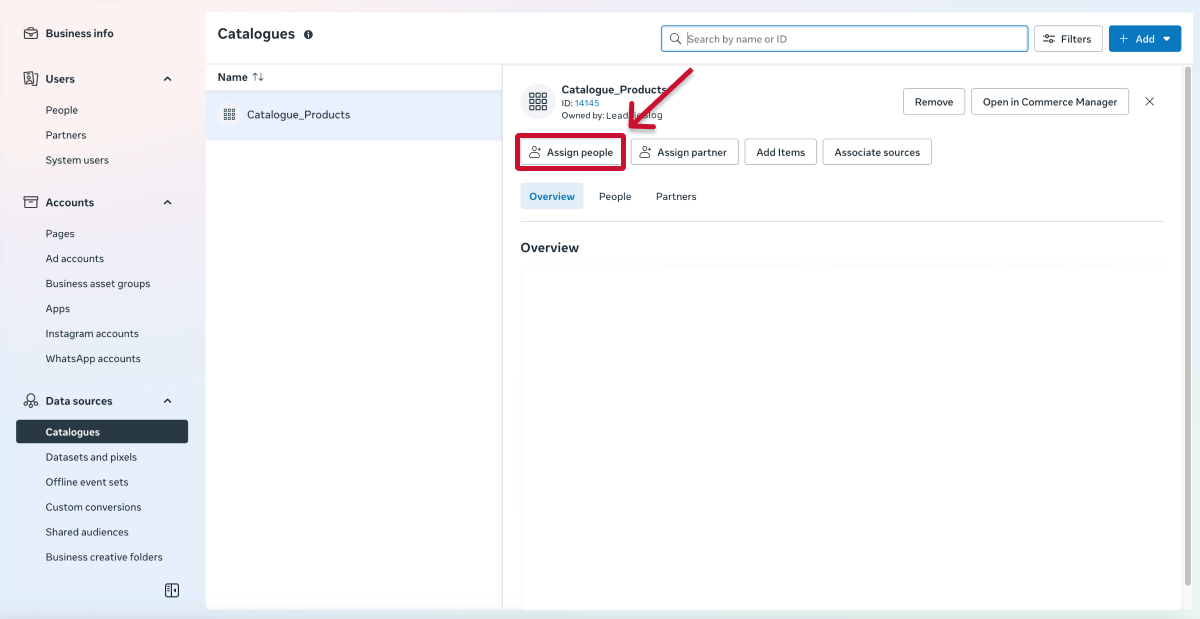
Step 4. Select one or more people, then choose Partial access or Full control.
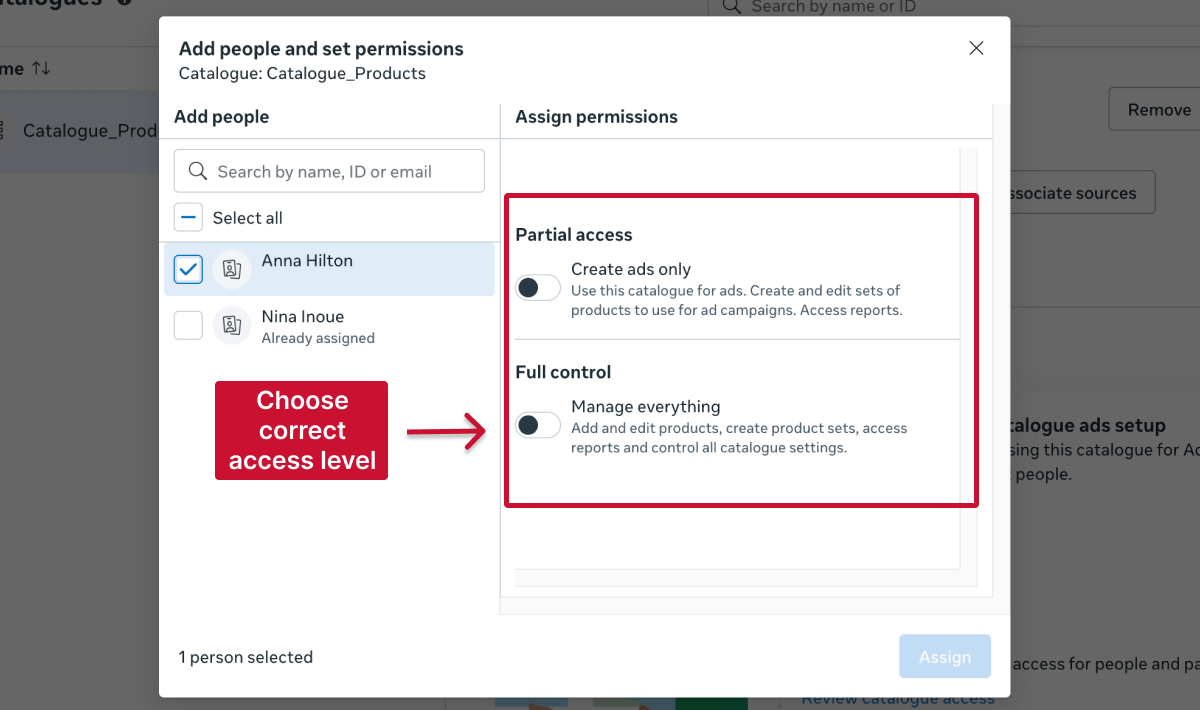
Then, click “Assign” to confirm.
Step 5. The person you invited can now see and use the catalogue inside Meta Business Suite.
All they have to do is log into Meta Business Suite using their own Facebook account, switch to your business in the top-left dropdown, and they’ll see the catalogue under Settings > Data sources > Catalogues.
If you ever need to update what a person can do in your catalogue you can adjust their permissions at any time inside Meta Business Suite.
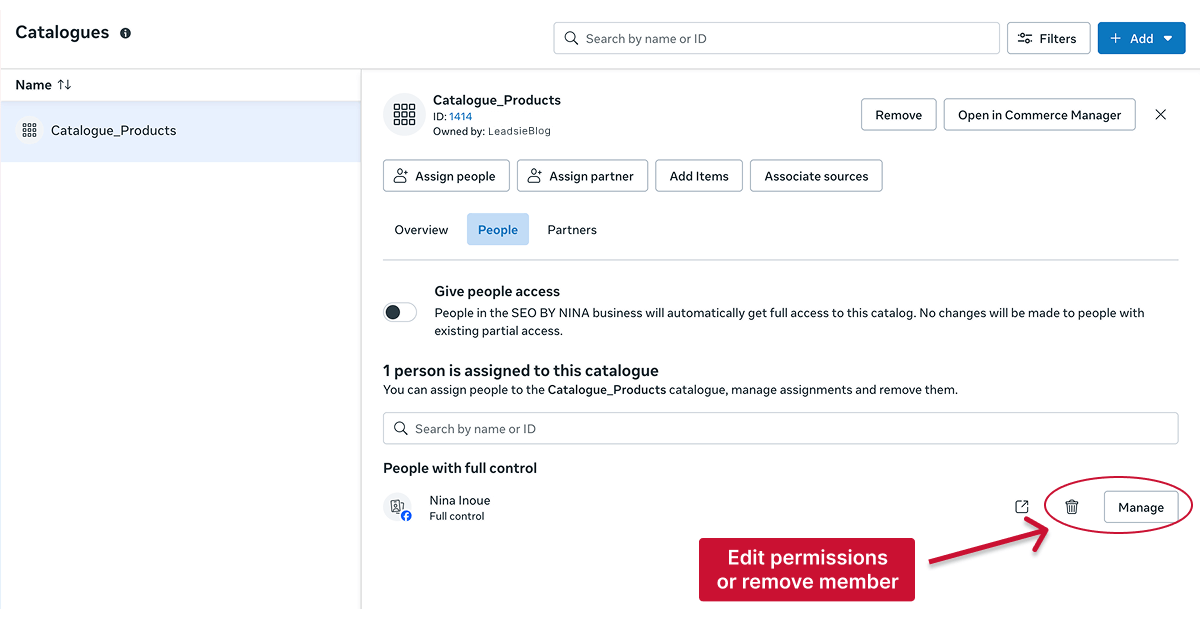
The person will immediately gain or lose the relevant catalogue capabilities.
❗ Note: Removing catalogue access does not remove them from your Business Portfolio. They simply won’t see or be able to use that specific catalogue anymore.
If you work with an external partner like a marketing agency, the best practice is to keep the catalogue inside your Business Portfolio and give them access as a partner. This connects the catalogue to their Business Portfolio without requiring you to add individual agency employees to yours.
Giving access to a partner business doesn’t give their employees automatic access. Instead, it keeps your Business Portfolio private and secure, while still letting you choose exactly which individuals get permission to work on your catalogue.
❗ Important: Your partner must have their own Business Portfolio to receive catalogue access.
Then, follow these steps to grant them partner access:
Step 1. Go to Meta Business Suite's Settings @ https://business.facebook.com/latest/settings/ and choose your business.
Step 2. Click Data sources > Catalogues and choose your catalogue.
Step 3. Click “Assign partner.”
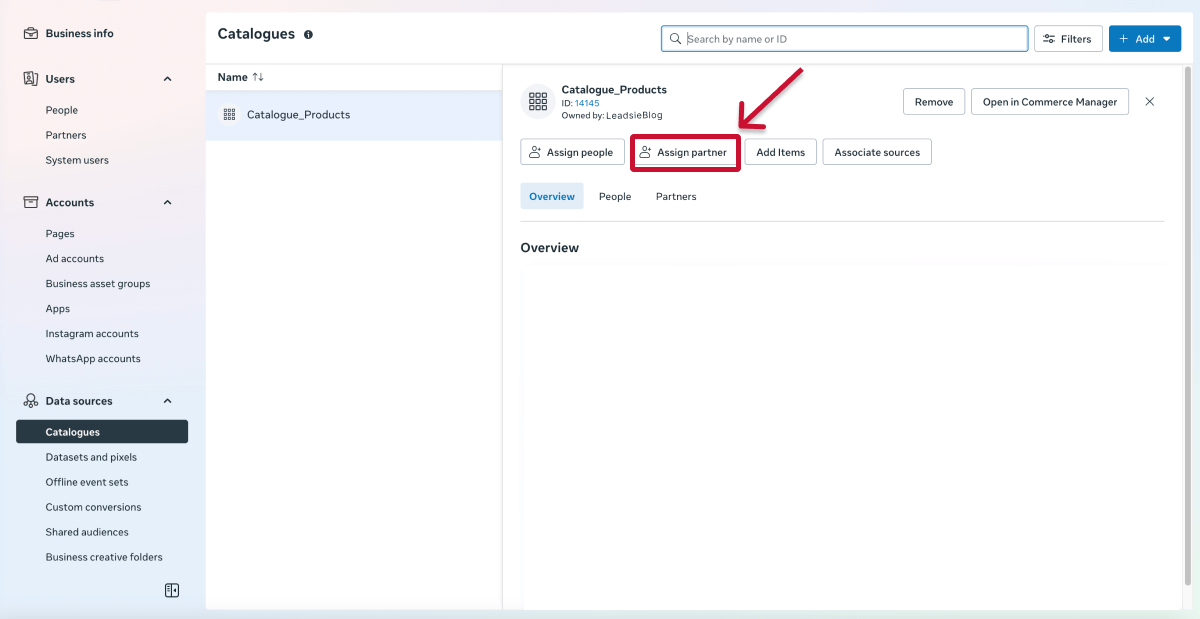
From here, you have two ways to give partner access:
This is usually the fastest method.
1. Select “Business ID.”
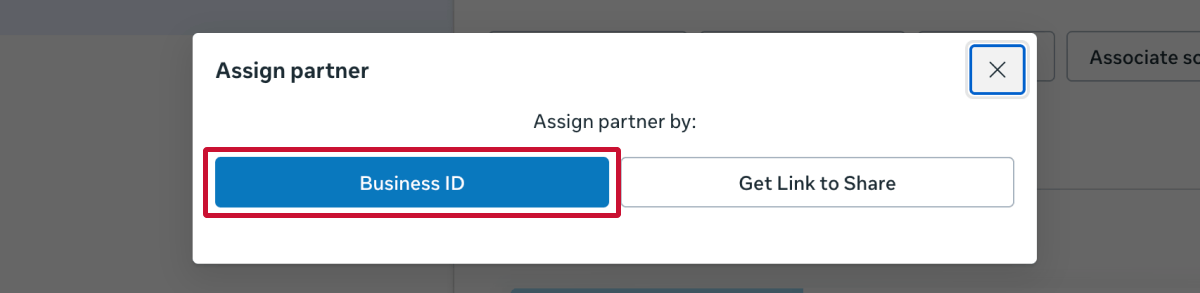
2. Enter the partner’s Business ID. (Agencies can find this under Settings > Business portfolio info)
🔗 Related article: How to find your Meta Business ID (Facebook)
3. Choose “Partial Access” or “Full Control.”
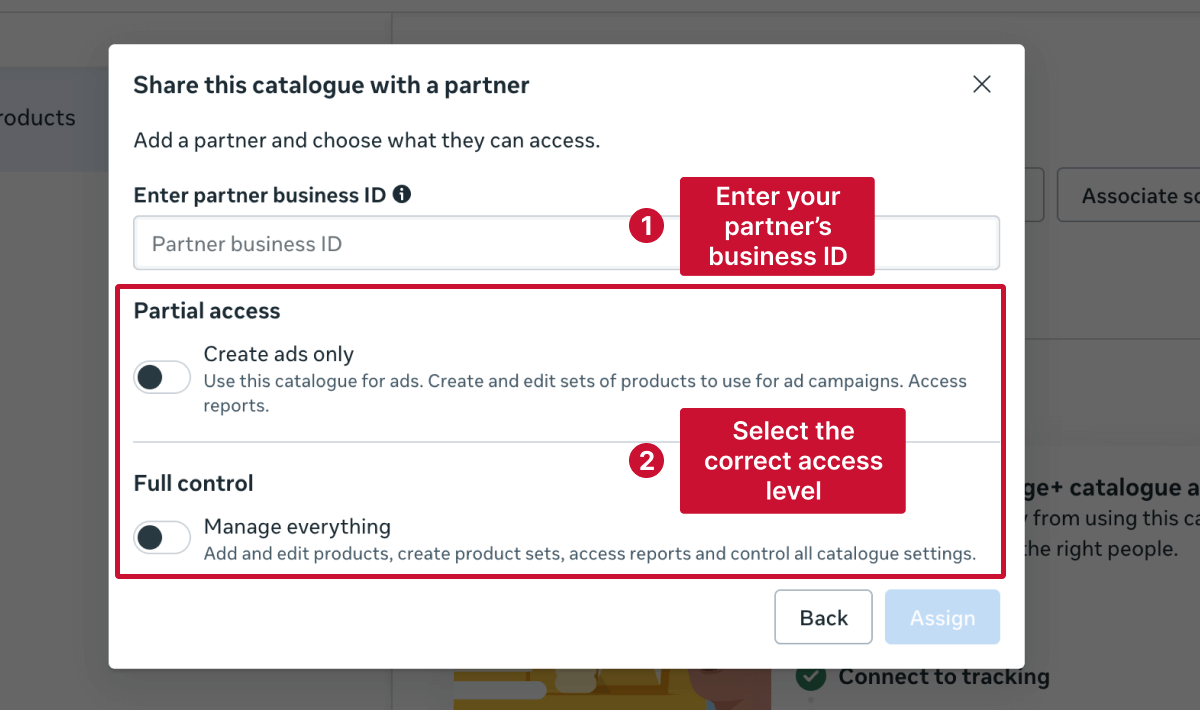
4. Click “Assign.”
If you don’t have the partner’s Business ID, you can send them a one-time access link.
1. Choose “Get Link to Share.”
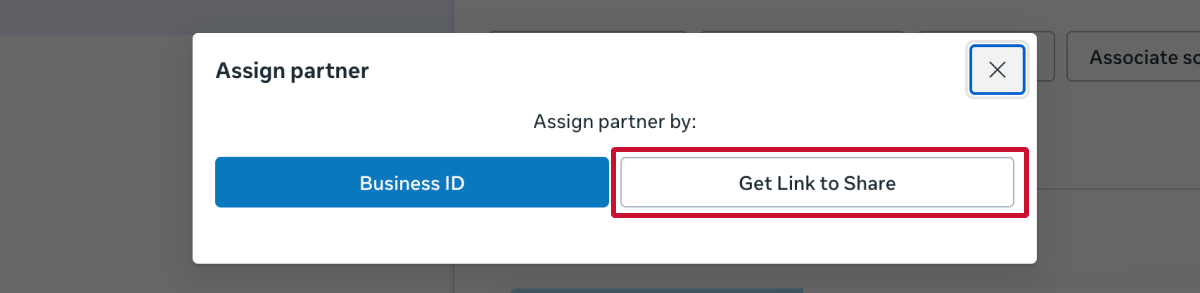
2. Select “Partial Access” or “Full Control.”
3. Copy the link and send it to your partner.
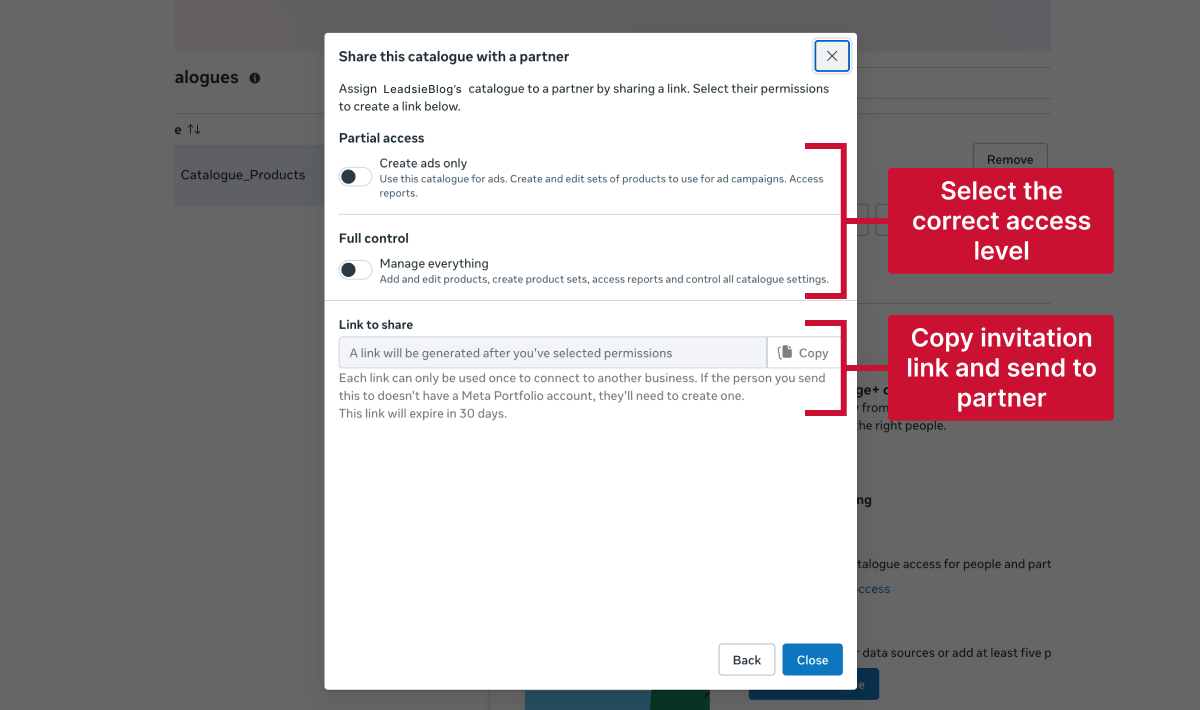
The partner will immediately see your catalogue inside their own Meta Business Suite.
❗ Important: Each link can only be used once, and it expires after 30 days. If the agency misses the window, you’ll need to generate a new link.
If you’ve given catalogue access to an external partner business, you can update or remove that access at any time.
From here, you can:
These changes will apply instantly.
❗ Important: Changing or removing partner access affects the entire partner business. For example, if you switch a partner to Partial Access, everyone on their team loses Full Control.
If you need to work on a catalogue you don’t currently have access to, you cannot request for access within Meta Business Suite.
Instead, you must contact someone with Full Control of the Business Portfolio that owns the catalogue to add you manually.
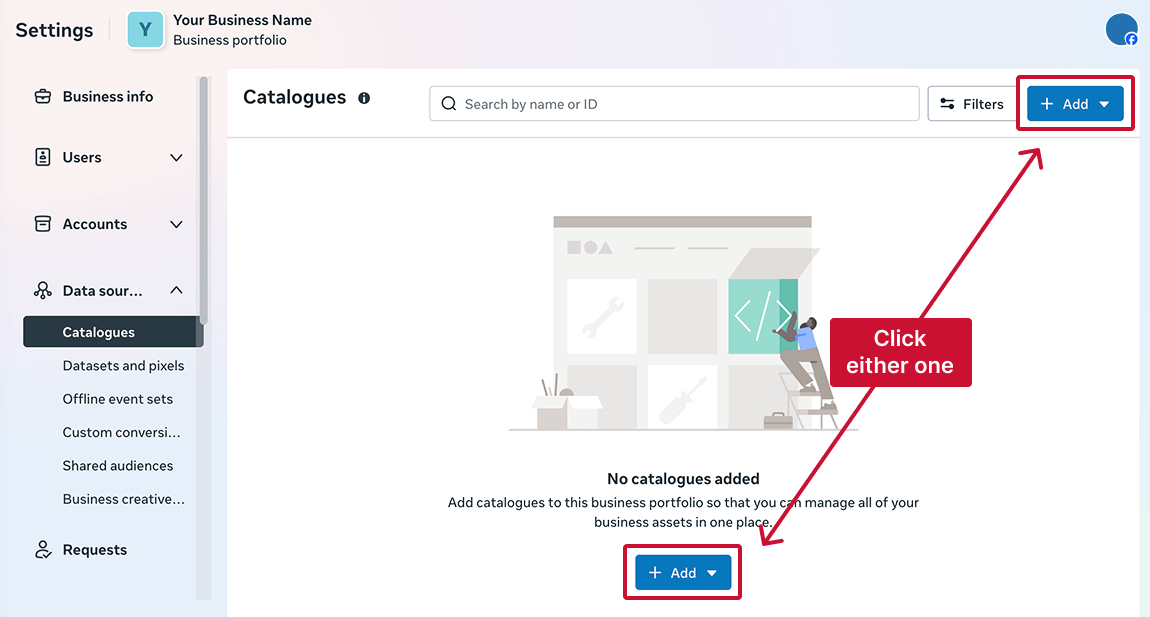
Step 1. Firstly, you'll need to know your Meta Business ID. Under Data sources > Catalogues (https://business.facebook.com/latest/settings/product_catalogs), click '+ Add'.
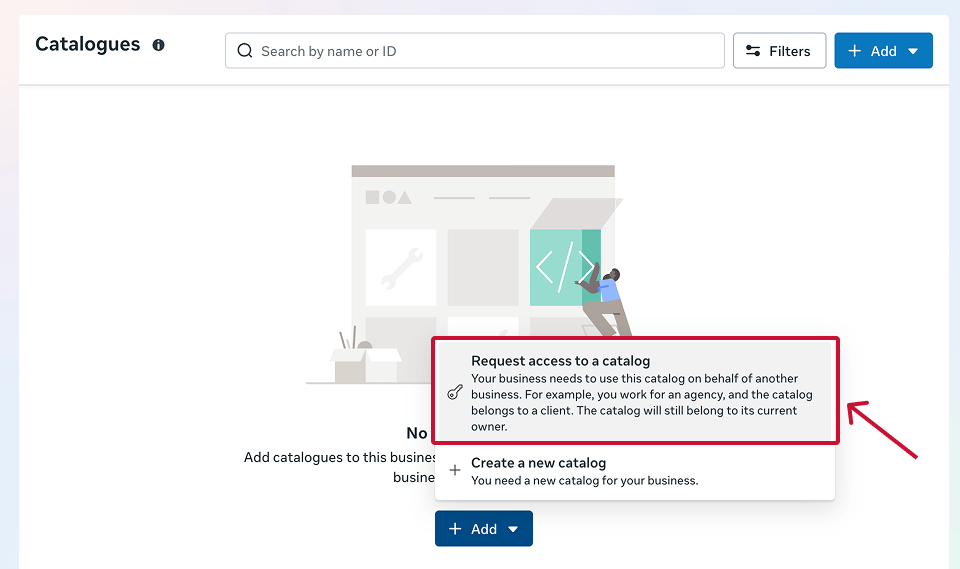
Step 2. Select 'Request access to a catalog'.
Step 3. Click 'Copy' to have your Business ID ready to send to the owner of the catalogue.

Step 4. Contact the owner of the Meta Catalogue and add you as a partner via your Business ID. See Part 1 above on how to give access to a catalog.
You may see a list of catalogues that belong to—or are shared with—your business even though you don't have the permissions to work with them or the products. Catalogues you don’t have access to will be labelled 'No access'.
Step 1. Select the catalogue you need, then click “Request access.”
The catalogue will now show “Access requested” in your settings. Your request will stay pending until someone with Full Control of the business approves it.
You’ll receive a notification by email and inside Business Suite once the request is approved or declined.
🔎 Note: Most of the time, you’ll be requesting Full Control. However, if you’re in a partner business that only has Partial Access to the catalogue, you can only request Partial Access.
If you’re an agency, requesting catalogue access manually through Meta Business Suite can be slow and confusing—especially when you’re relying on clients who aren’t familiar with Meta’s backend.
That’s where Leadsie makes the process easier.
Instead of walking clients through Meta’s UI or waiting for a Business Admin to approve a request they never see, you can simply send them a secure Leadsie link.
All they have to do is sign in, click approve, and Leadsie handles the technical steps in the background.
Here’s how it works:
It’s that simple! 🎉
✅ No Meta navigation — Clients don’t need to find Catalogues, Pages, Pixels, or Business Portfolios.
✅ Always reaches the correct admin — No more stalled or ignored access requests.
✅ Works even when clients don’t understand their Meta setup — No need for them to be tech-savvy or follow confusing steps.
✅ Fast, frictionless onboarding — One link, one click, access granted.
And best of all:
✅ Access to multiple assets with one link — Request catalogue access alongside ad accounts, Pages, and 14+ social and marketing platforms using the same single link.
Still sending onboarding emails, sharing PDFs, or jumping on calls just to get access to a client's accounts?
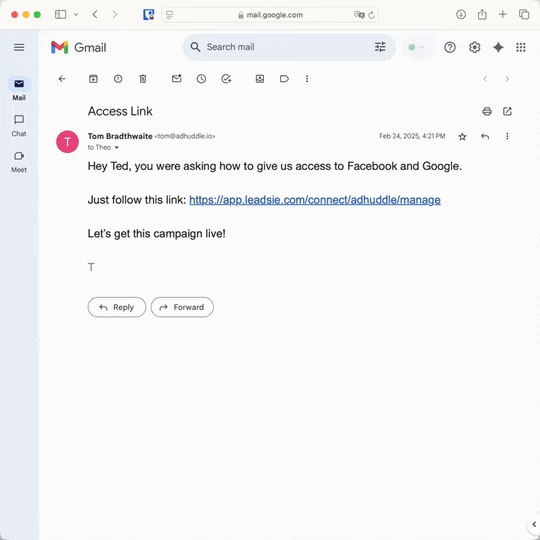
With Leadsie, one secure link handles the entire process. Clients can grant access to Meta, Google, LinkedIn, TikTok, Shopify, and 14+ marketing, advertising, and social media accounts without sharing passwords.
✅ Get access to client accounts in minutes, not days
✅ Replace hours of emails, admin work, and onboarding calls
✅ Scale client onboarding without adding operational overhead
✅ Reduce your agency's turnaround time by over 50%
✅ Start billable work and billing cycles sooner
✅ Create a professional onboarding experience that helps retain clients
✅ Keep access secure with 100% GDPR and CCPA-compliant workflows
💬 "I never want to do onboarding without Leadsie!" - Alyssa, Meta Ads Manager
🎁 Start your free 14-day trial today —no credit card required.
P.S. It's risk-free, and you get to keep your account connections after the trial ends. 🙌

Nina is an SEO content specialist with expertise in B2B SaaS. She helps businesses increase organic traffic with strategic, high-quality content. Outside of work, you’ll find her sailing somewhere in the Mediterranean.


Clients struggling to share access to their
accounts? Get the access you need in minutes with a free trial of Leadsie.
Approved by Meta, Google & Tiktok
Keep access to accounts if you cancel
Secure & 100% GDPR compliant
Delete your onboarding PDF. Cancel the video call. Just send one link, and get hassle-free access to 13+ platforms in minutes. Start free today.
Approved by Meta, Google & Tiktok
Keep access to clients' accounts if you cancel
Secure & 100% GDPR compliant
Use the catalogue that’s actually connected to your Shop, pixel, and active campaigns. Many businesses have older or duplicate catalogues from past setups, so check which one is currently linked under Data Sources > Catalogues > Connections.
If you’re unsure, ask your agency or check which catalogue your ads are pulling from.
Go to Business Settings > People and look for users with Full Control. Only they can approve catalogue access.
If you’re not sure who the admin is—or the business has multiple Business Portfolios—Leadsie’s Access Detective can surface the correct person instantly, so you don’t waste time chasing the wrong contact.
You can request a transfer only if:
Then go to Settings > Data Sources > Catalogues > [Catalogue] > Claim. The current owner must approve the request before it transfers.
Common reasons:
If you specifically see “No access,” you’re not in the correct business or don’t have the right permissions.
Because catalogue access alone isn’t enough. Agencies also need:
Missing any one of these will affect you running product-based ads.
Questions unanswered? Check out our help center or get in touch 🤠
© Leadsie Ltd 2024