Clients struggling to share access to their
Google Analytics
accounts? Get the access you need in minutes with a free trial of Leadsie.
14 day unlimited free trial
Extend until you onboard a client
No credit card required
Keep access to clients if you cancel


With easy one-link access requests for 13+ platforms your campaigns can go live in minutes, not days. Start free today.
Approved by Meta, Google & Tiktok
Keep access to clients' accounts if you cancel
Secure & 100% GDPR compliant



To give someone access to Google Analytics, go to Admin > Account Access Management or Property Access Management, click "Add Users," enter their email address, choose a permission level, and send the invitation.
Whether you’re sharing data with a colleague, freelancer, or marketing agency, you can give them the access they need without sharing your password. In this guide, we’ll explain the different permission levels, show you how to grant access step by step, and help you manage access securely.
🔗 Related article: How to request access to Google Analytics
Prefer a video? 👇
Giving permissions at the account level gives the new user access to all properties associated with the account, whereas access at the property level is specific to a website and/or app.
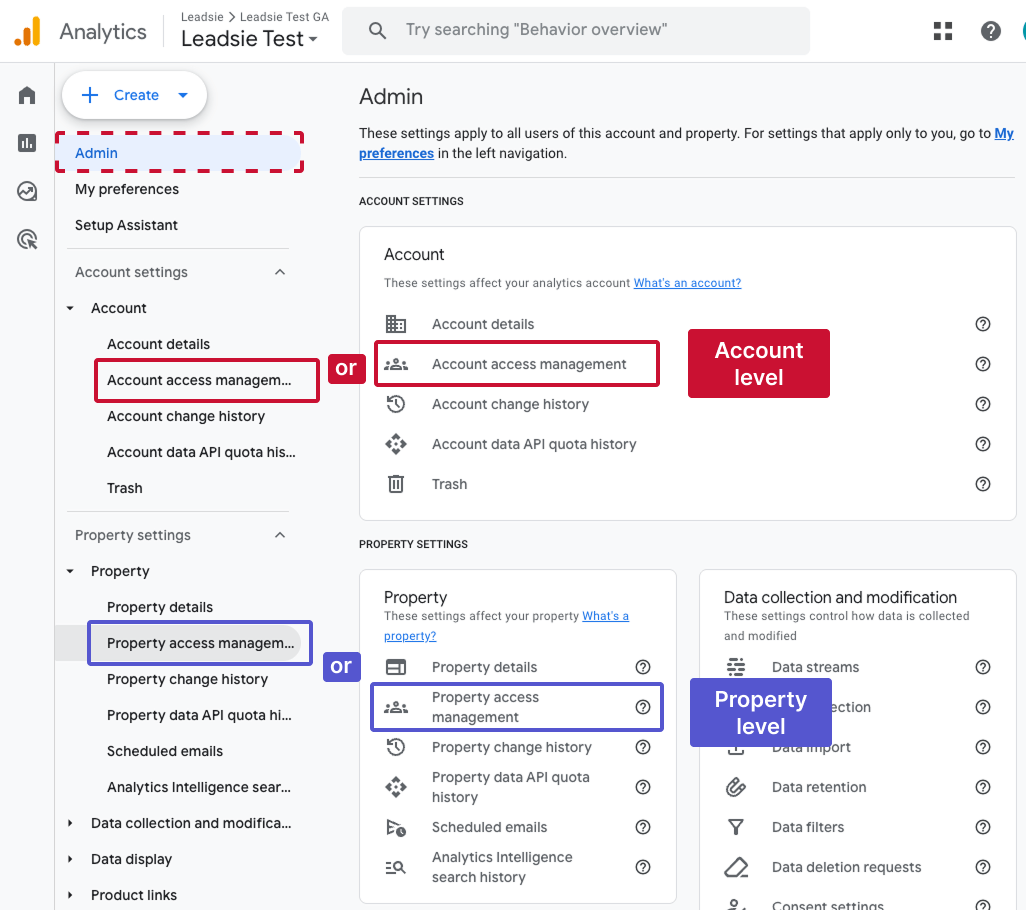
💡Note: You must be an admin at the level you’re managing to add or remove users. For example, an account Administrator for account-level access, or property Administrator for property-level access. Otherwise, you won’t be able to see the above options.
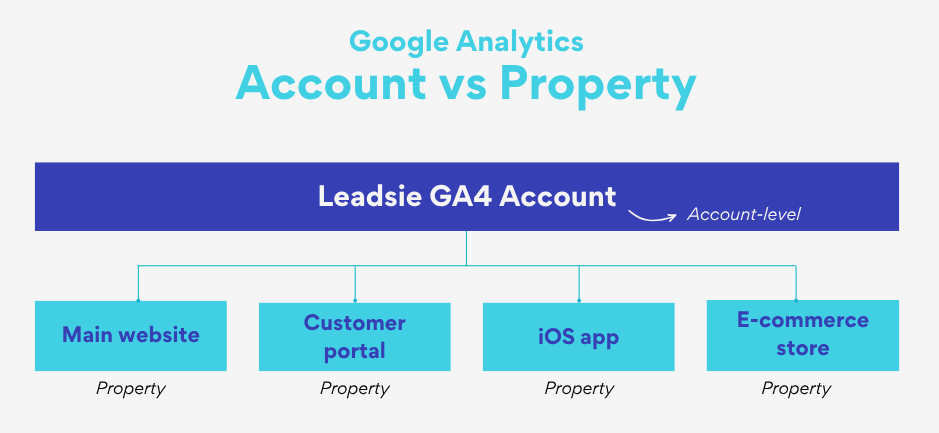
A Google Analytics account serves as the top-level container for the business, where each account can contain a collection of Properties. An organization or brand typically has one account and multiple Properties.
Properties are groupings of data from a website and/or apps that are being tracked. They only exist as part of an Account.
There are five GA4 roles you can assign to someone (either at the account or property level):
• Administrators can manage settings, create and edit properties, and add or remove users.
• Best for: your marketing managers and colleagues.
Because admins can access everything, it’s best to grant it sparingly and assign other roles instead. If necessary, your marketing or SEO leads, website managers, or highly trusted external partners like an ad agency might ask for admin access.
• Broad permissions to manage settings and configure properties.
• Cannot manage, add, or delete users.
• Best for: marketing team members (like SEO or PPC specialists) and data team members who need to customize tracking and reporting.
• Can create, edit, and delete audiences and events, configure attribution settings, and import key events as conversions into Google Ads.
• Cannot change property-level settings.
• Cannot manage users.
• Best for: performance marketers, paid media and PPC specialists, or anyone focused on ad campaign optimization.
💡 Pro tip: The Marketer role is also suitable for marketing agencies you work with as a solid middle ground. This role has sufficient permissions if you don’t need them to work on your GA4 property settings, which lets them do their work without the risk of accidental changes to your setup.
• Limited to reporting and analytics work.
• Can view reports but cannot change Analytics settings or manage users.
• Best for: data specialists, product marketers, or team members who need to analyse performance without changing the GA4 setup.
• Can see reports and settings and create their own explorations (custom reports for analysing data).
• Cannot change Analytics settings or share explorations.
• Best for: stakeholders and freelancers who only need to review data, such as SEO specialists and content creators.
Giving someone account-level access gives them access to every property within that Google Analytics account.
Note: You must have the Administrator role at the account level to add or manage users.
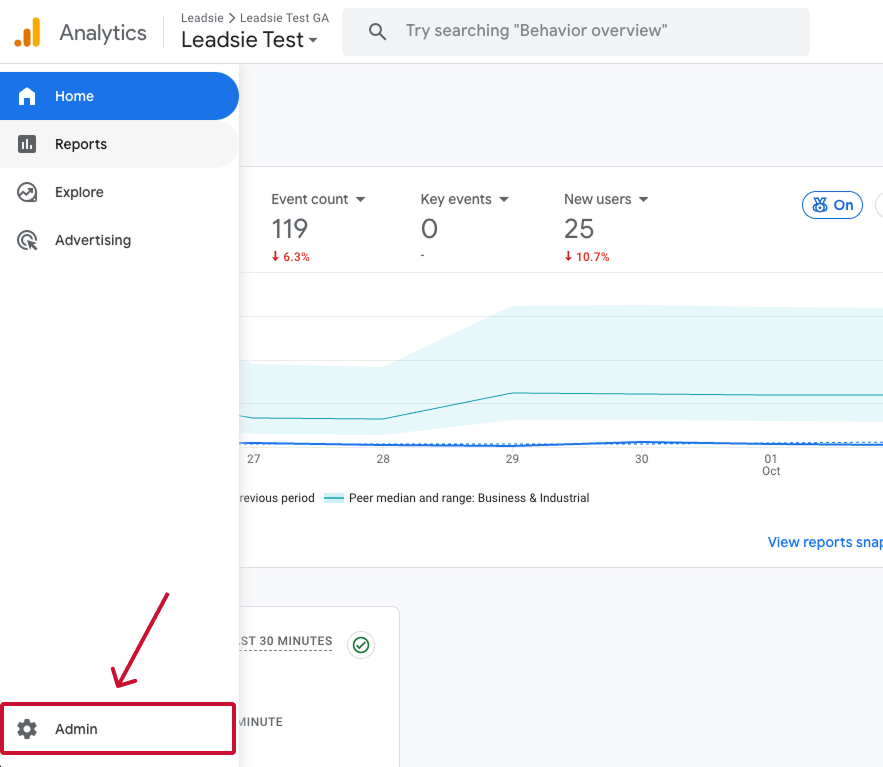
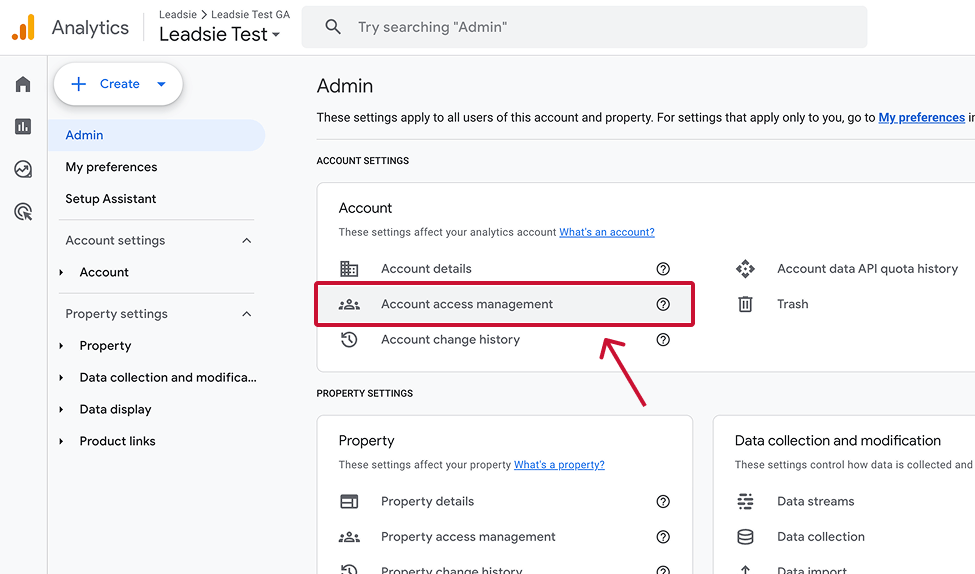
Log in @ https://analytics.google.com/analytics, then click “Admin” at the bottom of the left-hand menu.
If you haven’t created one yet, follow our guide on how to create a Google Analytics account.
Under Account, click “Account Access Management.” Click the “+” icon in the top-right corner, then select “Add users.”
Users added here will receive access to all properties within the account.
If you manage multiple users or teams, you can also add user groups. Learn more in the section on adding user groups to Google Analytics.
Enter the email address associated with the user’s Google Account or Google Workspace account. This can be a Gmail address or a non-Gmail address registered as a Google Account.
Select “Notify new users by email” if you want Google to notify them that they have been granted access.
Select the appropriate role, such as Viewer, Editor, or Administrator, and click “Add” in the top-right corner.
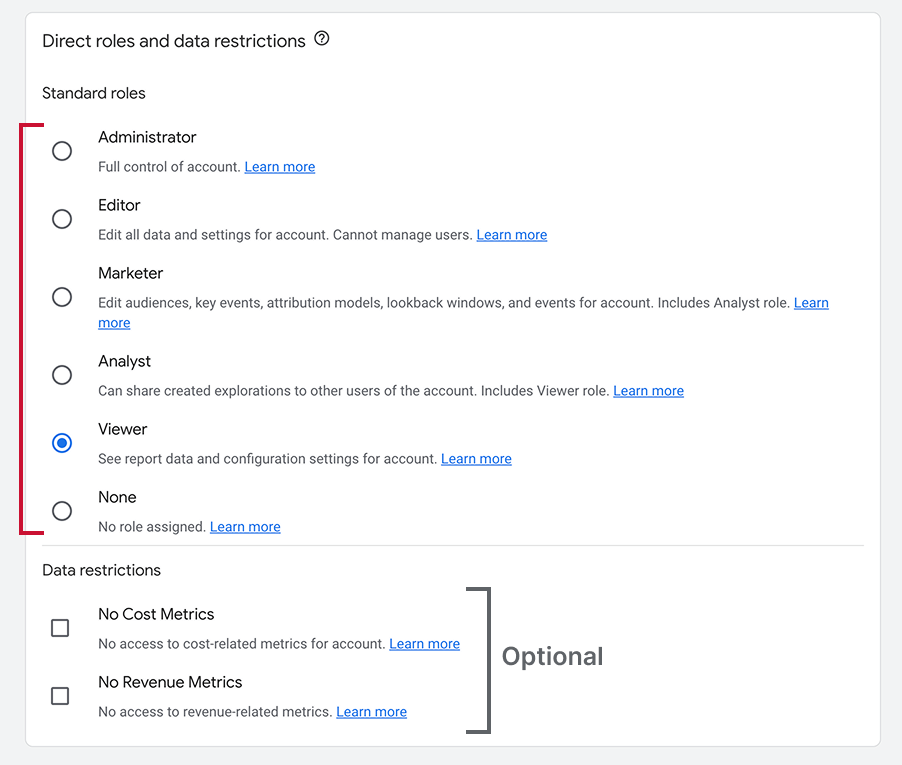
The user will now have access to the account and all its properties. They do not need to accept an invitation.
If you manage one or more teams, user groups offer a more efficient way to control access.
Instead of assigning the same permissions to each person individually, you can:
Everyone in the group receives the assigned permissions while retaining any existing permissions they already have.
User groups are especially useful for larger agencies and businesses managing multiple teams or Google Analytics properties.
❗ Important: To create user groups, your Google Analytics account must belong to a Google Marketing Platform organization. If it doesn’t, Google Analytics will guide you through creating and linking an organization when you create your first user group.
Property-level access limits the user to the selected property and its associated website and app data.
Note: You must be an Administrator at the property or account level to manage users.
Log in @ https://analytics.google.com/analytics, then click “Admin” at the bottom of the left-hand menu.
Select the property you want to share. Under Property, click “Property Access Management.”

Click the “+” icon in the top-right corner, then select “Add users.”

Enter the email address associated with the user’s Google Account or Google Workspace account.
Select “Notify new users by email” if you want Google to notify them that they have been granted access.
Select the appropriate role, such as Viewer, Editor, or Administrator, and click “Add” in the top-right corner.
The user will now have access to the selected property. They do not need to accept an invitation.
🔗 Managing local search too? Learn how to give access to a Google Business Profile.
You can change or remove a user’s access at either the account or property level.
⚠️ Important: Permissions inherited from the account level cannot be reduced at the property level.
For example, if someone has Editor access at the account level, you cannot limit them to Viewer on one of its properties. They will retain Editor access across every property in that account.
The reverse is possible: someone can have Editor access to one property and no access to the others.
Hiring a marketing agency, freelancer, or consultant? Giving them access to your marketing accounts shouldn't require endless emails, confusing permission settings, or sharing login credentials (too risky).
If your agency sent you a long PDF and asked you to navigate Meta Business settings and 5 other social platforms to grant them access, send them over to leadsie.com to automate this part of client onboarding for you.
With Leadsie, you can securely share access to Meta, Google, LinkedIn, TikTok, Shopify, and 14+ other marketing platforms via a secure link in just a few clicks.
✅ Approve only the permissions your agency actually needs
✅ No need to share passwords or sensitive login information
✅ Get campaigns, ads, and marketing projects started faster
✅ Keep account access secure with 100% GDPR and CCPA-compliant workflows
💬 "I never want to do onboarding without Leadsie!" - Alyssa, Meta Ads Manager
🎁 Start your free 14-day trial today —no credit card required.
P.S. It's risk-free, and you get to keep your account connections after the trial ends. 🙌

Nina is an SEO content specialist with expertise in B2B SaaS. She helps businesses increase organic traffic with strategic, high-quality content. Outside of work, you’ll find her sailing somewhere in the Mediterranean.


Clients struggling to share access to their
Google Analytics
accounts? Get the access you need in minutes with a free trial of Leadsie.
Approved by Meta, Google & Tiktok
Keep access to accounts if you cancel
Secure & 100% GDPR compliant
Delete your onboarding PDF. Cancel the video call. Just send one link, and get hassle-free access to 13+ platforms in minutes. Start free today.
Approved by Meta, Google & Tiktok
Keep access to clients' accounts if you cancel
Secure & 100% GDPR compliant
You may not have the required permissions. Only an Administrator at the relevant account or property level can add, remove, or manage users.
Go to “Admin,” then open Account Access Management or Property Access Management. If you can view the user list, anyone labelled Administrator has full access at that level.
Yes. An Administrator can apply the No Revenue Metrics or No Cost Metrics restriction in addition to the user’s assigned role.
Use Google’s Analytics account-access recovery process. You may be asked to prove that you control the website or app connected to the property.
In Google Analytics, go to Admin > Account Access Management and select Request access. Choose the access level you need and confirm your request. Google will email it to the account’s administrators.
Alternatively, you can use a client onboarding tool like Leadsie to send the account owner a secure access link, allowing them to grant the required Google Analytics permissions in minutes.
Important: You can only request account-level access, which covers every property in the account. If you only need access to one GA4 property, an existing Administrator must add you manually themselves.
Questions unanswered? Check out our help center or get in touch 🤠