Clients struggling to share access to their
Google Analytics
accounts? Get the access you need in minutes with a free trial of Leadsie.
14 day unlimited free trial
Extend until you onboard a client
No credit card required
Keep access to clients if you cancel


With easy one-link access requests for 13+ platforms your campaigns can go live in minutes, not days. Start free today.
Approved by Meta, Google & Tiktok
Keep access to clients' accounts if you cancel
Secure & 100% GDPR compliant



To regain access to a Google Analytics account, start by requesting access directly through the GA4 interface or contacting a current admin. If no admin exists, prove ownership by placing an analytics.txt file on your website's server and contacting Google Support. Deleted accounts can be restored within 35 days via the Admin Trash Can.
Whether you've lost access due to employee turnover, an agency transition, or simply forgotten who has access, we'll help you recover your Google Analytics account in no time. This guide walks you through how to verify your GA installation, track down existing admins, and work with Google Support to regain control of your account.
Locked out of your Google Analytics? It happens more often than you'd think and usually at the worst possible moment.
The most common culprit is employee turnover. A freelancer or ex-staff has set up the account years ago using their personal Gmail, left the company, and took the access with them. No malice involved, just an oversight that nobody caught until now.
Agency transitions cause similar headaches. Your previous marketing agency created the property on your behalf but never transferred full administrative rights. Now they've gone quiet, or worse, out of business entirely.
Then there's the classic "forgotten credentials" scenario. Teams change, years pass, and nobody remembers which Google account was originally used. The person who knew retired three years ago.
Sound familiar? The good news: recovery is possible in most cases.
🔗 Related articles: How to give access to Google Analytics, and How to request access to a Google Analytics account
Before diving into recovery, confirm that Google Analytics is actually tracking your site. There's no point in recovering an account that isn't collecting data in the first place.
Google Tag Assistant is a free Chrome extension that shows which Google tags are firing on any page. Install it, visit your website, and enable the extension.
It will display any GA4 tags (starting with "G-") or older Universal Analytics tags (starting with "UA-"). Write down the Property ID you find—you'll need it later when contacting Google Support.
Prefer not to install anything? Right-click on your homepage and select "View Page Source." Then search (Ctrl+F or Cmd+F) for "gtag.js", "UA-", or "G-".
If any of those appear in the code, Google Analytics is installed. The characters following "UA-" or "G-" are your Property ID.
Before escalating to Google Support, try these methods first. Finding an existing admin is the fastest route back in.
Start with the obvious: ask around. Current marketing team members, web developers, or IT staff might have access they've forgotten about.
Search your company's email archives for messages from Google Analytics. Even a "Welcome to Google Analytics" email from five years ago can reveal who originally set up the account. That person or their successor might still have admin rights.
If you have any level of access (even just "Viewer"), you can see who the administrators are. Navigate to Admin > Account > Account Access Management.
The panel lists all users and their permission levels. Look for anyone with "Administrator" or "Editor" access, as they can add you back with full permissions.
Did an external agency or freelancer set up your Google Analytics? They may still hold administrative access.
Reach out and request that they add your Google account as an "Administrator" and transfer full ownership. Most agencies will do this without issue, though response times vary.
💡 Pro Tip: To avoid this situation in the future, agencies can use onboarding tools like Leadsie to manage client permissions. It ensures clients always retain ownership from day one.
When you've exhausted all other options and can't find an admin, the official recovery process goes through Google Support. This is the path you take when you're completely locked out.
Google won't grant access without proof that you own the website associated with the Google Analytics property. You'll demonstrate ownership using one of four verification methods:
Upload a specific verification file to your website's root directory.
Add a specific tag to your homepage's <head> section in your CMS.
Add a TXT record to your domain's DNS configuration.Google Search ConsoleUse existing verification if your site is already verified there.
The HTML file method is often the quickest if you have FTP or cPanel access to your website. DNS verification works well if you manage your domain but not the website files directly.
Navigate to Google Ads's official help chatbot @ https://support.google.com/google-ads/gethelp. You'll answer a series of questions and provide:
Don't know your Property ID? Check your website's source code by searching for "G-" or "UA-" as described earlier.
Recovery isn't instant. The timeline ranges from a few days to several weeks, depending on complexity.
Simple cases where ownership is clear get resolved faster. Complex situations involving disputed ownership or multiple third parties take longer as Google investigates.
Having all your documentation ready upfront (e.g., Property ID, verification method prepared, clear explanation of the situation) can speed things up.
Once you've regained access, take steps to ensure this never happens again. A little prevention now saves a lot of frustration later.
Never rely on a single person having administrator access. Add at least one other trusted team member or a generic company email (e.g., marketing@yourcompany.com) as an administrator.
To add new users, go to Admin > Account Access Management and click the "+" icon. Select "Administrator" permissions for anyone who might need to manage access in the future.
Maintain a secure, shared document listing all your GA Property IDs, the Google accounts associated with them, and their access levels.
A password manager or internal company wiki works well for this. Update it whenever team members change or new properties get created.
For agencies, managing client permissions can be a major source of friction. The back-and-forth of "Can you add me to your account?" and "Where do I find that setting?" eats up hours every week.
A solution like Leadsie eliminates this by allowing clients to grant access securely with a single link. Proper permission levels get set and documented from the start. No more chasing permissions or losing access when team members change.
Every day spent waiting for account access is a day you're not launching campaigns, delivering results, or generating revenue.
Leadsie is a client onboarding software that helps agencies request and receive access to client marketing, advertising, and social media accounts with one secure link. Instead of managing endless emails, permission requests, and troubleshooting sessions, you send a link to your client, they approve the permissions you've requested, and you get access in minutes, not days.
Clients can grant access to Meta, Google, LinkedIn, TikTok, Shopify, and 14+ other marketing platforms without sharing passwords.
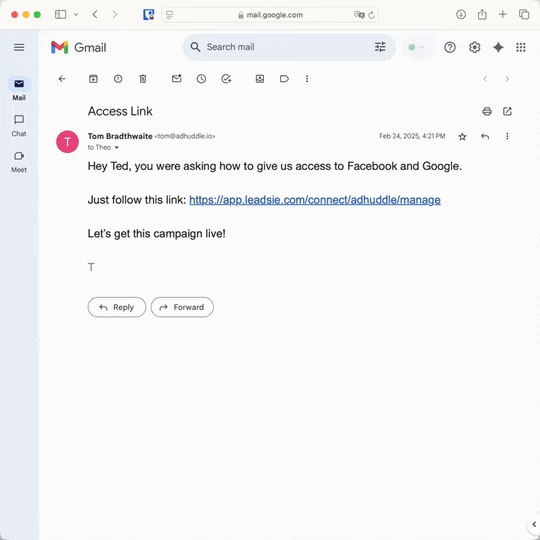
✅ Request, manage, and remove client access from one place
✅ Replace hours of emails, admin work, and onboarding calls
✅ Scale client onboarding without adding operational overhead
✅ Reduce your agency's turnaround time by over 50%
✅ Start billable work and billing cycles sooner
✅ Create a professional onboarding experience that helps retain clients
✅ Keep access secure with 100% GDPR and CCPA-compliant workflows
💬 "I never want to do onboarding without Leadsie!" - Alyssa, Meta Ads Manager
🎁 Start your free 14-day trial today —no credit card required.
P.S. It's risk-free, and you get to keep your account connections after the trial ends. 🙌

Jocelyn’s background spans UX research, marketing, content writing, and consulting. Outside of work, she enjoys reading, surfing, board games, billiards, Latin dancing, and MMORPGs.


Clients struggling to share access to their
Google Analytics
accounts? Get the access you need in minutes with a free trial of Leadsie.
Approved by Meta, Google & Tiktok
Keep access to accounts if you cancel
Secure & 100% GDPR compliant
Delete your onboarding PDF. Cancel the video call. Just send one link, and get hassle-free access to 13+ platforms in minutes. Start free today.
Approved by Meta, Google & Tiktok
Keep access to clients' accounts if you cancel
Secure & 100% GDPR compliant
A deleted Google Analytics account can only be recovered from the trash within 35 days. After that window closes, it's permanently deleted and cannot be recovered.
If you're within the timeframe, go to Admin > Account > Trash Can and click "Restore" next to the deleted property.
An Administrator can add you at the account level or to a specific GA4 property. You can also request access, but this requests an account-level role. For property-only access, an Administrator must add you manually.
For agencies, tools like Leadsie simplifies this client onboarding process by letting clients grant access through a secure link rather than navigating complex admin panels themselves.
🔗 Related articles: How to give access to Google Analytics, and How to request access to a Google Analytics account
Your historical data remains completely intact. The recovery process only restores your access to the account—it doesn't affect any analytics data that has already been collected.
Questions unanswered? Check out our help center or get in touch 🤠
© Leadsie Ltd 2024