Clients struggling to share access to their
Google Ads
accounts? Get the access you need in minutes with a free trial of Leadsie.
14 day unlimited free trial
Extend until you onboard a client
No credit card required
Keep access to clients if you cancel


With easy one-link access requests for 13+ platforms your campaigns can go live in minutes, not days. Start free today.
Approved by Meta, Google & Tiktok
Keep access to clients' accounts if you cancel
Secure & 100% GDPR compliant


To request access to a client's Google Ads account, link their account to your Google Ads Manager account (formerly known as Google MCC) using their 10-digit Customer ID. The client has to log in and approve your request after.
We also cover these two methods:
• No Manager account? Ask the client's account Admin to invite you by email instead, though they'll need to add each member of your team individually.
• Want to skip the back-and-forth? Use a client onboarding tool like Leadsie to request access through a single, secure link. No need to search for Customer IDs.
Here's a video walkthrough:
To link a client's Google Ads account to your Manager account (MCC), enter their 10-digit Customer ID in your sub-account settings and send a link request. Once the client approves it, you can manage all their campaigns from your MCC.
You'll need: a Google Ads Manager account, and your client's 10-digit Customer ID. It's shown at the top right of their Google Ads dashboard, formatted like 123-456-7890.
Sign in to your Manager account at ads.google.com.
From the left-hand menu, click Accounts, then select Sub-account settings. This is where you can view your linked client accounts and request access to new ones.
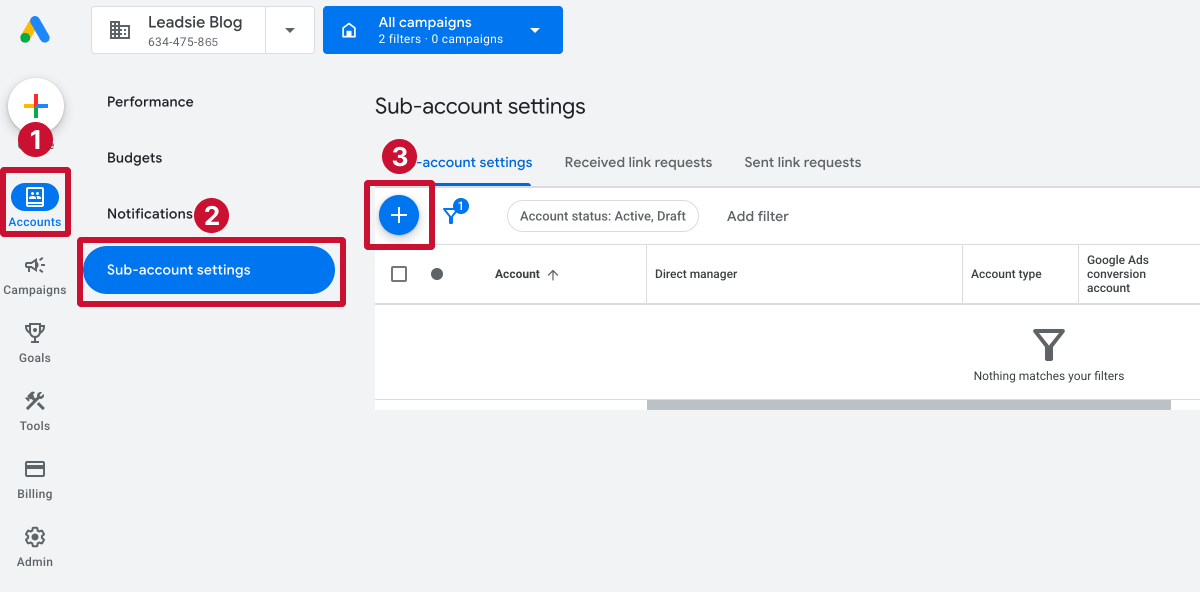
Click the blue + button and select Link existing account.
This lets you connect a client's existing Google Ads account to your MCC without creating a new account or affecting their existing campaigns.
Enter your client's 10-digit Customer ID in the field provided.
If they’re unsure how to find it, send them this guide to finding your Google Ads Customer ID: https://help.leadsie.com/article/125-find-google-ads-account-id
If you're requesting access to multiple Google Ads accounts, you can enter several Customer IDs at once, with one ID per line.
Click Send request to submit your access request to the client's Google Ads account.
Your client will then need to approve the request under Admin > Access and security > Managers in their own Google Ads account.
Once approved, their account will appear under Accounts in your Manager account, where you can access and manage their campaigns.
Note: Only an Admin can approve a link request. If your contact has Standard access, they'll need to ask whoever owns the account.
Need access to a client’s local listing too? Here’s how to request access to a Google Business Profile.
If you don't have a Google Ads Manager account (MCC), ask an Admin on the client's account to invite you directly. Here's how:
If other team members need access, the client will have to invite each person separately.
Ask for the minimum you need:
Only request Admin if the client explicitly wants you to manage their users. With Admin, you could remove them, and many clients (rightly) say no.
Leadsie is a client onboarding tool that helps agencies request access to clients' Google Ads and other social and advertising accounts through a single link, without chasing login details or Customer IDs.
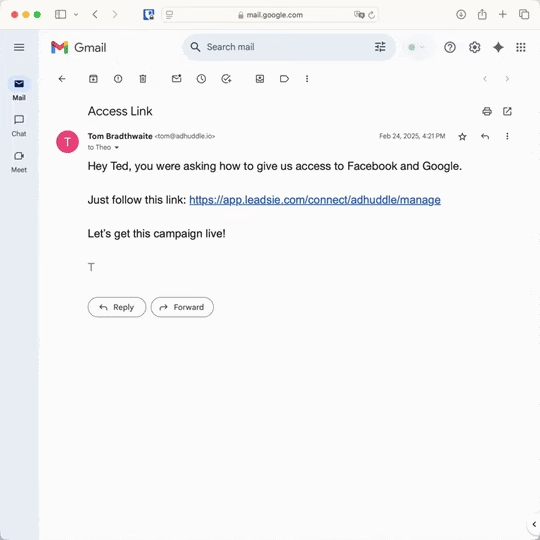
For Google Ads, it lets clients approve access to their accounts and link them to your MCC without manually sending or accepting link requests. Here's how it works:
That’s it!
No Customer IDs to chase, no follow-up asking clients to check their Managers tab, and one link can handle access requests across 14+ supported social and advertising platforms.
A Google Ads account is an individual account limited to managing your own advertising campaigns.
A Google Ads Manager account (MCC) lets agencies and marketers manage multiple Google Ads accounts from one dashboard and request access to clients' existing Google Ads accounts.
Still sending onboarding emails, sharing PDFs, or jumping on calls just to get access to a client's accounts?
With Leadsie, one secure link handles the entire process. Clients can grant access to Meta, Google, LinkedIn, TikTok, Shopify, and 14+ marketing, advertising, and social media accounts without sharing passwords.
✅ Get access to client accounts in minutes, not days
✅ Replace hours of emails, admin work, and onboarding calls
✅ Scale client onboarding without adding operational overhead
✅ Reduce your agency's turnaround time by over 50%
✅ Start billable work and billing cycles sooner
✅ Create a professional onboarding experience that helps retain clients
✅ Keep access secure with 100% GDPR and CCPA-compliant workflows
💬 "I never want to do onboarding without Leadsie!" - Alyssa, Meta Ads Manager
🎁 Start your free 14-day trial today —no credit card required.
P.S. It's risk-free, and you get to keep your account connections after the trial ends. 🙌

Sarah is a pro at writing articles that accelerate SaaS businesses' organic growth. When she’s not caught up in the thrill of content writing, you’ll find her surfing in the Atlantic Ocean and running her own yoga retreats.


Clients struggling to share access to their
Google Ads
accounts? Get the access you need in minutes with a free trial of Leadsie.
Approved by Meta, Google & Tiktok
Keep access to accounts if you cancel
Secure & 100% GDPR compliant
Delete your onboarding PDF. Cancel the video call. Just send one link, and get hassle-free access to 13+ platforms in minutes. Start free today.
Approved by Meta, Google & Tiktok
Keep access to clients' accounts if you cancel
Secure & 100% GDPR compliant
No, you can't send a Manager account link request without an MCC. Instead, ask an Admin on the client's account to invite you directly by email (Method 2).
Yes. A Customer ID identifies the account but doesn't grant access on its own. An account Admin must approve any link request before you can manage the account.
Once an Admin approves your link request, access is typically available immediately. Most delays happen while waiting for approval.
No, Google Ads user and Manager account access is granted at the account level, not for individual campaigns.
Questions unanswered? Check out our help center or get in touch 🤠