Clients struggling to share access to their
YouTube
accounts? Get the access you need in minutes with a free trial of Leadsie.
14 day unlimited free trial
Extend until you onboard a client
No credit card required
Keep access to clients if you cancel


With easy one-link access requests for 13+ platforms your campaigns can go live in minutes, not days. Start free today.
Approved by Meta, Google & Tiktok
Keep access to clients' accounts if you cancel
Secure & 100% GDPR compliant


If your agency needs access to a client’s YouTube channel, the right process depends on what you need to do.
To upload videos, manage content, or view analytics in YouTube Studio, the channel owner must invite your agency. YouTube doesn’t provide a native way for collaborators to initiate this type of access request.
Alternatively, you can use a client onboarding tool like Leadsie to send a single, secure access link that guides your client through reviewing and approving the permissions your agency needs.
💡If you only need advertising-related access through Google Ads, you can request to link the client’s channel (or an individual creator video) to your Google Ads account.
🔗 Related article: How to give access to a YouTube channel
You cannot initiate a native request for YouTube Studio channel permissions. The channel owner must invite the Google account your agency wants to use.
Send your client this guide: [How to give someone access to a YouTube channel]. It explains how to invite your agency through YouTube Studio > Settings > Permissions.
⚠️ Your client should never share their Google or YouTube password. YouTube’s channel permissions allow them to grant role-based access while retaining control of the channel.
The appropriate role depends on your responsibilities.
For a detailed breakdown of what each role can and can’t do, ask your client to review YouTube’s current role descriptions before approving access.
After the invitation is sent, your agency must accept it using the invited Google account. If the channel does not appear afterward, check that you are signed in with the same email address that received the invitation.
If your agency only needs to run or measure YouTube ads for a client, you can request a link between the client’s YouTube channel and your Google Ads account.
This can provide advertising-related capabilities such as:
Note: This method does not let your agency upload, delete, or edit videos. It also does not give your agency general access to the client’s YouTube Studio.
🔗 Related article: How to Create a Google Ads Account
Make sure your Google Ads account has administrative access; otherwise, you won’t be able to send a request. You can check this under Admin > Access and security in your Google Ads account.
💡 You can link up to 10,000 YouTube channels to a single Google Ads account, making this workflow suitable for agencies managing advertising across several clients.
Sign in to the Google Ads account your agency will use to manage the client’s YouTube advertising.
Open the Tools menu and select Data Manager.
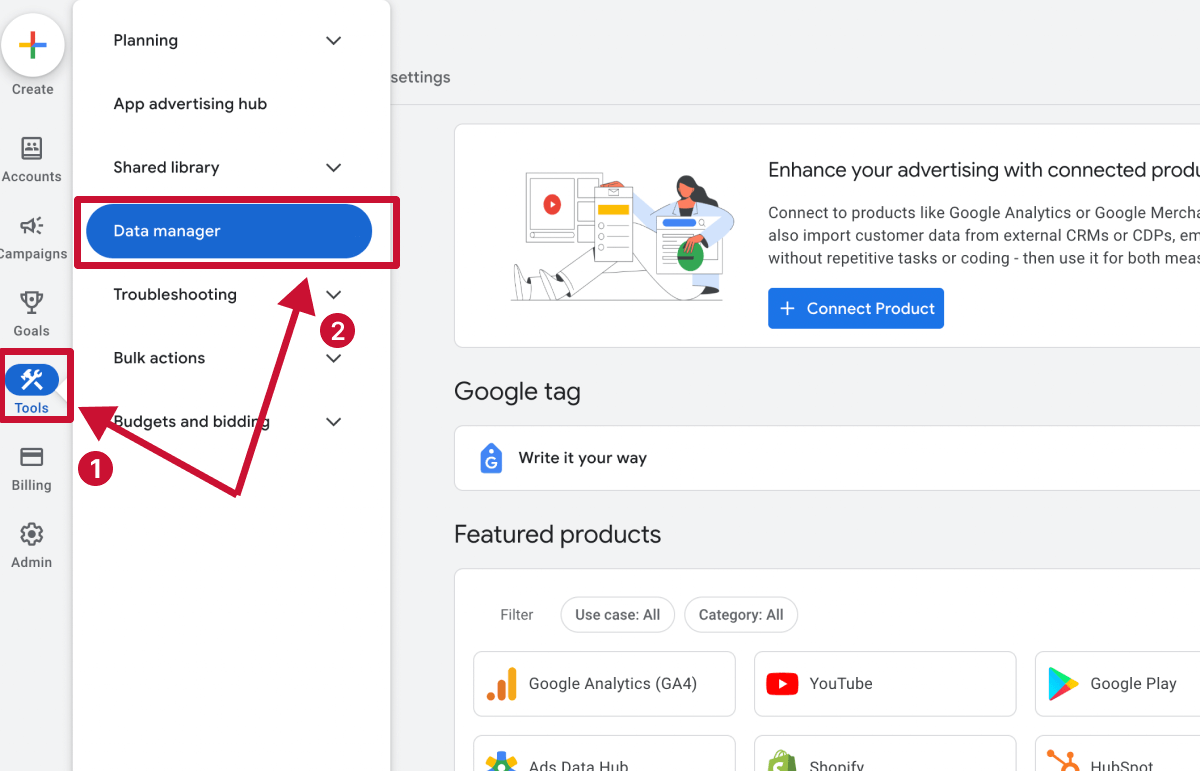
Select Connect Product to view the available integrations, then find and select YouTube.
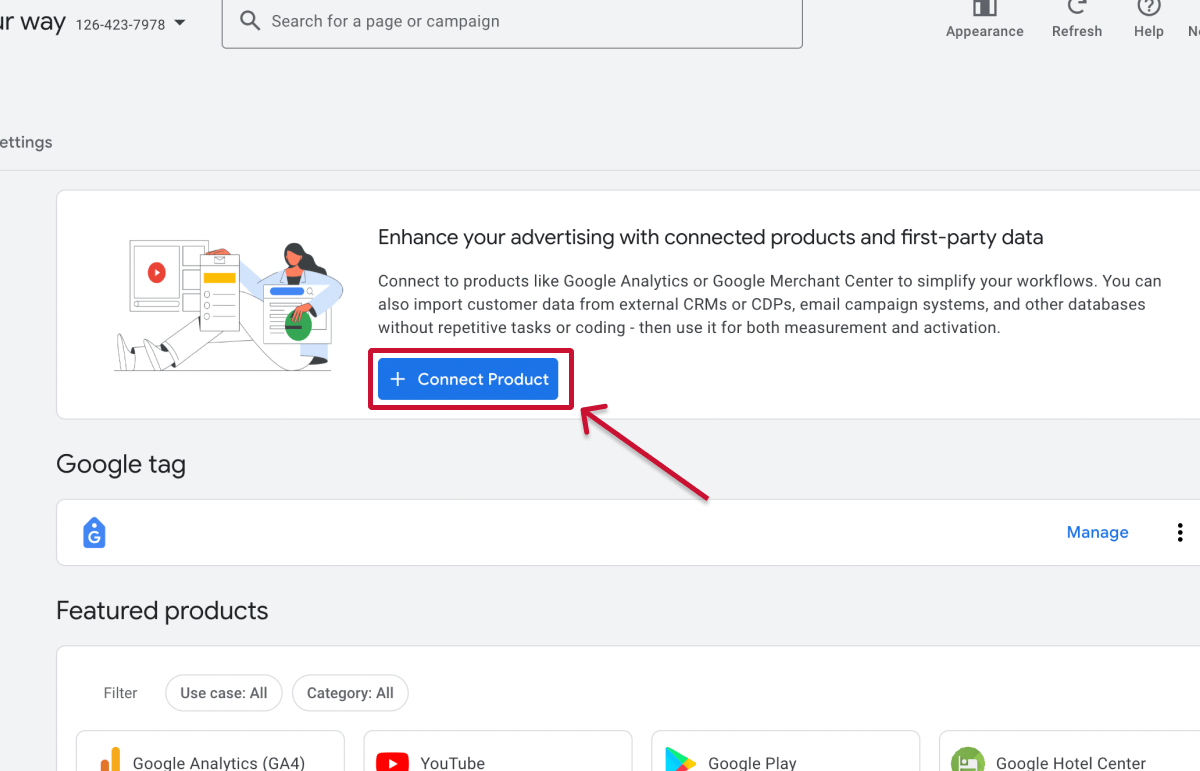
Choose Link channel, then search for the client’s channel name or paste its YouTube URL.
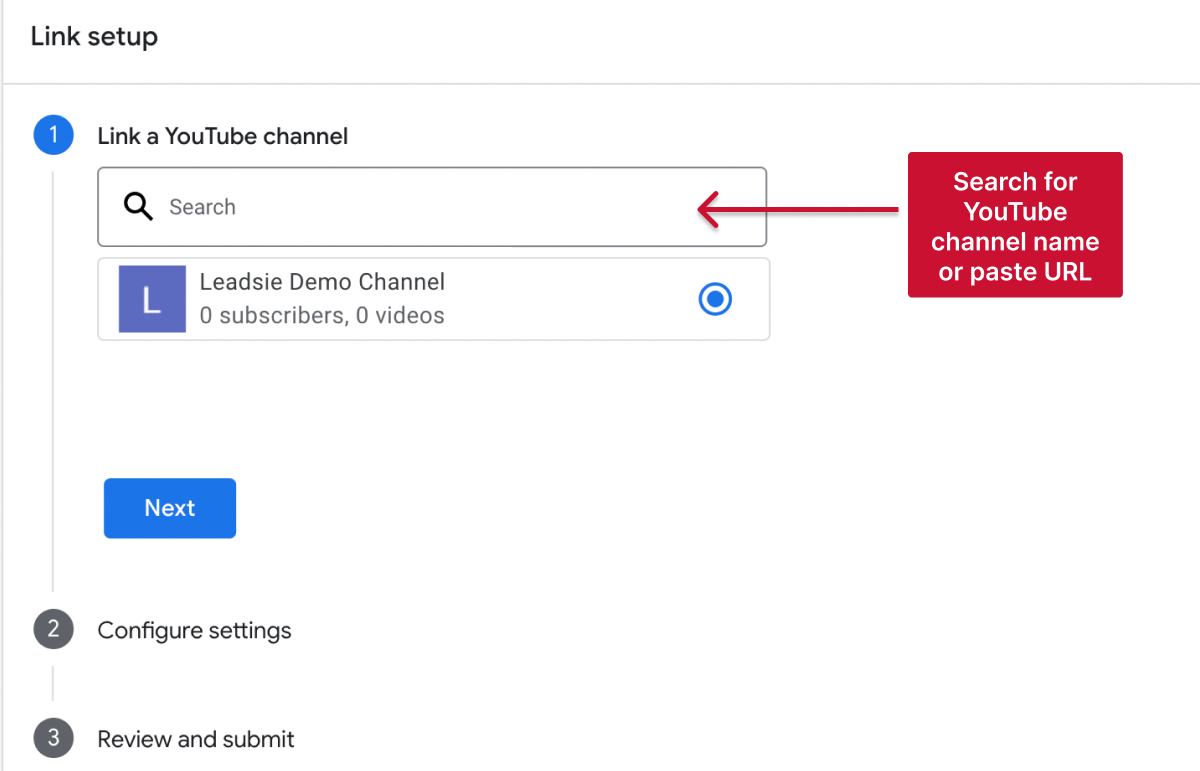
Using the channel URL can help you avoid selecting another channel with a similar name.
Enter the channel owner’s email address, review the channel details, and select Link to send the request.
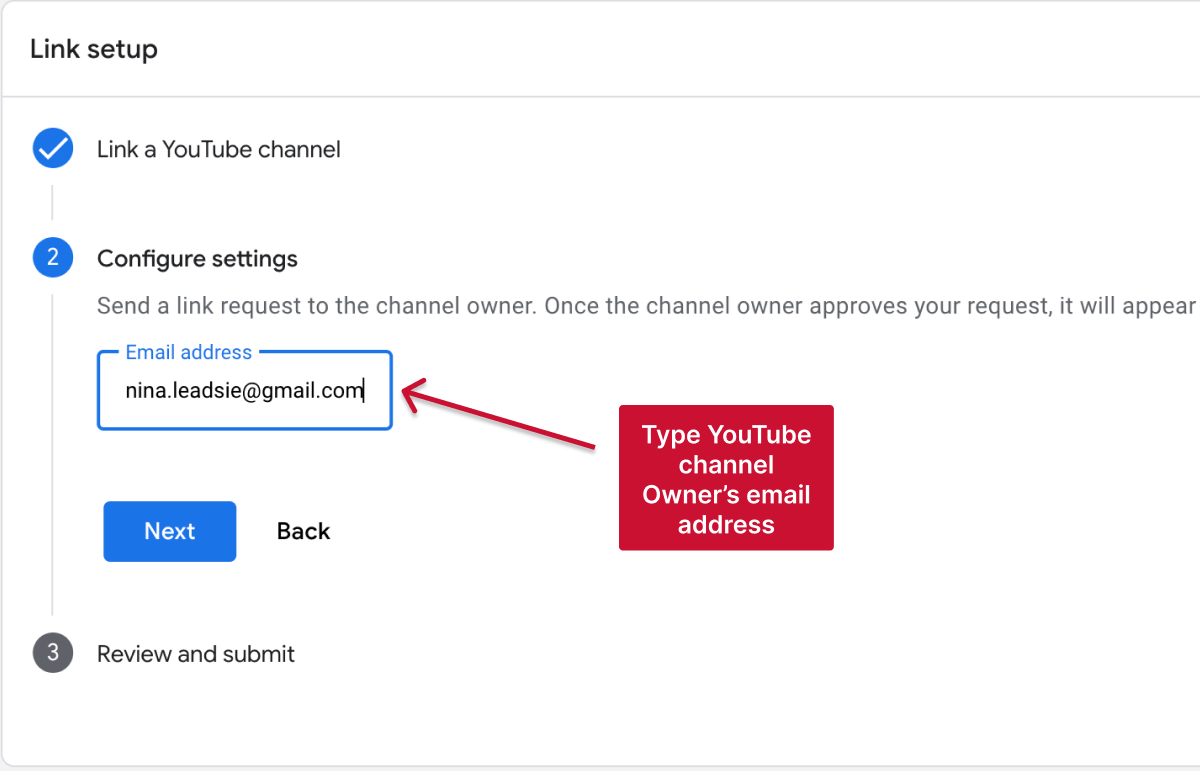
Make sure you use the email address associated with the client’s YouTube channel so the request reaches someone who can approve it.
The channel owner must approve the request before the link becomes active. After approval, they can review or remove the connection from their YouTube Studio settings.

❗ Important: Linking the accounts does not give the client access to your Google Ads account. It also does not give your agency full management access to the client’s YouTube channel.
🔗 Related article: How to Give or Request Access to Google Ads Accounts
If you only need access to specific creator videos, you can request it without linking the creator’s entire channel.
Access approval does not automatically provide all the legal rights needed to use the video in advertising. Your agency may still need a separate agreement with the creator or other rights holders.
Leadsie is a client onboarding software that provides an alternative way for agencies to request YouTube channel access. Instead of asking the client to navigate YouTube Studio and configure permissions manually, you can send them a secure access-request link.
Here’s how it works:
With Leadsie, requesting the YouTube access your agency needs takes just a few clicks, without requiring clients to navigate YouTube or Google Ads settings themselves.
This option is ideal for agencies onboarding multiple clients, as the same secure link can request access to YouTube, Google Ads, Meta, and 14+ other social media and advertising platforms.
Watch it on video 👇
Ask the client to confirm that they entered the correct email address, then check your spam or junk folder.
The client can also open YouTube Studio Settings > Permissions to see whether the invitation is still pending. If necessary, they can remove it and send a new invitation.
🔗 Related article: How to give access to a YouTube channel
Make sure you’re signed into YouTube with the same Google account that received the invitation.
Select your profile picture, choose Switch account, and look for the client’s channel. A common mistake is accepting the invitation with one account and opening YouTube Studio with another.
Your assigned role may not include the permission you need. For example, a Viewer cannot upload or manage videos, while limited roles may not provide access to revenue data.
Ask the client to check your role under YouTube Studio Settings > Permissions.
Linking a channel to Google Ads only provides advertising-related access. It does not let you upload videos, edit content, or manage the channel in YouTube Studio.
For channel management, the client must also invite your agency through YouTube Studio permissions.
If the channel still uses Brand Account roles, the primary owner may need to migrate to YouTube Studio channel permissions before adding your agency. They should not move the channel to another Brand Account just to grant access.
Still sending onboarding emails, sharing PDFs, or jumping on calls just to get access to a client's accounts?
With Leadsie, one secure link handles the entire process. Clients can grant access to Meta, Google, LinkedIn, TikTok, Shopify, and 14+ marketing, advertising, and social media accounts without sharing passwords.
✅ Get access to client accounts in minutes, not days
✅ Replace hours of emails, admin work, and onboarding calls
✅ Scale client onboarding without adding operational overhead
✅ Reduce your agency's turnaround time by over 50%
✅ Start billable work and billing cycles sooner
✅ Create a professional onboarding experience that helps retain clients
✅ Keep access secure with 100% GDPR and CCPA-compliant workflows
💬 "I never want to do onboarding without Leadsie!" - Alyssa, Meta Ads Manager
🎁 Start your free 14-day trial today —no credit card required.
P.S. It's risk-free, and you get to keep your account connections after the trial ends. 🙌

Sarah is a pro at writing articles that accelerate SaaS businesses' organic growth. When she’s not caught up in the thrill of content writing, you’ll find her surfing in the Atlantic Ocean and running her own yoga retreats.


Clients struggling to share access to their
YouTube
accounts? Get the access you need in minutes with a free trial of Leadsie.
Approved by Meta, Google & Tiktok
Keep access to accounts if you cancel
Secure & 100% GDPR compliant
Delete your onboarding PDF. Cancel the video call. Just send one link, and get hassle-free access to 13+ platforms in minutes. Start free today.
Approved by Meta, Google & Tiktok
Keep access to clients' accounts if you cancel
Secure & 100% GDPR compliant
A Brand Account is a special type of Google account made for businesses, creators, or teams who want to manage a YouTube channel together. Instead of one person owning everything, it allows multiple people to manage the same channel using their own Google accounts.
In the past, Brand Accounts were also how you shared access, but that’s no longer the case. Today, all roles and permissions are managed directly in YouTube Studio.
Yes, provided that the email address is associated with a Google Account. The agency must accept the invitation and access YouTube using that same account.
Yes. Each team member can be invited using their own Google Account and assigned an appropriate role. This is safer than sharing one agency login and makes individual access easier to remove.
Yes. YouTube Studio invitations expire after 30 days if they aren’t accepted. Once accepted, channel permissions remain active until someone with permission to manage access removes or changes them.
Yes. The client can remove Studio permissions or unlink the agency’s Google Ads account at any time. Agencies should include access removal in their offboarding process.
No. YouTube Studio channel permissions don’t provide delegated access through the YouTube API. An agency using an external application or reporting tool may need a separate Google OAuth authorization.
Questions unanswered? Check out our help center or get in touch 🤠