Clients struggling to share access to their
YouTube
accounts? Get the access you need in minutes with a free trial of Leadsie.
14 day unlimited free trial
Extend until you onboard a client
No credit card required
Keep access to clients if you cancel


With easy one-link access requests for 13+ platforms your campaigns can go live in minutes, not days. Start free today.
Approved by Meta, Google & Tiktok
Keep access to clients' accounts if you cancel
Secure & 100% GDPR compliant


To give someone access to your YouTube channel, go to YouTube Studio > Settings > Permissions > Invite, enter their Google email address, choose a role, and save the invitation. This is the recommended way to manage your channel.
If they only need to run ads, you can link their Google Ads account to your YouTube channel instead.
Never share your Google password. That one password may also give the person access to your Gmail, Google Analytics, Google Ads, Search Console, and other connected services. It also makes revoking access far more difficult when the collaboration ends.
🔗 Related article: How to request access to a YouTube channel
To give someone access to your YouTube channel, invite them through YouTube Studio and assign the appropriate permission level.
This is the most common way to share channel access because it lets you control what the person can see and do without sharing your Google password.
✅ Before you start: Only the owner or a manager can invite new users or manage permissions in YouTube Studio.
Go to YouTube Studio and sign in to the channel you want to share.
Make sure you’re using the correct Google account, especially if you own or manage multiple YouTube channels.
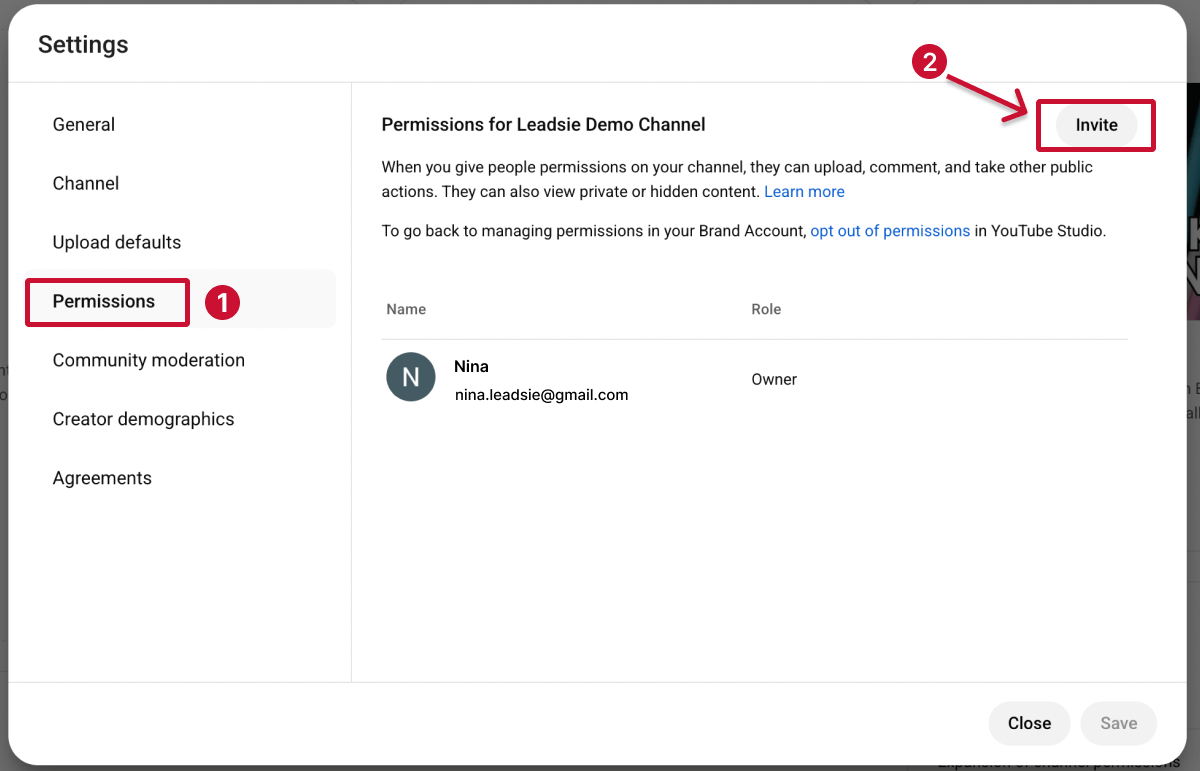
Click ⚙️ Settings in the bottom-left corner of YouTube Studio, then select Permissions from the left-hand menu.

See a “Move Permissions” option? Your channel still uses legacy Brand Account roles. To be able to assign granular roles such as Editor or Viewed, the Brand Account’s Primary Owner can select Move Permissions and switch to YouTube Studio permissions, which is what YouTube recommends for most teams.
If you don’t see this option, your channel is already using Studio permissions and you can continue to the next step.
Click Invite, then enter the email address associated with the person’s Google account.
They must have a Google account to access your channel. If that Google account has never been used with YouTube, they may need to create a basic YouTube channel before they can accept the invitation.
YouTube may also ask you to verify your identity by signing in to your Google account again.
Select the role that matches the person’s responsibilities, such as Manager, Editor, or Viewer.
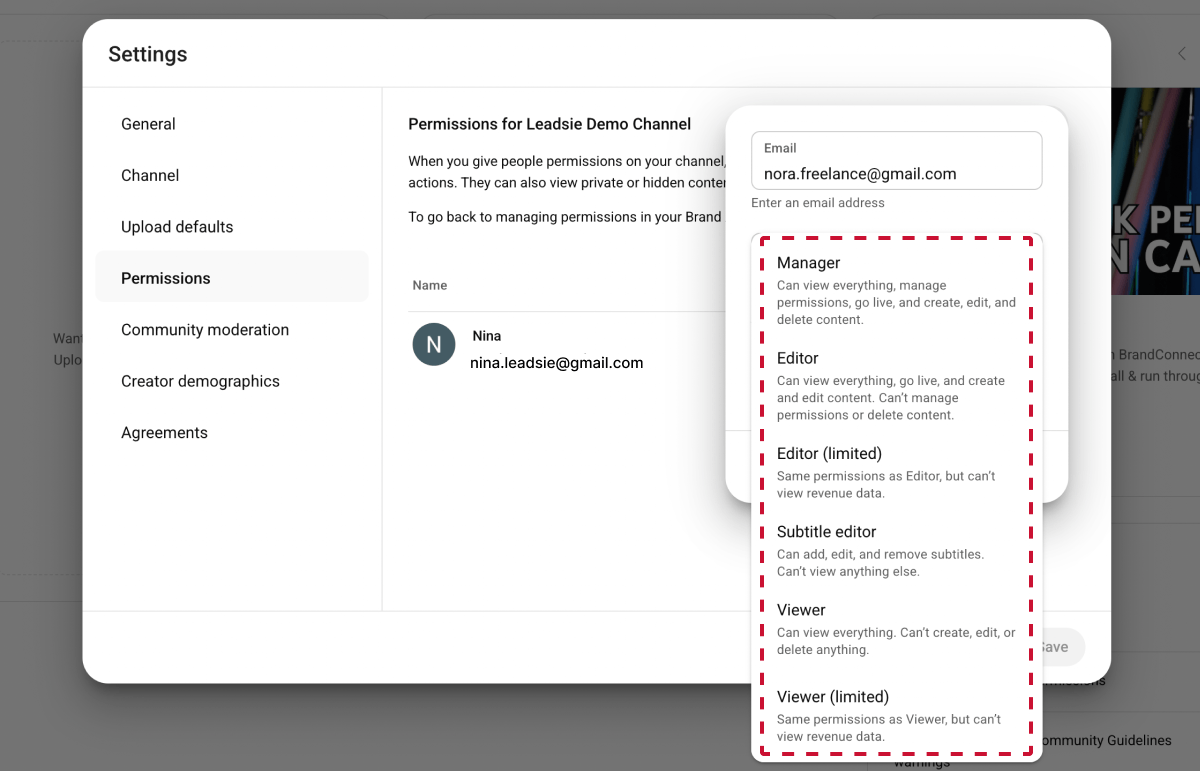
Only give collaborators the permissions they need. For example, a video editor will usually need Editor access, while someone who only needs to review performance data may only need Viewer access.
Click Done, then click Save to send the invitation (if you don’t click Save, the invitation won’t be sent).
The person will receive an email asking them to accept access to your YouTube channel. Until they accept it, their status will appear as Pending in your channel permissions.
⚠️ Note that YouTube invitations expire after 30 days, so if the person doesn’t accept the invitation before then, you’ll need to send a new one.
If you’re a larger organization that manages multiple YouTube channels (like a media network or MCN), you might also use YouTube Content Manager (CMS) to oversee all channels in one place.
However, even with CMS, access to an individual channel is still managed through YouTube Studio, so the steps above still apply.
When you invite someone through YouTube Studio, you can assign a role that controls what they can see and do on your channel. The available roles include Manager, Editor, Editor (Limited), Subtitle Editor, Viewer, and Viewer (Limited).
The Owner is shown in YouTube’s permission hierarchy, but it cannot be assigned through the standard YouTube Studio invitation menu. Channel or Brand Account ownership is managed separately.
⚠️ Careful: Managers can still invite others, so only assign this to highly trusted team members.
💡 Tip: Editor access is usually suitable for an agency that manages your content. It allows the agency to upload, publish, and optimize videos while preventing it from managing permissions, deleting published content, or deleting the channel.
❗ Important: Channel permissions currently only apply to your main YouTube channel. This means that invited users won’t be able to access YouTube Music, YouTube Kids, or YouTube APIs, even if they’re editors or managers. If they need that level of access, the channel owner will have to manage those parts directly.
There are plenty of situations where it makes sense to bring others on board your YouTube channel. Let’s look at some common scenarios:
Your freelance video editor will need access to upload edited videos, update titles/descriptions, and optimize thumbnails directly in YouTube Studio.
Social media managers need access to moderate comments, post updates, and monitor engagement so they can grow your channel’s community without constant micromanaging.
Agencies running campaigns or optimizing your content need permission to view analytics, improve video performance, and connect tools like Google Ads.
As your channel grows, you might need to hire someone to organize playlists, update metadata, clean up old videos, or ensure everything aligns with your brand.
If someone’s running ads for you, they may need to link your channel to Google Ads to build remarketing audiences or track conversions.
Don’t hand over access until you’ve vetted them or signed a contract. Permissions give collaborators significant control, so it’s important to trust them fully.
If you’re not sure what someone will be doing, hold off on granting access. It’s safer to define tasks first and only give them the level of permission they truly need.
If someone’s role changes or a collaboration ends, you can easily update or remove their access right in YouTube Studio (no need to reset passwords or revoke Google logins!)
Here’s how:
If you’re working with a marketing agency or paid ads specialist, they don’t always need full access to your YouTube channel. Instead, you can safely collaborate by linking your channel to their Google Ads account.
This allows them to run ads based on how people interact with your videos. For example, showing ads to people who watched a specific video, visited your channel, or engaged with your content before.
This method does not let them upload content, change settings, or manage anything in YouTube Studio. It’s purely for advertising and audience insights.
✅ Before you start: Ask the advertiser for their 10-digit Google Ads customer ID (found in top right corner of Google Ads dashboard). An administrator of the Google Ads account will need to approve the link before it becomes active.
Go to YouTube Studio and sign in to the channel you want to link.
You must have sufficient channel permissions to link a Google Ads account. YouTube currently allows channel Owners, Managers, and Editors to perform this action.
Click ⚙️ Settings in the bottom-left corner of YouTube Studio. Select Channel, then open the Advanced settings tab.

Scroll down to the Google Ads account linking section and click Link account.
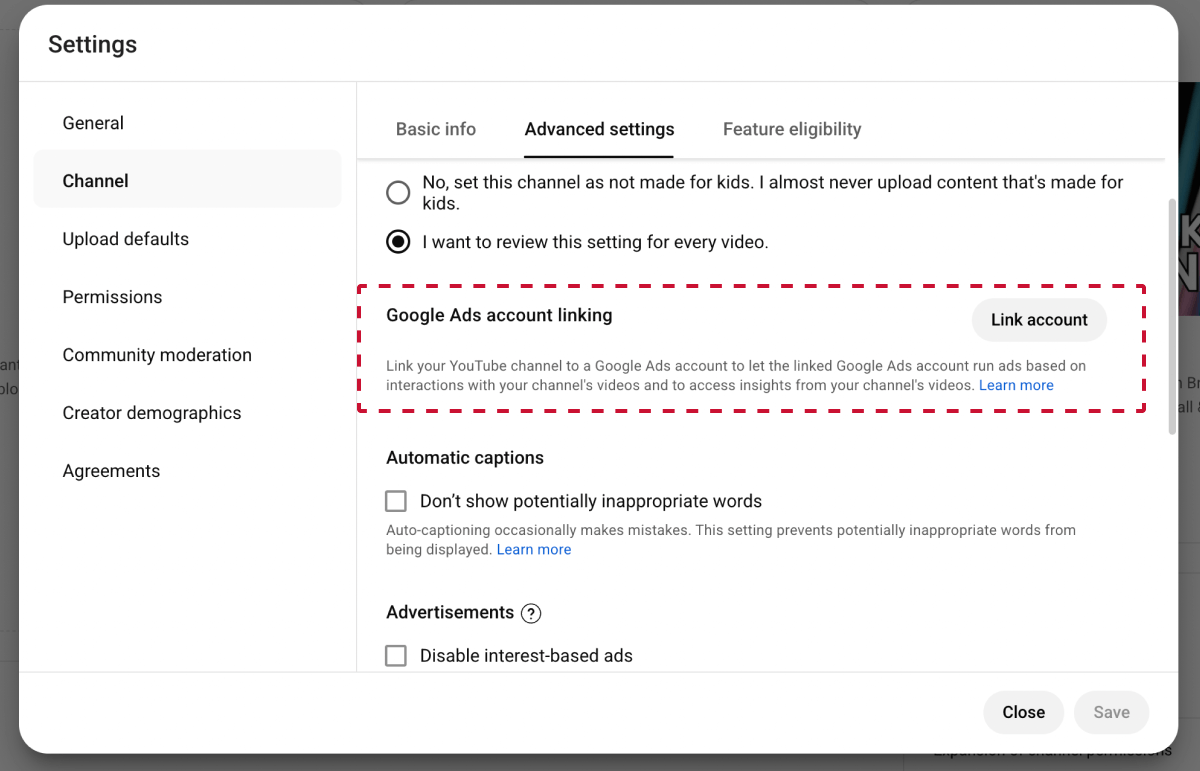
A YouTube channel can be linked to as many as 300 Google Ads accounts. However, you should only retain links to advertisers and agencies that currently work with your business.
Enter the following information:
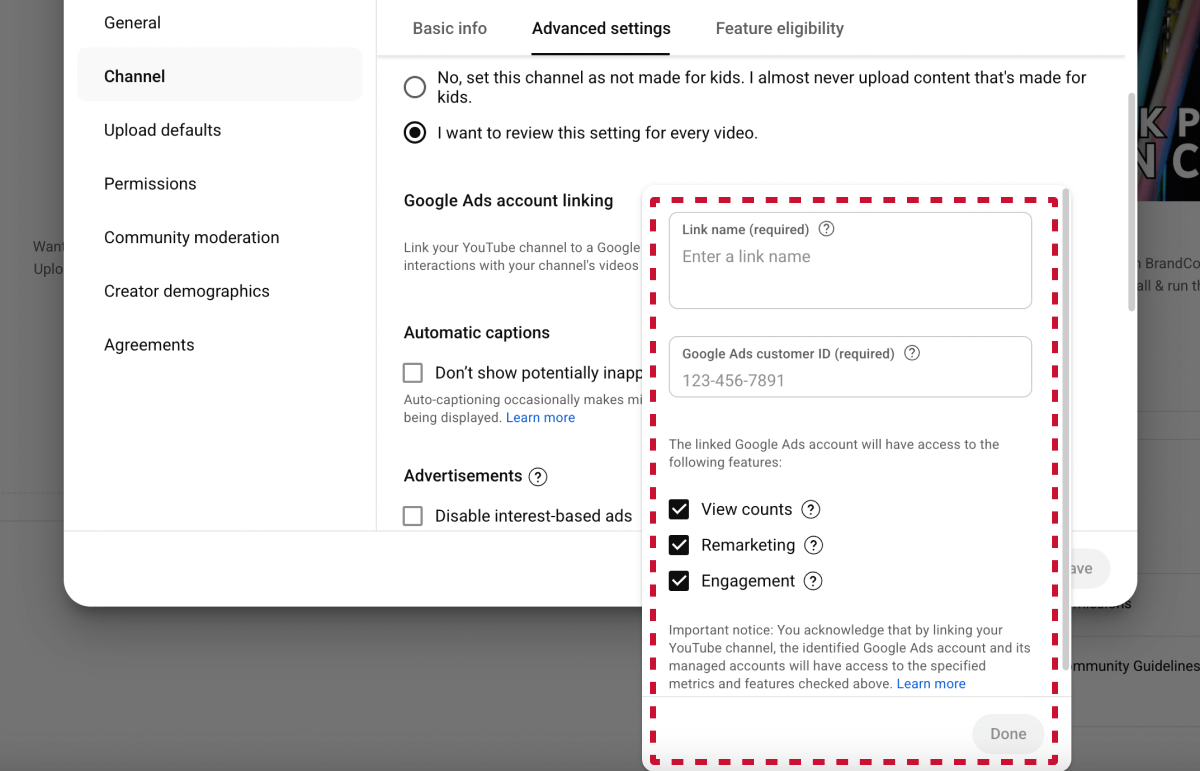
The available permissions include:
Click Done, then click Save to send the link request.
The Google Ads account administrator must approve the request before the accounts are linked. Until they approve it, the link will remain pending.
Once approved, the advertiser can use the permissions you selected, but they will not gain access to your videos, channel settings, or other YouTube Studio management features.
💡 Tip: If an agency manages your ads, they can also send the request from within their own Google Ads account.
🔗 Related article: How to request access to a YouTube channel
If you’ve stopped working with someone or simply want to remove their advertising access, you can unlink their Google Ads account anytime from YouTube Studio.
Here’s how:
Once unlinked, the advertiser will immediately lose access to any ad data or remarketing audiences connected to your channel.
Any active campaigns using your videos will continue running, but without access to updated engagement or viewer insights.
Your YouTube channel and YouTube Studio are part of the same account, but they serve different roles.
They’re often used interchangeably, but understanding the difference is helpful before you give someone access to your channel.
Your YouTube channel is the public-facing page of your account (it’s what viewers see when they search for your brand).
Think of it as your storefront: it holds all your publicly visible videos, playlists, community posts, and subscriber base.
While you can reply to comments or post updates directly on the channel, almost all management, including comment moderation, happens inside YouTube Studio. This also means that you can’t upload or edit content here.
Your YouTube Studio is the backend dashboard where you manage all aspects of your channel.
Nearly all day-to-day channel tasks happen here, including:
In short, when you give someone access to your YouTube channel, you’re technically giving them permission to manage it through YouTube Studio.
First, open YouTube Studio > Settings > Permissions and confirm that the invited email address is correct.
If the invitation appears as Pending, it was sent but has not been accepted. Ask the person to check their spam, junk, and promotions folders and make sure they are looking in the inbox for the Google account you invited.
If they still cannot find or accept it, cancel the pending invitation and send a new one. YouTube invitations expire after 30 days, so expired invitations must also be resent.
This usually happens when the person opens the invitation while signed in to a different Google account.
Ask them to open the invitation in a private or incognito browser window and sign in only with the Google account you invited. After accepting, they can select their profile picture in YouTube and use Switch account to open the shared channel.
If their Google account has never been used with YouTube, they may first be asked to create a basic YouTube channel for that account.
Make sure you’re signed in to the correct channel. This is particularly important if your Google account owns or manages several YouTube channels.
Only the channel Owner or a Manager can invite users or manage permissions. Editors and Viewers cannot access these controls.
If your channel still uses legacy Brand Account roles, YouTube may ask the channel owner to migrate to YouTube Studio permissions before new collaborators can be invited.
Hiring a marketing agency, freelancer, or consultant? Giving them access to your marketing accounts shouldn't require endless emails, confusing permission settings, or sharing login credentials (too risky).
If your agency sent you a long PDF and asked you to navigate Meta Business settings and 5 other social platforms to grant them access, send them over to leadsie.com to automate this part of client onboarding for you.
With Leadsie, you can securely share access to Meta, Google, LinkedIn, TikTok, Shopify, and 14+ other marketing platforms via a secure link in just a few clicks.
✅ Approve only the permissions your agency actually needs
✅ No need to share passwords or sensitive login information
✅ Get campaigns, ads, and marketing projects started faster
✅ Keep account access secure with 100% GDPR and CCPA-compliant workflows
💬 "I never want to do onboarding without Leadsie!" - Alyssa, Meta Ads Manager
🎁 Start your free 14-day trial today —no credit card required.
P.S. It's risk-free, and you get to keep your account connections after the trial ends. 🙌

Nina is an SEO content specialist with expertise in B2B SaaS. She helps businesses increase organic traffic with strategic, high-quality content. Outside of work, you’ll find her sailing somewhere in the Mediterranean.


Clients struggling to share access to their
YouTube
accounts? Get the access you need in minutes with a free trial of Leadsie.
Approved by Meta, Google & Tiktok
Keep access to accounts if you cancel
Secure & 100% GDPR compliant
Delete your onboarding PDF. Cancel the video call. Just send one link, and get hassle-free access to 13+ platforms in minutes. Start free today.
Approved by Meta, Google & Tiktok
Keep access to clients' accounts if you cancel
Secure & 100% GDPR compliant
The Owner role cannot be assigned through YouTube Studio. Channel ownership is tied to the Google account or Brand Account behind the channel and must be managed through Google Brand Account settings.
For employees, freelancers and agencies, use a Manager, Editor or Viewer role instead. Only use Brand Account ownership when someone genuinely needs long-term ownership or control of the channel.
Yes. Invite each person separately using their own Google account, then assign the appropriate permission. You can change or remove one person’s access without affecting anyone else.
🔗 Related article: How to request access to a YouTube channel
YouTube Studio permissions apply to the entire channel, not individual videos.
For advertising, eligible creators can give a Google Ads account permission to promote a specific video through YouTube Creator Partnerships. This does not provide editing access.
Public actions, such as publishing content, creating posts, and replying to comments, appear as actions by the channel.
Private activities, including searches, watch history, and purchases, remain connected to the collaborator’s personal Google account.
No. It only removes their access to your channel. It does not affect their Google account, Gmail, personal YouTube channel, subscriptions, or viewing history.
Questions unanswered? Check out our help center or get in touch 🤠