
Automate your onboarding now & join 1500+ agencies using Leadsie.
14 day unlimited free trial
Extend until you onboard a client
No credit card required
Keep access to clients if you cancel


Automate your onboarding now & join 1000+ agencies using Leadsie.
Approved by Meta, Google & Tiktok
Keep access to accounts if you cancel
Secure & 100% GDPR compliant


Have you ever had to refresh your inbox a few times, then go to the Leadsie dashboard just to check if your client has given you account access? Now you can easily connect Leadsie to Slack via Zapier, to automatically send a channel message or a DM as soon as a client successfully connects their account.
You’ll already receive an email when a client gives you access to their accounts, but we know that no one checks emails these days. If your agency uses Slack, this article shows you how to set up an automation so that no one has to manually check or chase clients.
[Optional] A dedicated Slack channel just for these automated connection messages.
💡Note: If you set up your Leadsie account after June 2026, you can skip this section.
This article shows you the easiest way to set up this automation, which uses the field ‘Client summary text’. The steps here explain how to fix the issue where you can’t find it when setting up the Zap.
Step 1: Log in to your Leadsie account > Click ‘Settings’ in the top right corner > Click ‘Webhooks & API’ - or use this direct link @ https://app.leadsie.com/my/webhooks
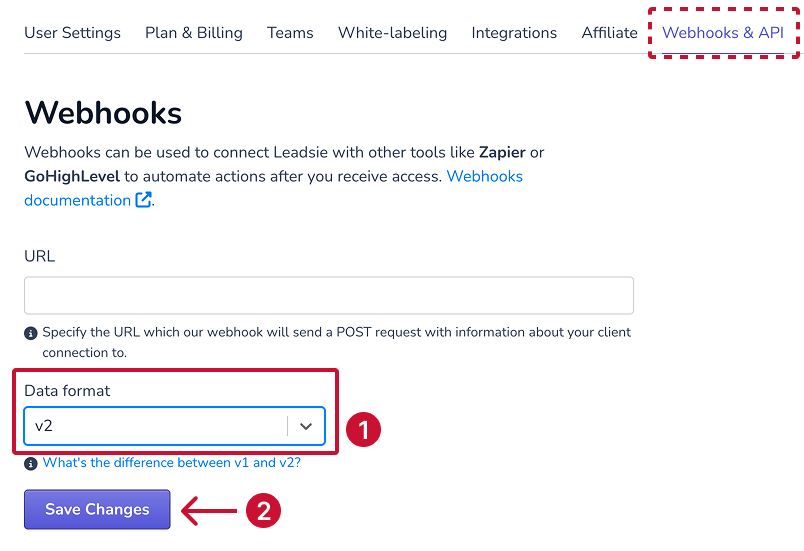
Step 3: Click ‘Save Changes’, then proceed to the next section.
If you were already in the middle of setting up the Zap, refresh the page in Zapier.
These steps guide you through receiving a summary message on Slack whenever a client grants you access from the Leadsie link you sent them.
Step 1: Log in to Zapier.com and click ‘Create’ > ‘Zap’
.png)
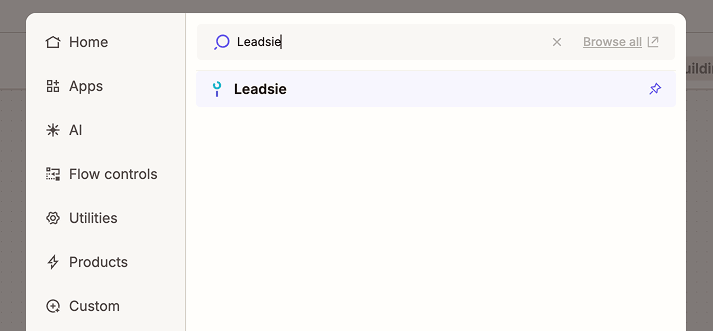
Step 2: Click ‘Trigger’ >Type Leadsie into the search field > Select ‘Leadsie’ when it appears.
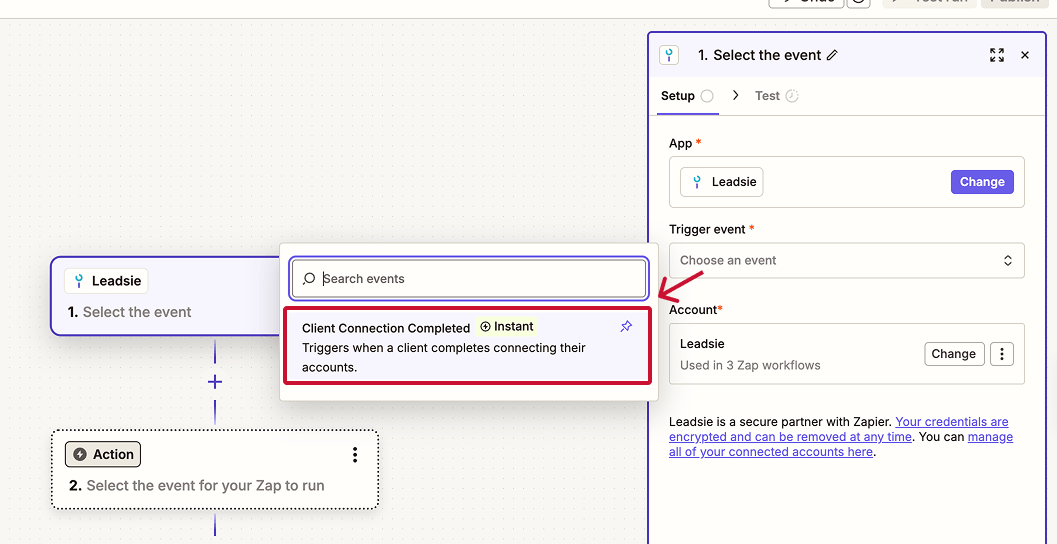
Step 3: In the editing area, click ‘Choose an event’ > Select ‘Client Connection Completed’.
Step 4: Under Account, click on the purple ’Select’ button > Select the appropriate Leadsie account, sign in to Leadsie, or connect a new Leadsie account. Click ‘Continue’ after.
Step 5: Click ‘Test trigger’. It may take a few seconds for Zapier to load recent records from Leadsie. Then, select a client record to test this Zap with and click ‘Continue with selected record’.
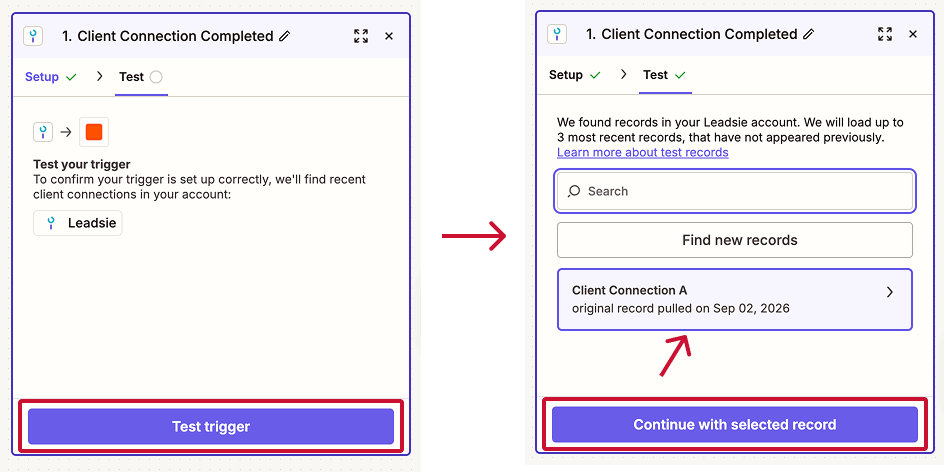
💡 Note: The data you see during the setup is test account data. Scroll down to the ‘Example Slackbot message’ section to see how an actual message will look.
Step 6: Next, a pop-up appears for the second half of the Zap workflow. Type Slack into the search field > Select ‘Slack’ when it appears.
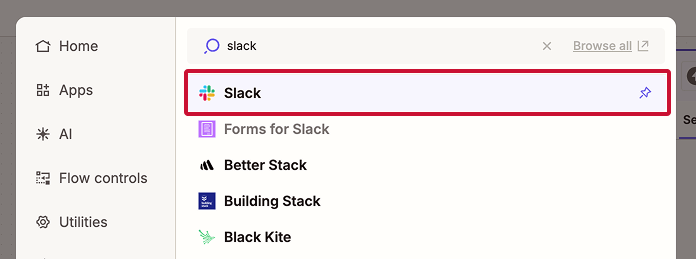
Step 7: Under Action event, select ‘Channel message’. This can be a new message or a thread reply.
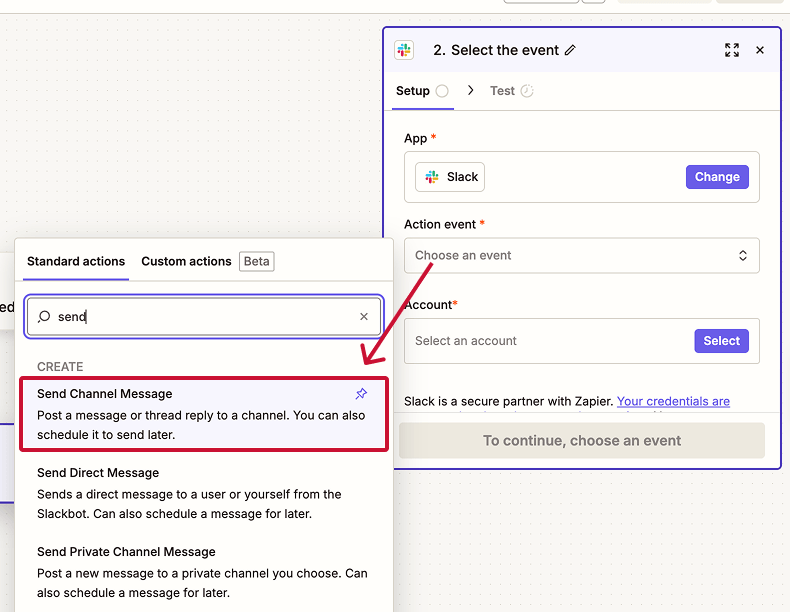
Your other options are:
💡Pro Tip: The best way to keep things neat is to set up a dedicated Slack channel just for these messages. This way, your whole team gets notified every time your client gets connected, without notifications getting lost in an inbox or among other channels.
Step 8: Under Account, select your Slack account. Click ‘Continue’
Step 9: Choose a Slack channel (if you’ve selected Channel message or Private channel message). Create a new Slack channel if needed, then click on the refresh button.
Step 10: In Message Text, type this in the text field: /summary
Note: When you type / into the field, it shows you a list of available field mappings. You can use a mix of field mappings and regular text here.
Then, select ‘Connection Summary Text’ in the pop-up that appears.
.png)
Feel free to tweak the other settings, or click ‘Continue’ to move on.
💡Tip: If Connection Summary Text does not appear as an option, you’ll need to check your Leadsie Webhooks & API settings (see the section above, Before you start).
Step 11: Click ‘Test step’ and check the Slack channel or DM. Then click ‘Publish’.
This is how the connection success message will look when you select ‘Connection summary text’ in Zapier. You can customize the message to suit your needs, but this summary should work well for most cases.
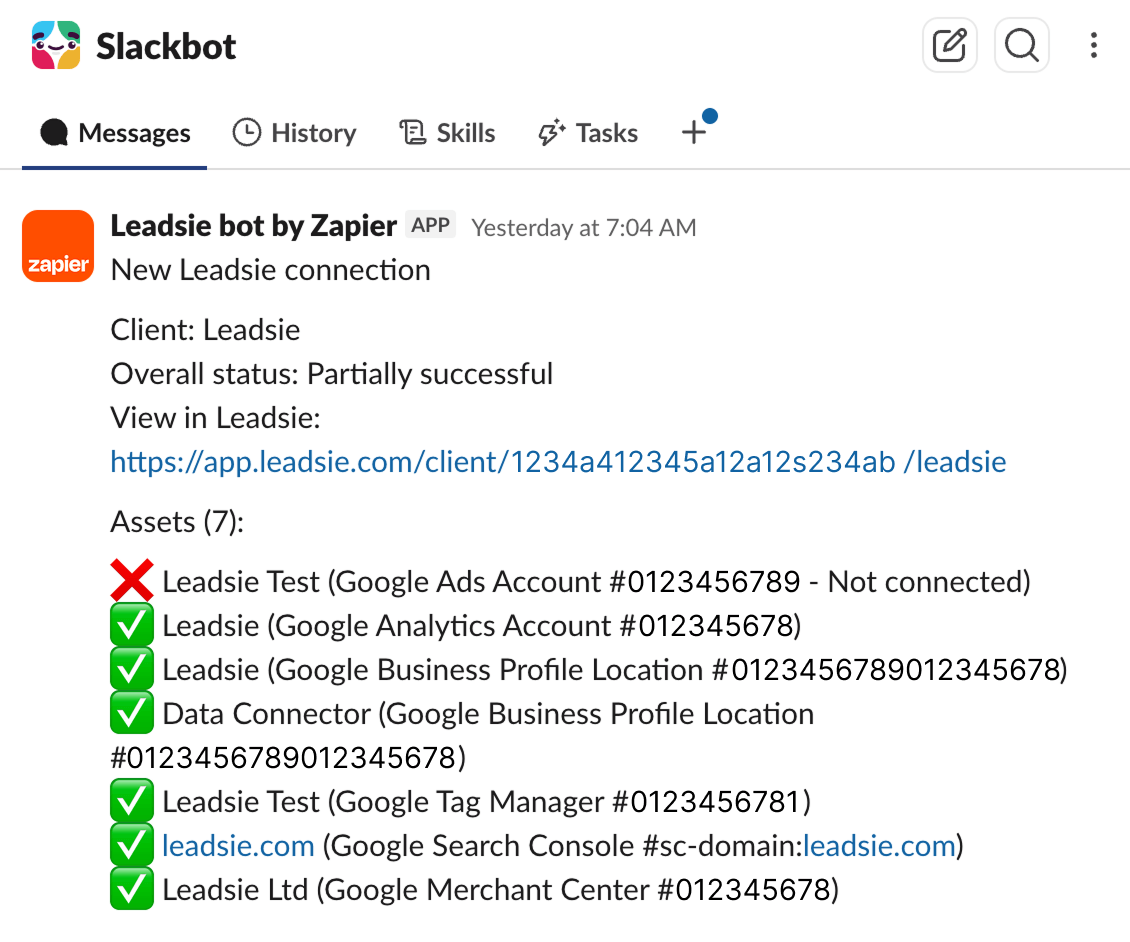
There might be a situation where you have requested a list of marketing assets (e.g., Facebook ad account, Instagram, Business Portfolio, etc.), but your client was unable to give you access to one or more of them.
As long as they have made an attempt to grant access through the Leadsie link you sent, this is how your Slack message will look:

Your client might not have access to share the accounts, and need to forward the Leadsie Link to someone who does - the link will help them find out who the account owner is, where possible.
They might not have set up the accounts, and need to create them before sharing them; for Meta assets, the Leadsie Link will help them do so.
An alternative method to receive Leadsie connection notifications in Slack is to use the native channel email addresses feature (paid Slack plans only).
Instructions on how to Send Leadsie notifications to Slack with channel email.
Still sending onboarding emails, sharing PDFs, or jumping on calls just to get access to a client's accounts?
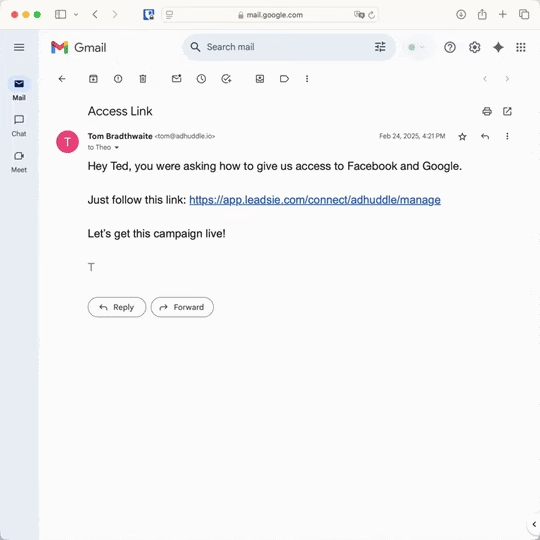
With Leadsie, one secure link handles the entire process. Clients can grant access to Meta, Google, LinkedIn, TikTok, Shopify, and 14+ marketing, advertising, and social media accounts without sharing passwords.
✅ Get access to client accounts in minutes, not days
✅ Replace hours of emails, admin work, and onboarding calls
✅ Scale client onboarding without adding operational overhead
✅ Reduce your agency's turnaround time by over 50%
✅ Start billable work and billing cycles sooner
✅ Create a professional onboarding experience that helps retain clients
✅ Keep access secure with 100% GDPR and CCPA-compliant workflows
💬 "I never want to do onboarding without Leadsie!" - Alyssa, Meta Ads Manager
🎁 Start your free 14-day trial today —no credit card required.
P.S. It's risk-free, and you get to keep your account connections after the trial ends. 🙌

Hannah has a background in growth and product, with a soft spot for spreadsheets and data. Hannah loves working on tools that genuinely make life easier, especially when it comes to dodging admin (which should definitely be automated into oblivion). Fun fact: once made an entire team sit down and watch The Princess Bride. An essential part of onboarding, obviously.


Automate your onboarding now & join 1500+ agencies using Leadsie.
14 day unlimited trial
Extend until you onboard a client
No credit card required
Keep access to accounts if you cancel
Approved by Meta, Google & TikTok
Secure & 100% GDPR compliant
Automate your onboarding now & join 1000+ agencies using Leadsie.
Approved by Meta, Google & Tiktok
Keep access to accounts if you cancel
Secure & 100% GDPR compliant
Yes, you can use Zapier to connect Leadsie to thousands of other software and apps to automate your workflow.
Questions unanswered? Check out our help center or get in touch 🤠
© Leadsie Ltd 2024


